Reservations
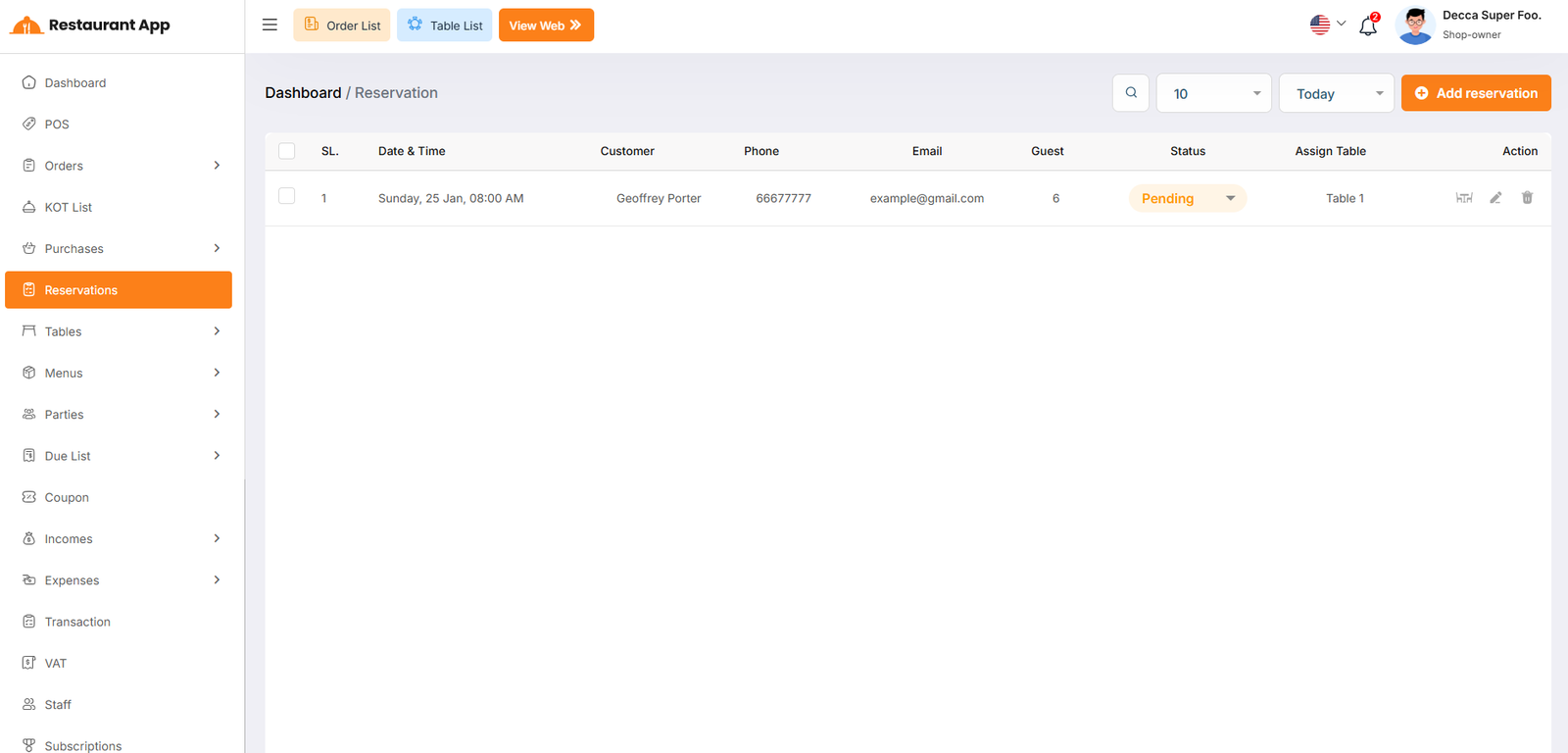
Reservation List
The Reservations page allows restaurant management to organize bookings, assign seating, and track guest details to ensure a smooth dining experience.
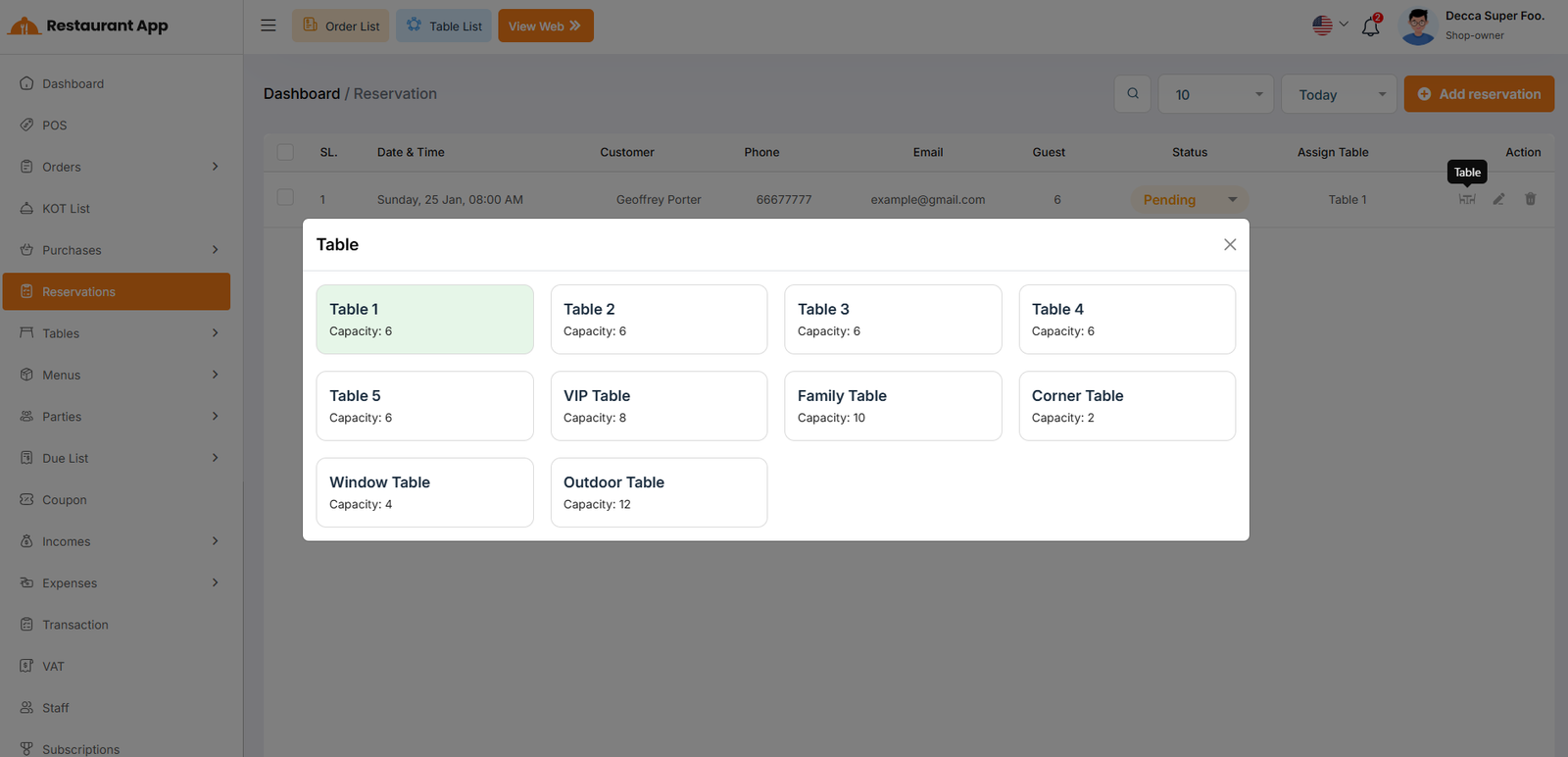
When clicking the Table icon, a pop-up menu appears to help you visualize and select available seating:
Table Variety Choose from various sections such as the VIP Table, Family Table, Outdoor Table, or Window Table.
Capacity Indicators Each table card displays its maximum capacity (e.g., "Capacity: 10") to ensure it fits the guest count.
Selection Status Highlighted cards (in green) indicate the currently assigned table for that specific reservation.
Reservation Create
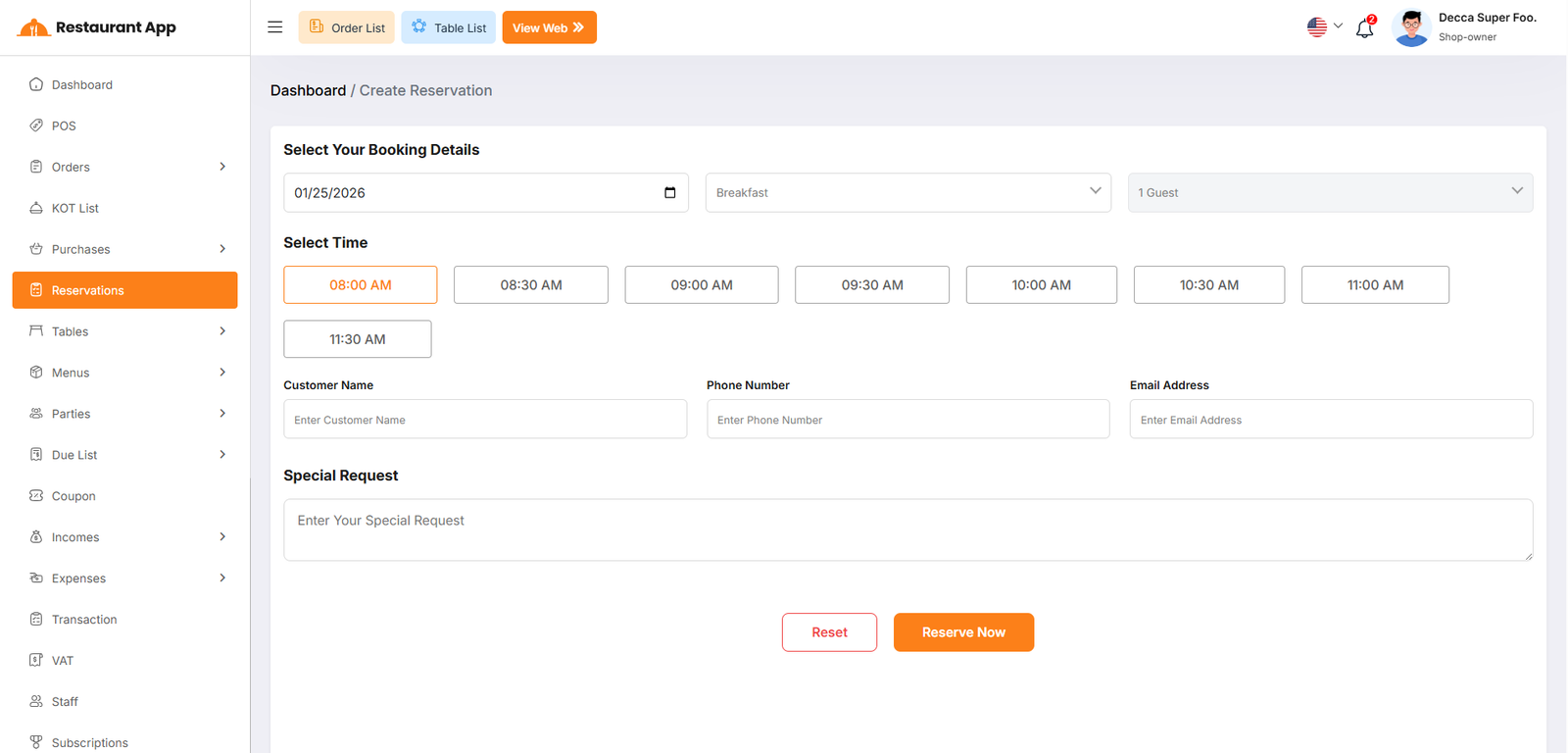
The Create Reservation interface ensures all necessary guest data is captured for a smooth arrival.
Booking Details Staff can select the calendar date, meal period (e.g., Breakfast), and the total number of guests.
Time Selection Displays available time slots in 30-minute intervals (e.g., 08:00 AM to 11:30 AM) for precise scheduling.
Customer Information Fields for entering the Customer Name, Phone Number, and Email Address.
Special Request A text area for noting specific guest needs, such as high chairs, allergies, or anniversary celebrations.
Action Buttons Use "Reset" to clear the form or "Reserve Now" to finalize the booking.