Purchases
Create Purchase
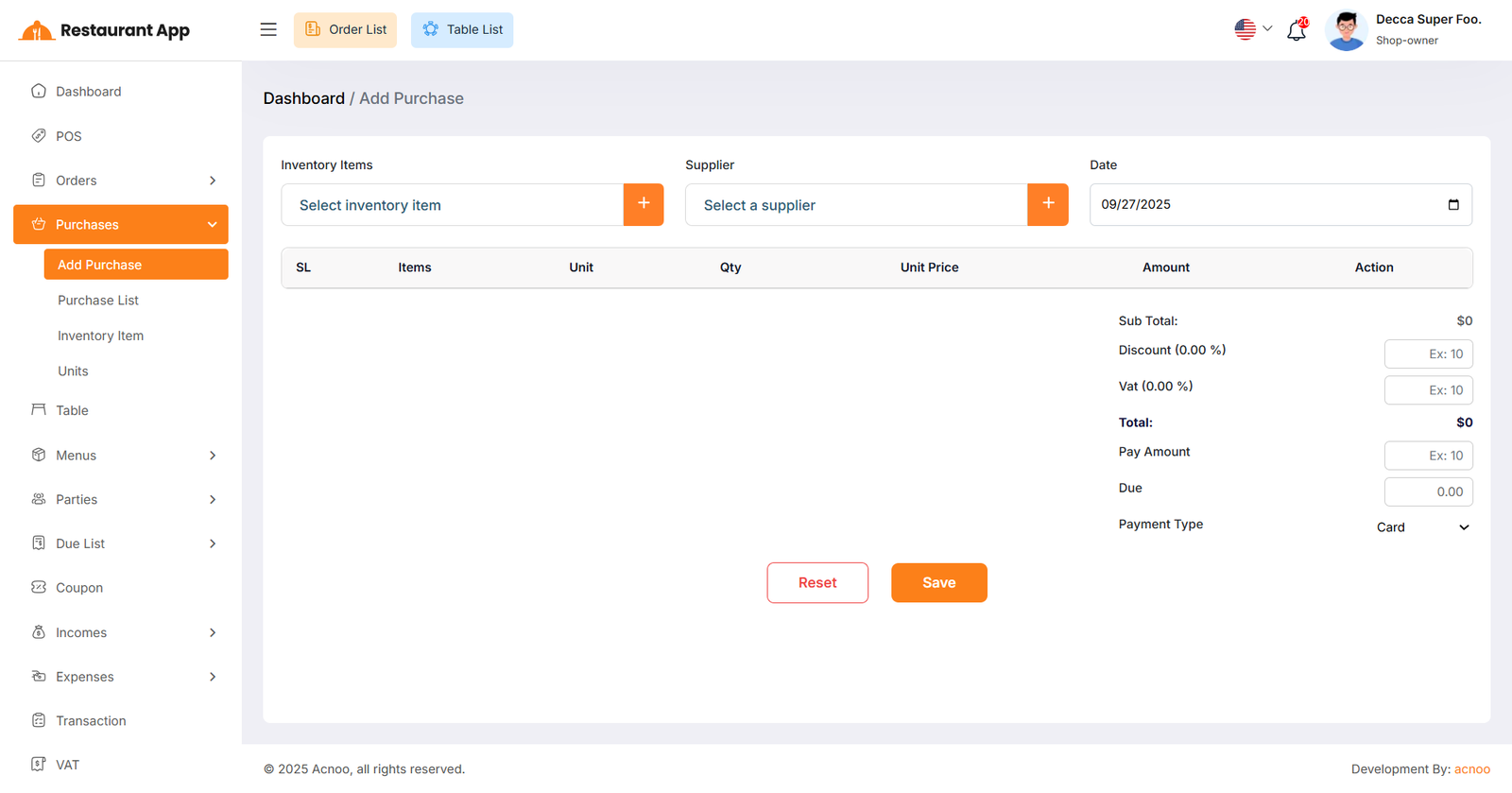
By clicking on "Add Purchase", you can create a new purchase. First, select a supplier, then choose an inventory item for the purchase. Additionally, you can create new items and suppliers instantly by clicking the plus (+) button next to the item and supplier fields.
Add to Cart & Store Purchase
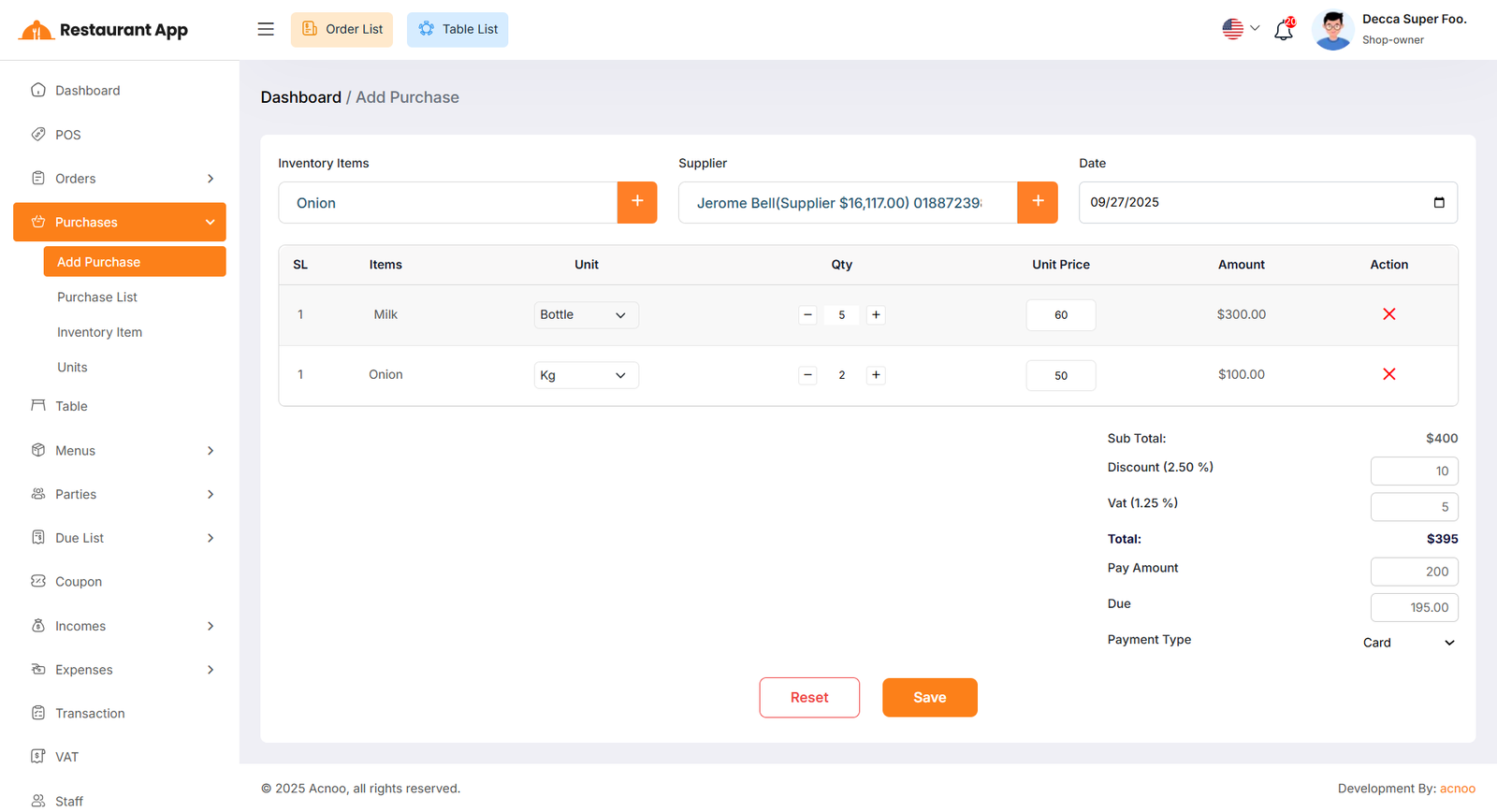
Next, select an item for the purchase. Once selected, the item will automatically appear in the cart list. You can adjust the quantity using the plus or minus buttons, or update it directly by entering a value. To remove an item from the cart, click the red cross button.
Below, you will see the subtotal of all items. You can also apply a discount to the subtotal. After the calculation, the total amount will be displayed. Next, enter the "Pay Amount". If the Pay Amount is less than the total, the difference will be shown in the "Due" field. If you want to remove all items from the list, click the reset button. Once everything is correct, click the save button to complete the purchase.
Purchase List
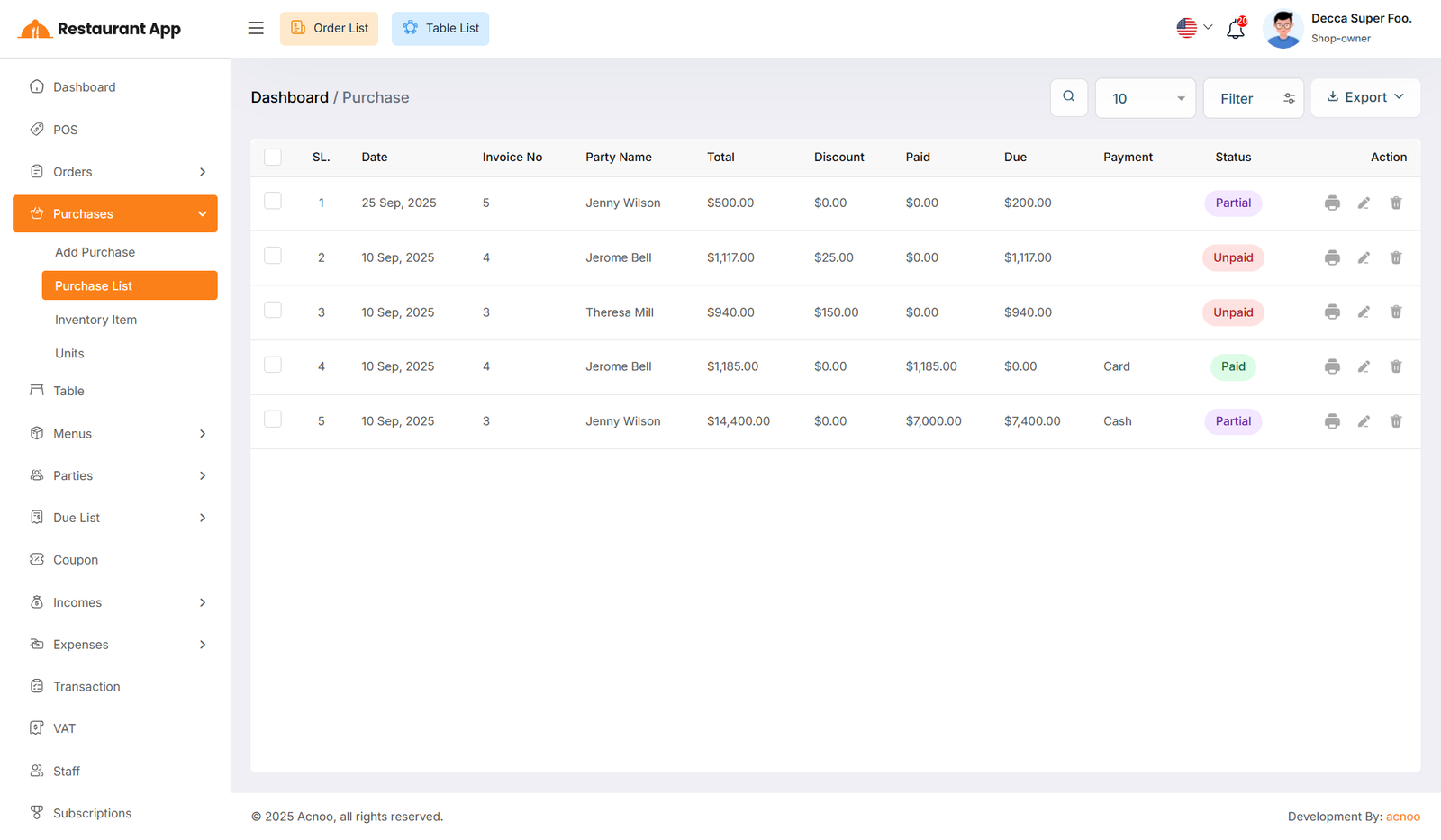
This appears to be a screenshot of the Purchase list page, where you can filter data using the search function. Additionally, you can view invoices, as well as edit, delete, or use the multi-delete option exported as Excel, CSV, and PDF.
Inventory Item List
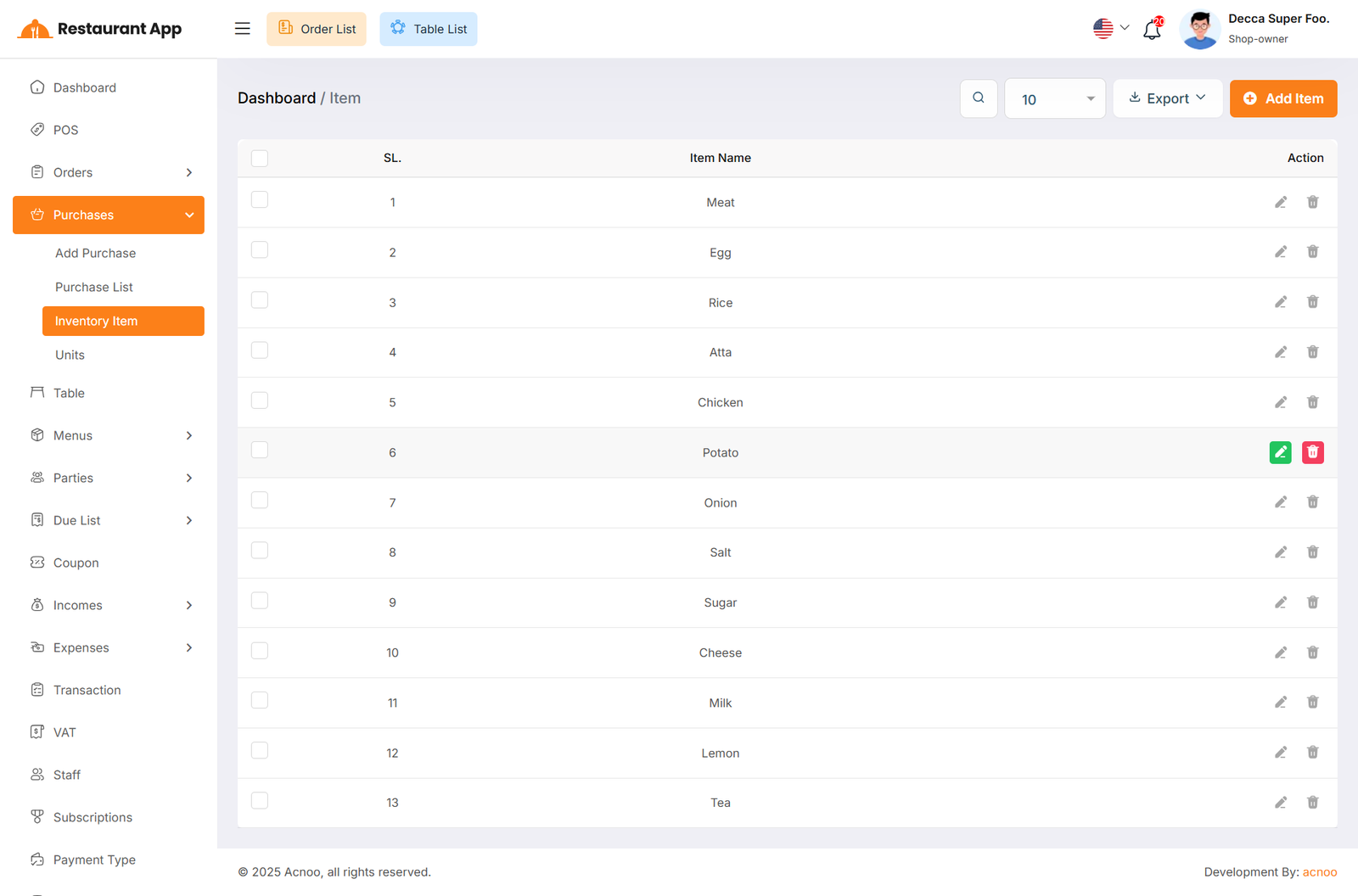
This appears to be a screenshot of the Inventory Item list page, where you can filter data using the search function. Additionally, you can edit, delete, or use the multi-delete option exported as Excel, CSV and PDF.
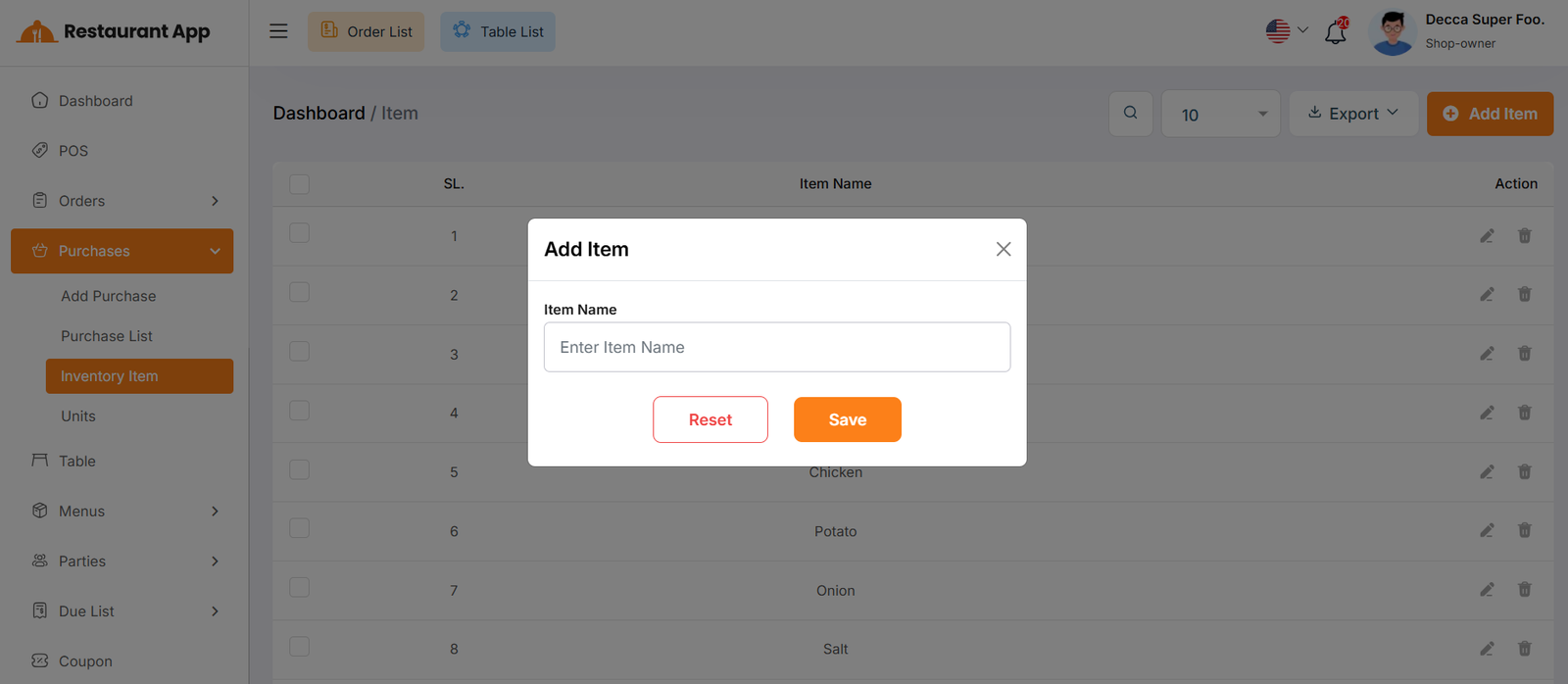
By clicking on the "Add Item" button, you can easily create a new inventory item by filling name field.
Unit List
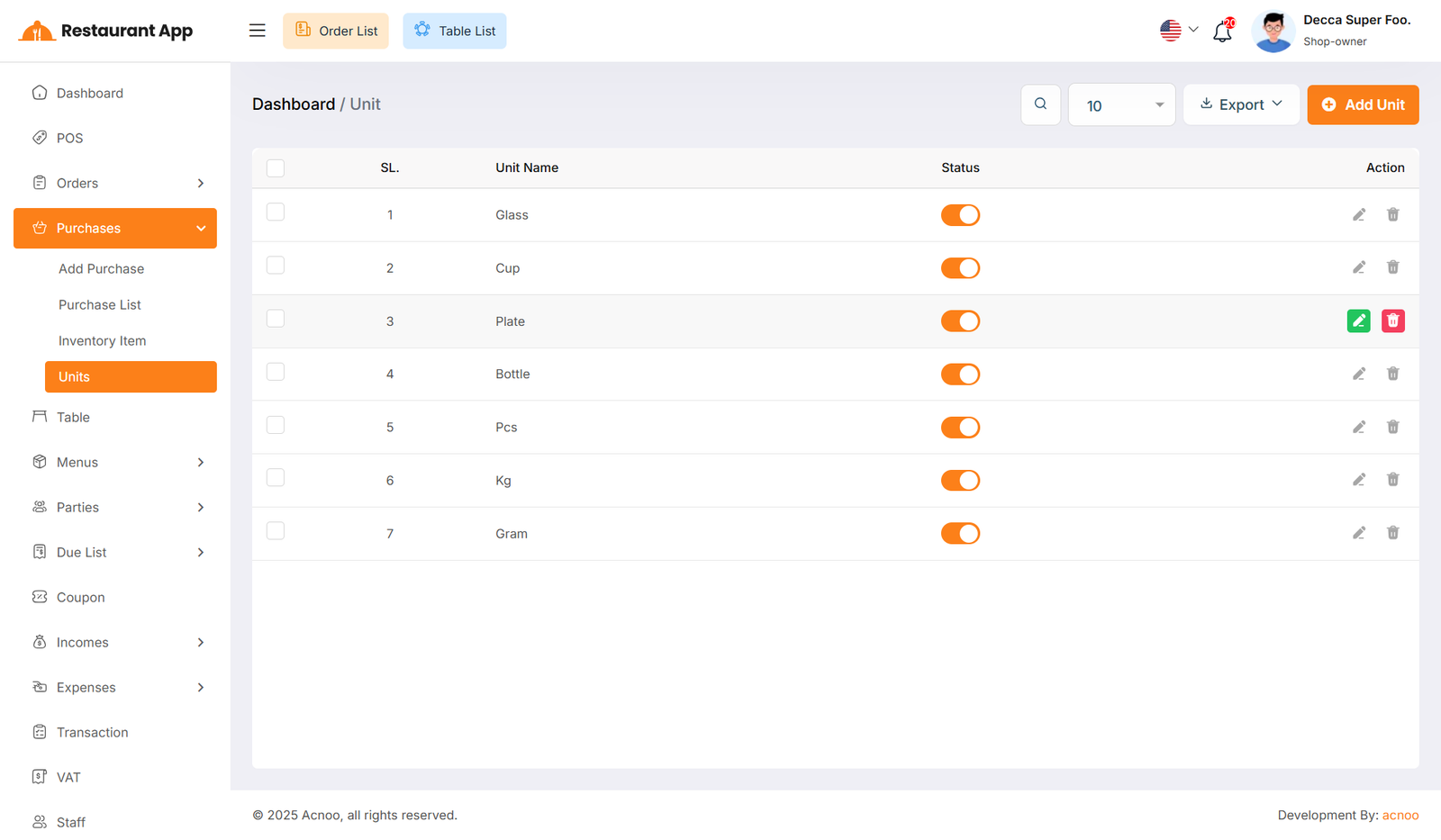
This appears to be a screenshot of the Unit list page, where you can filter data using the search function. Additionally, you can edit, delete, or use the multi-delete option exported as Excel, CSV and PDF. By using the "Status Toggle", you can show or hide the unit during the purchase process.
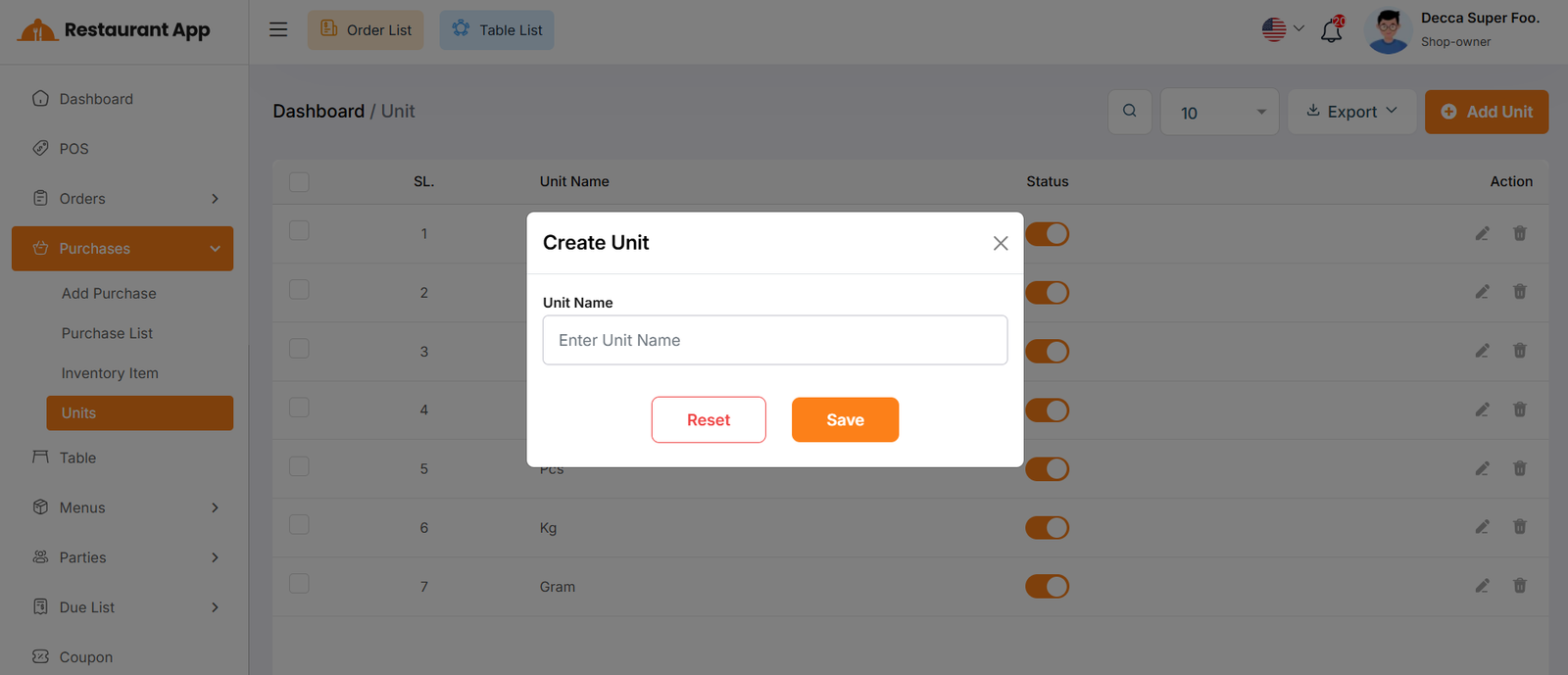
By clicking on the "Add Unit" button, you can easily create a new unit item by filling name field.