Orders
Create Order
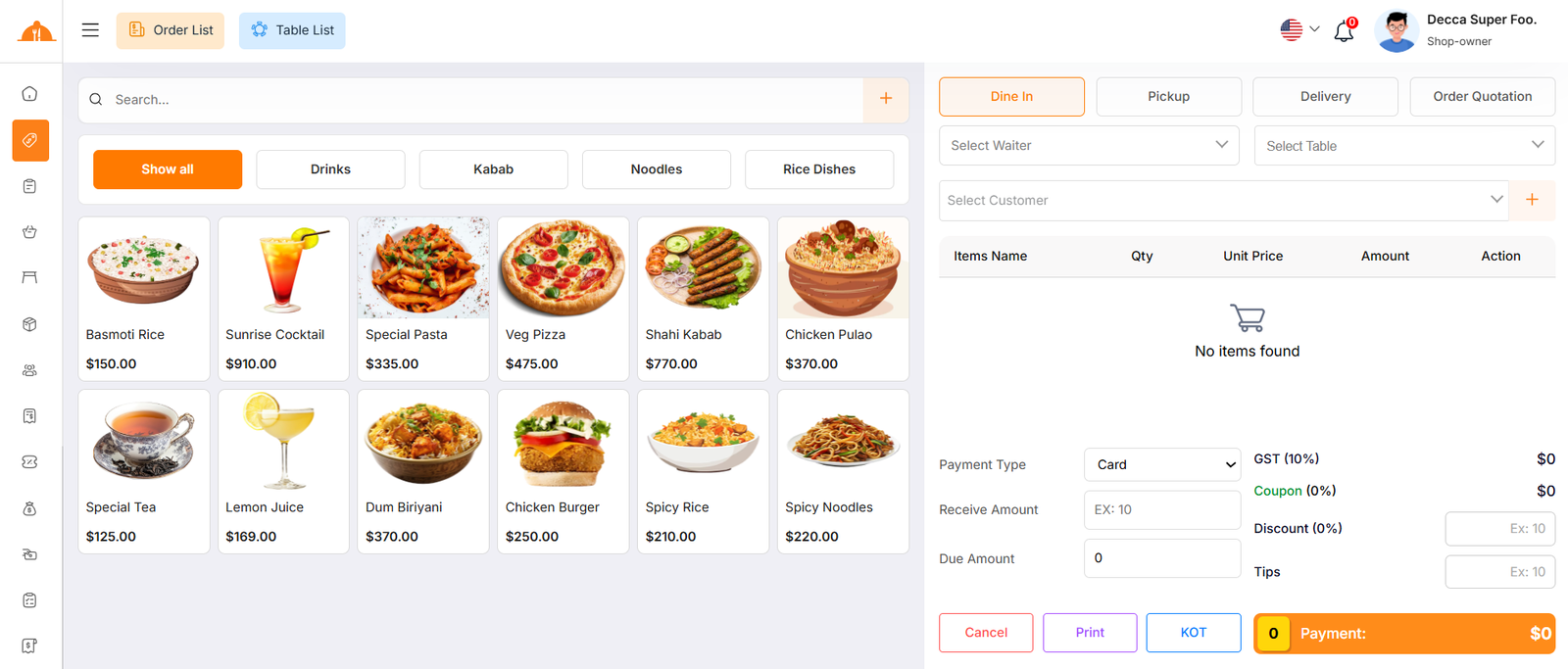
By clicking on "POS", you can create a new order. There are four sales types available: Dine-in, Pickup, Delivery, and Quotation. If you select Quotation, it will be saved in the quotation list, while the other types will be saved in the order list. Additionally, you can select Kitchen Order Ticket (KOT). In this case, the order status will remain Pending, and once the food is prepared, the status will change to Completed. You can also assign a Customer, Waiter, and Table while creating the order.
Select Item
Next, you need to select an item for the order. You can search by item name & also create item by clicking plus button or filter items by category to easily find the item you need.
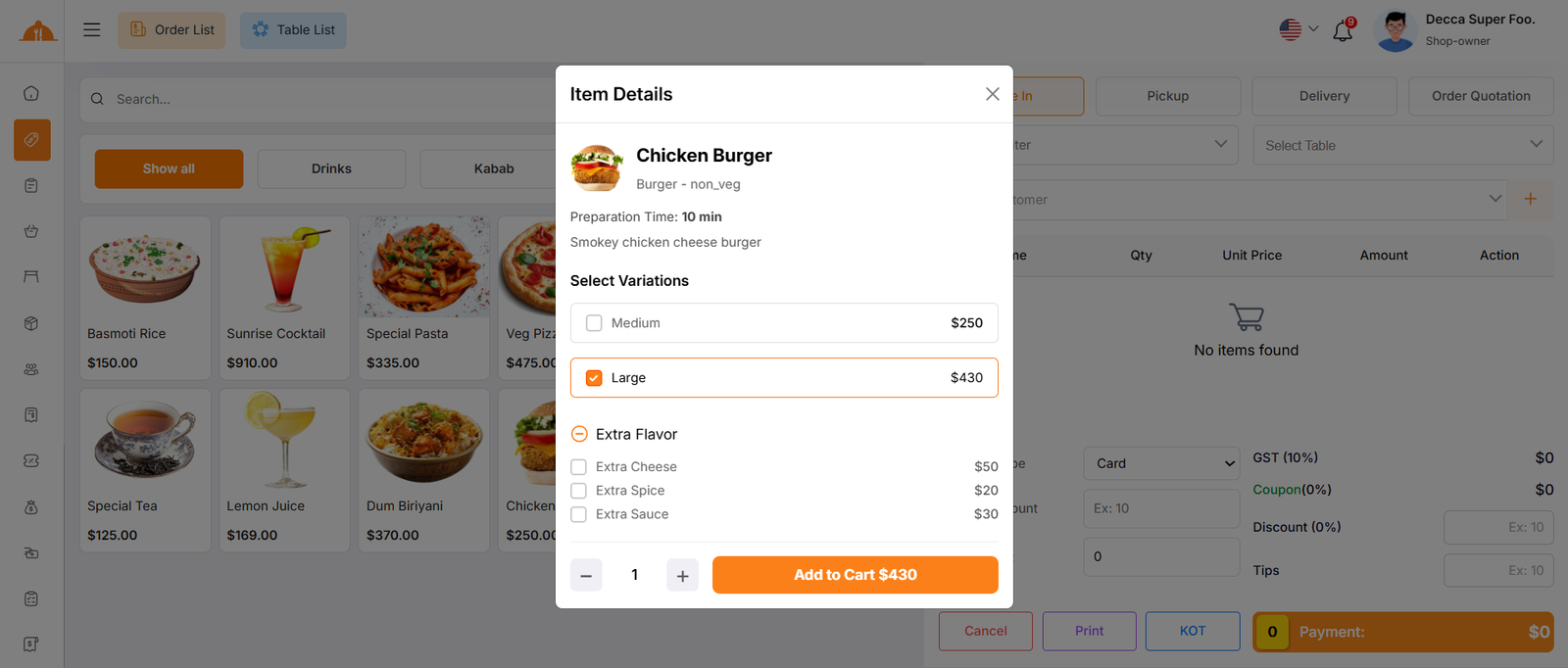
When you click on an item, if it has a variation price or modifiers with options, a modal will open where you can choose your preferred variation and modifier before adding it to the cart. If the item does not have any variation or modifier, it will be added to the cart automatically.
Add to Cart & Store Order
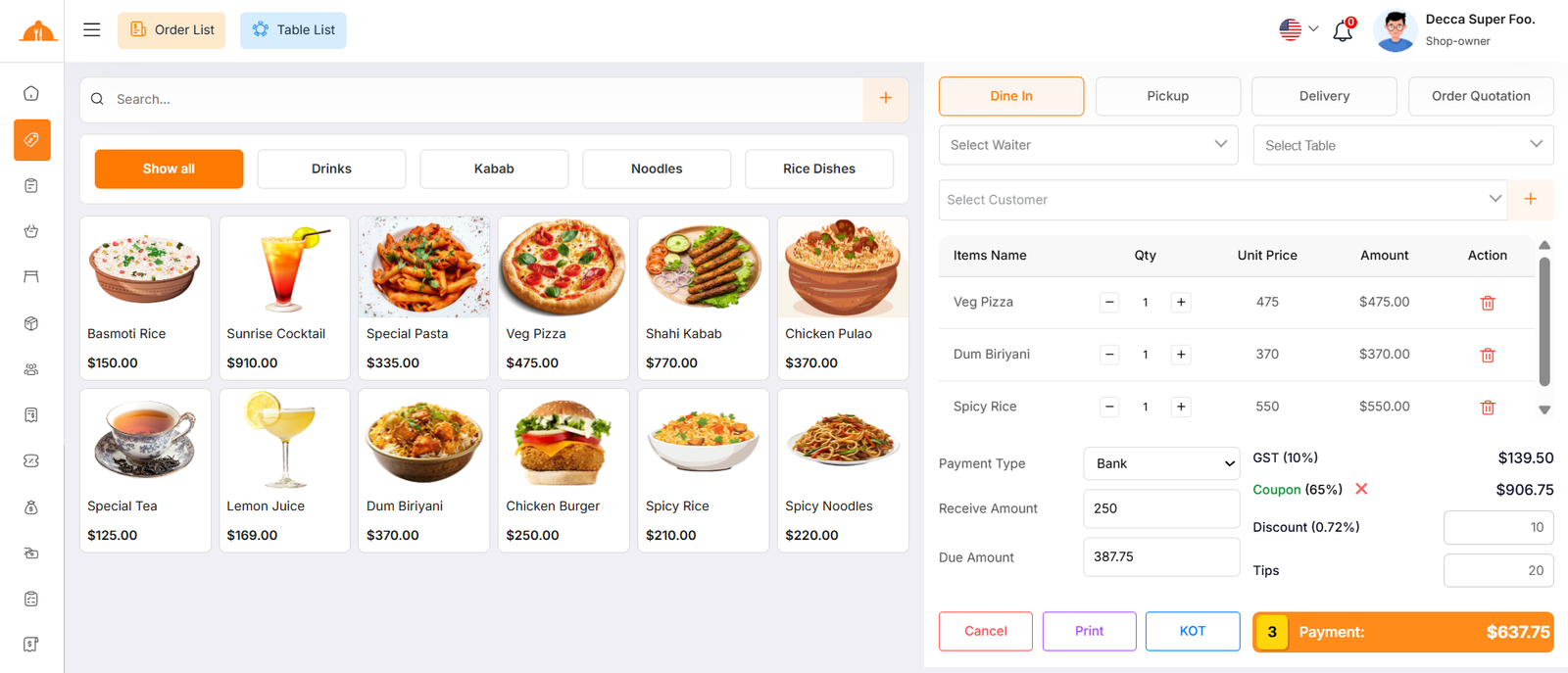
You can adjust the quantity using the plus or minus buttons, or directly enter a value to update the quantity. To remove a product from the cart, simply click the red delete button.
Below, you will see the subtotal of all items. You can also add VAT, Coupon or a discount to the subtotal. After the calculations, the total amount will be displayed. Next, you can enter the received amount. If the received amount is greater than the total amount, the remaining balance will be shown in the "Change Amount" field. If the received amount is less, the "Due Amount" field will display the difference. If you want to remove all items from the list, click the cancel button. Once everything is correct, click the "Payment" button to complete the order.
Order List
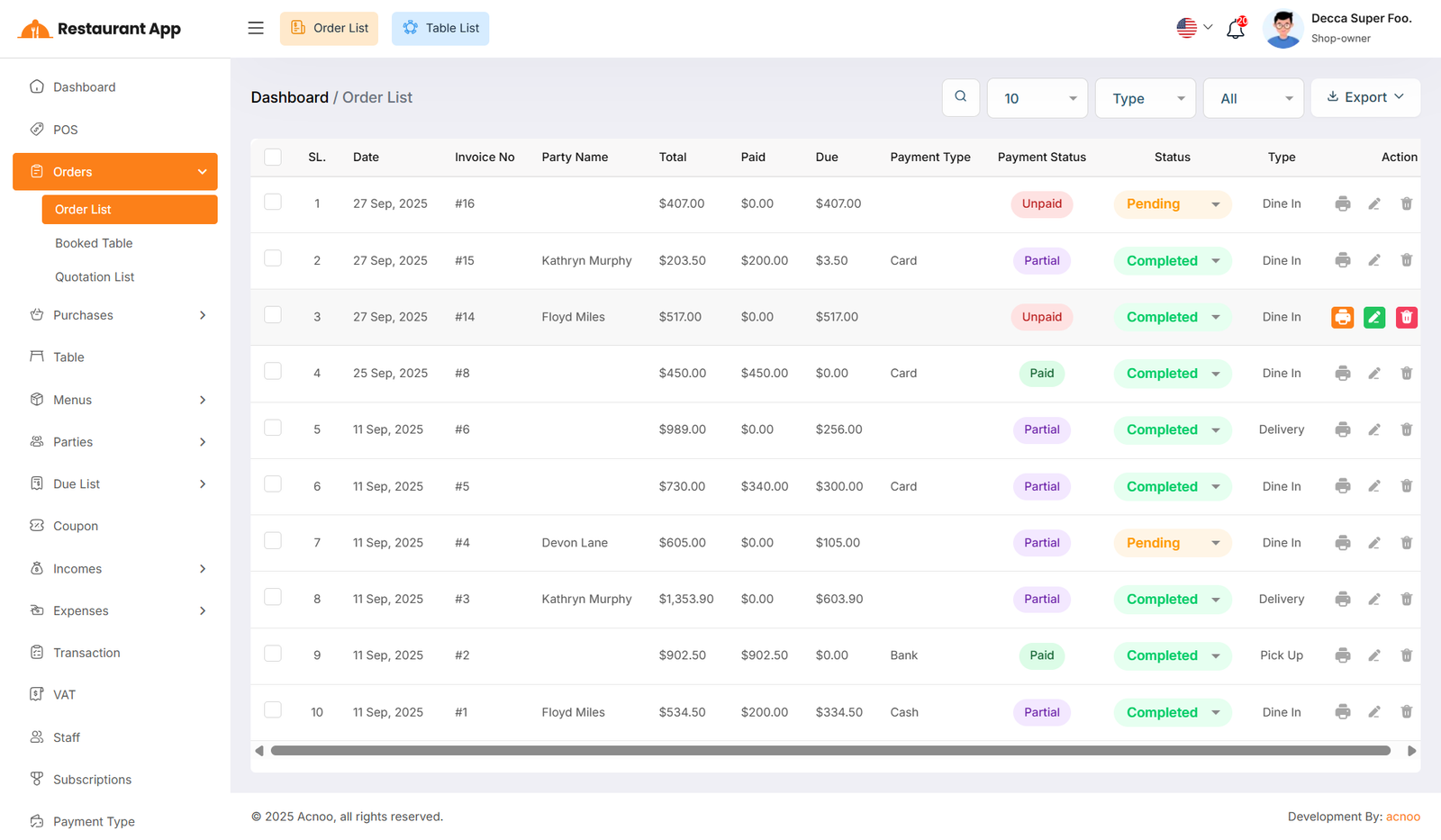
This appears to be a screenshot of the Order list page, where you can filter data using the search function. Additionally, you can view invoices, as well as edit, delete, or use the multi-delete option and exported as Excel, CSV and PDF. Also you can update the KOT order status.
Booked Table List
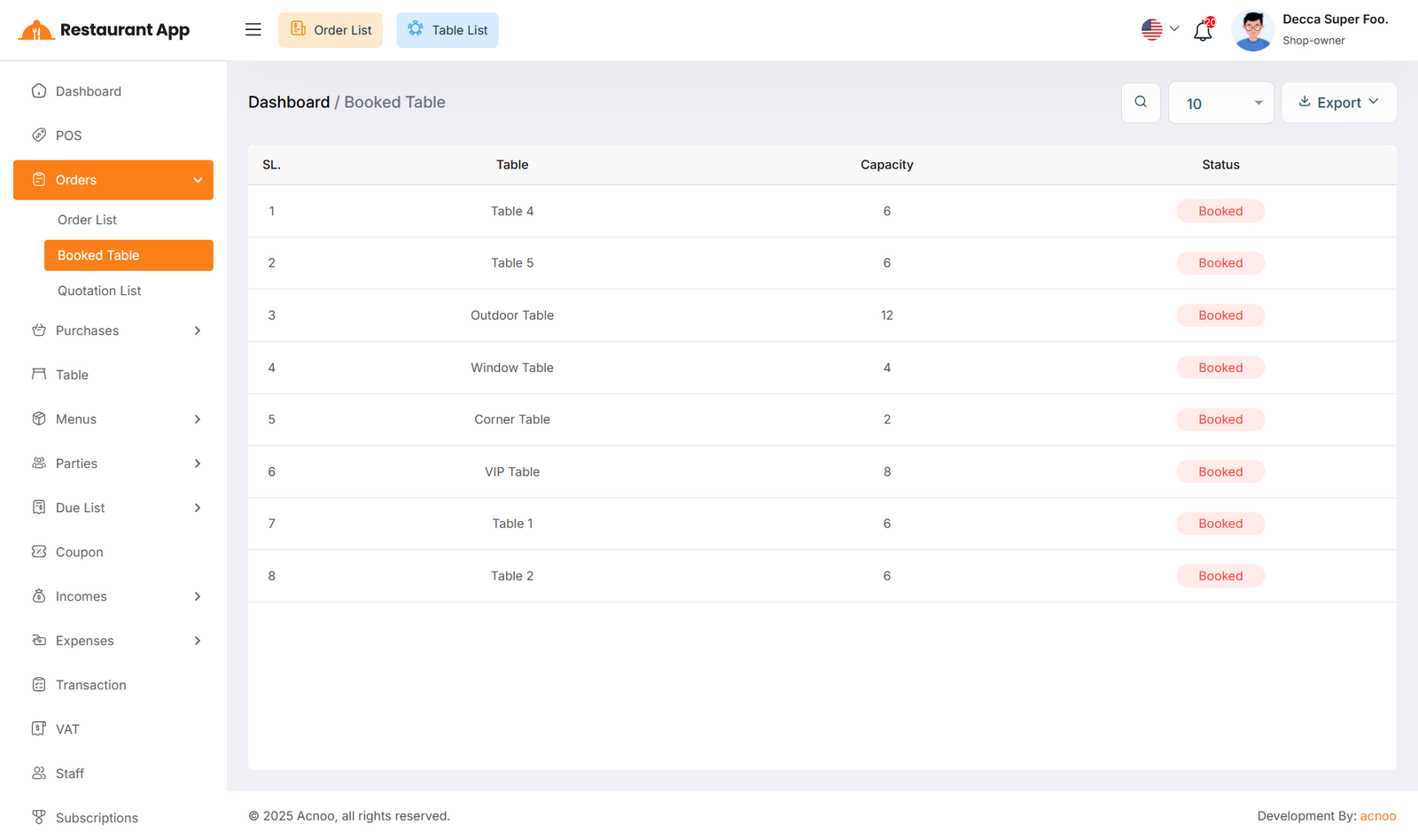
This appears to be a screenshot of the Booked Table list page, where you can filter data using the search function. Additionally, you can see the "Status" and exported as Excel, CSV and PDF.
Quotation List
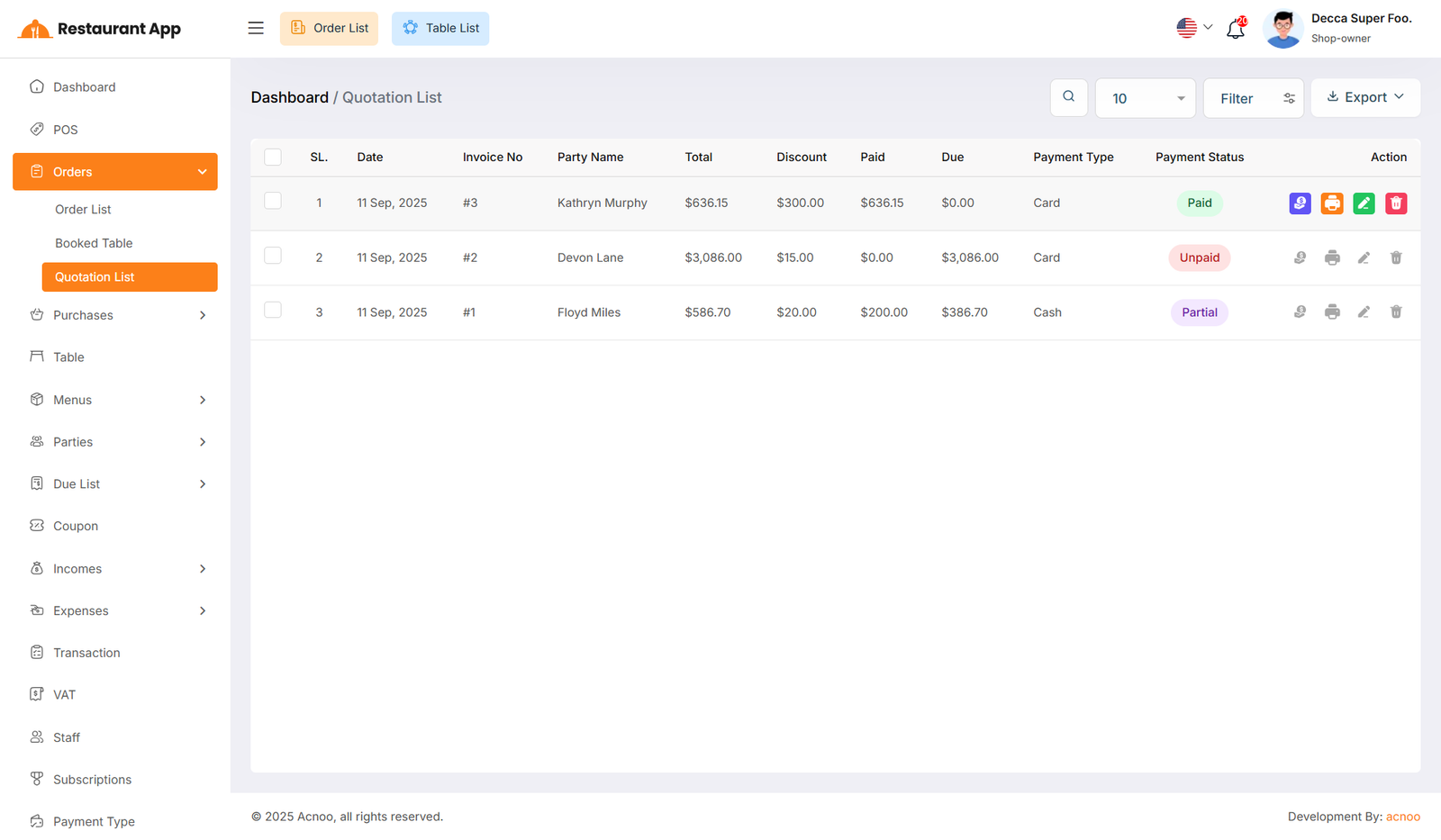
If you select the "Quotation" type while creating an order, it will appear in the Quotations list. Quotations give you a complete overview of the order, making the process much easier.
Additionally, you can view quotation invoices, as well as edit, delete, or use the multi-delete option and exported as Excel, CSV and PDF. Another useful feature is that you can easily convert any quotation into an actual order whenever needed.