Items
Item List
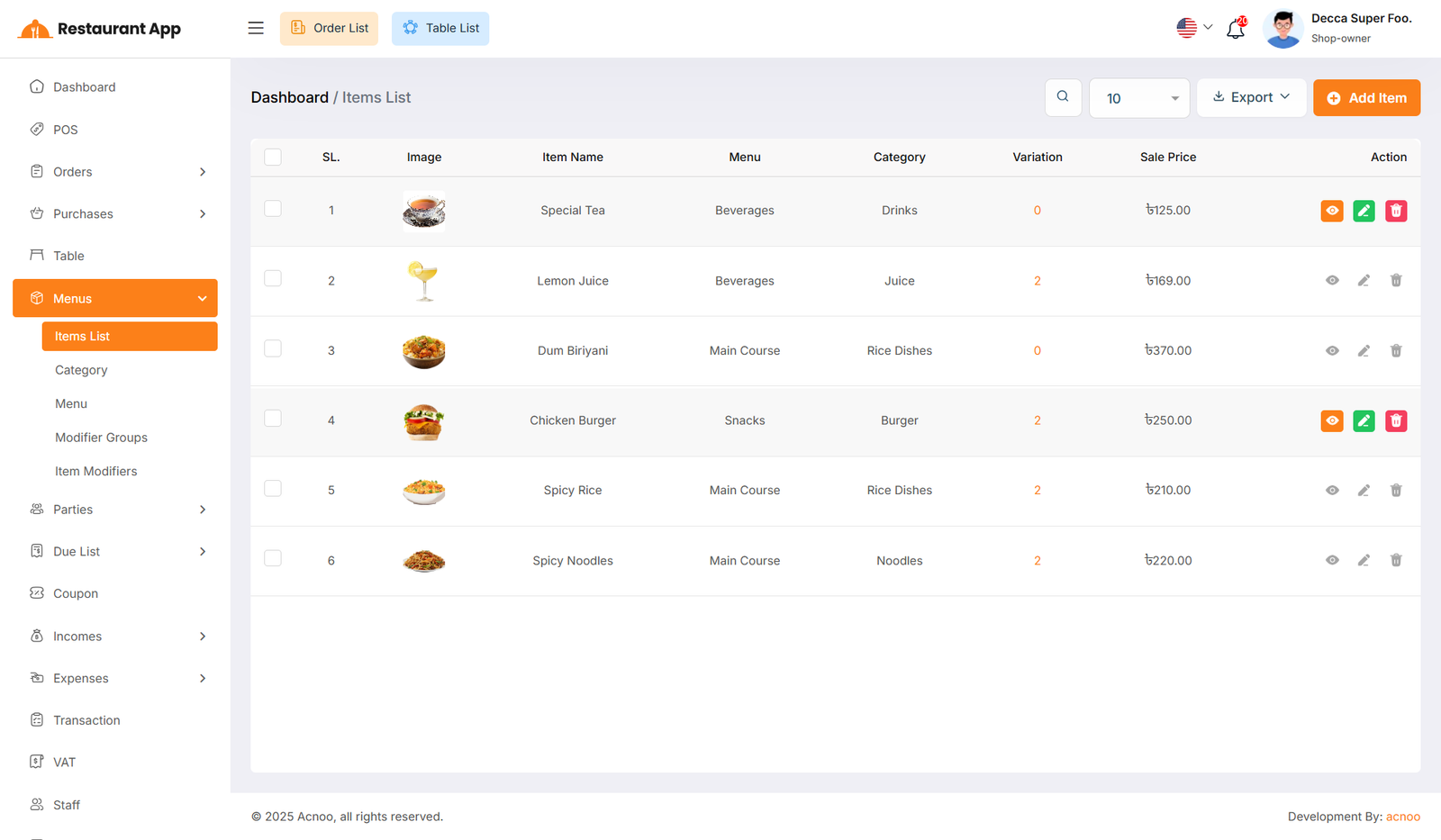
Here, you can view the item list with filtering options available. The list can be exported as Excel, CSV and PDF. By clicking the "View" button, you can see details in a pop-up window. Additionally, you can edit, delete, or perform multi-delete actions. Furthermore, clicking on the variation number will open a new modal where you can view the item's variation name and price details.
Create Item
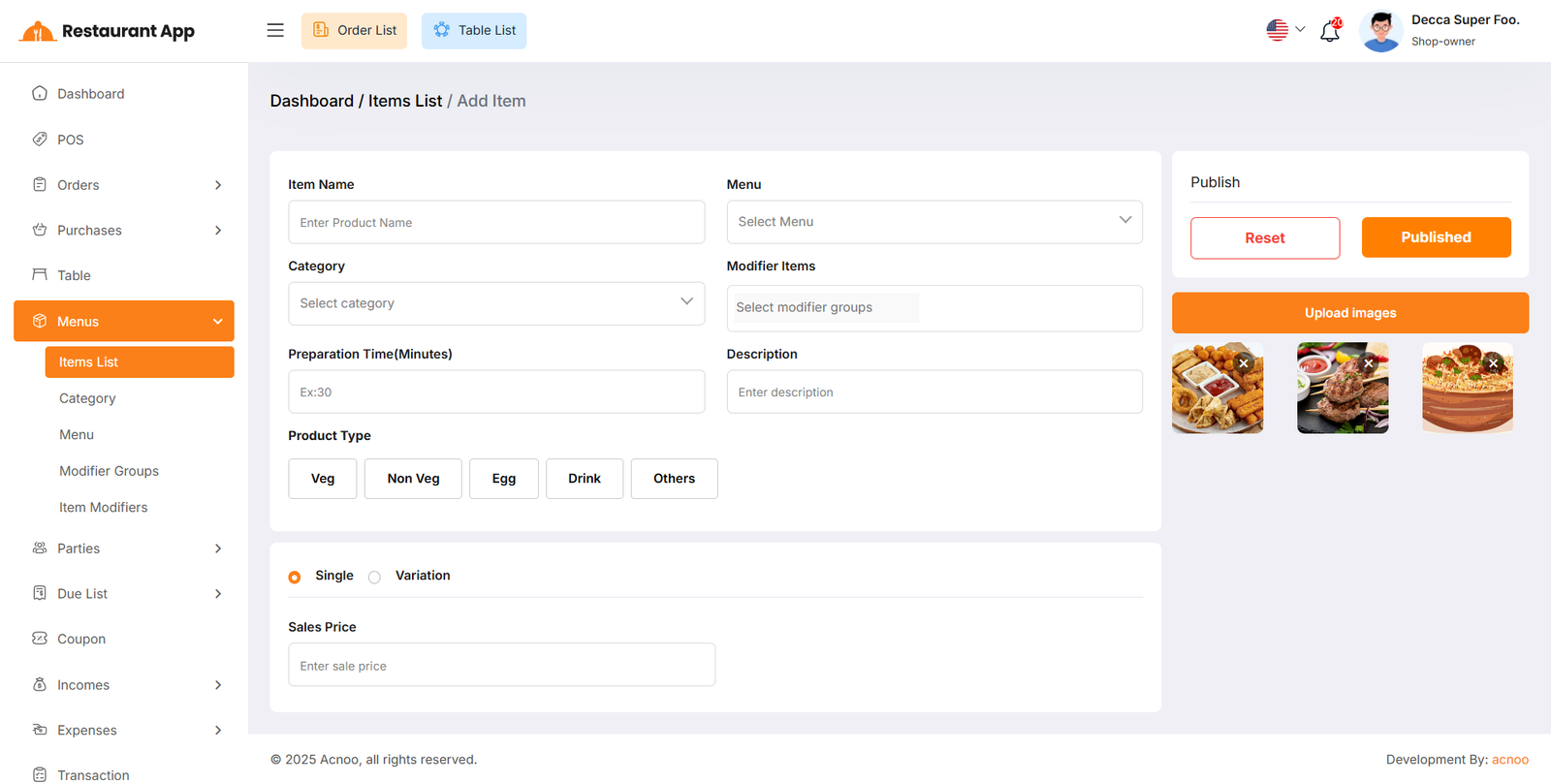
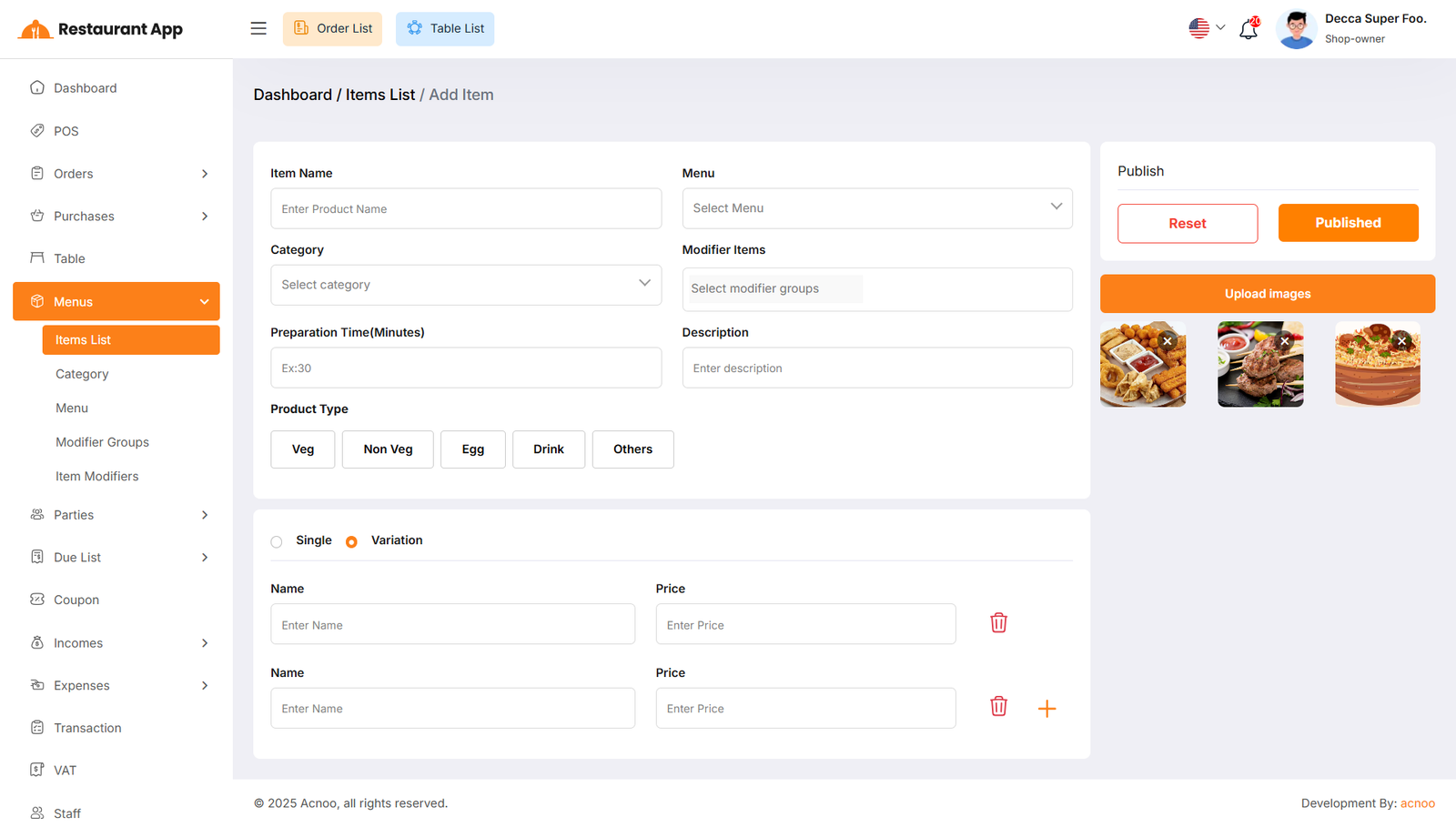
You can create an item by filling some fields such as name, menu, category, product type, etc. In addition, you can choose the product type as either "Single" or "Variation" and provide the corresponding name and price. You may also upload multiple images by clicking "Upload Images" button for the item, but only the first image will be displayed on the index and sales pages.
Please make sure to enter the product price carefully. If everything is correct, click the "Publish" button to save the item. Otherwise, click the "Reset" button to clear all fields.
Category List
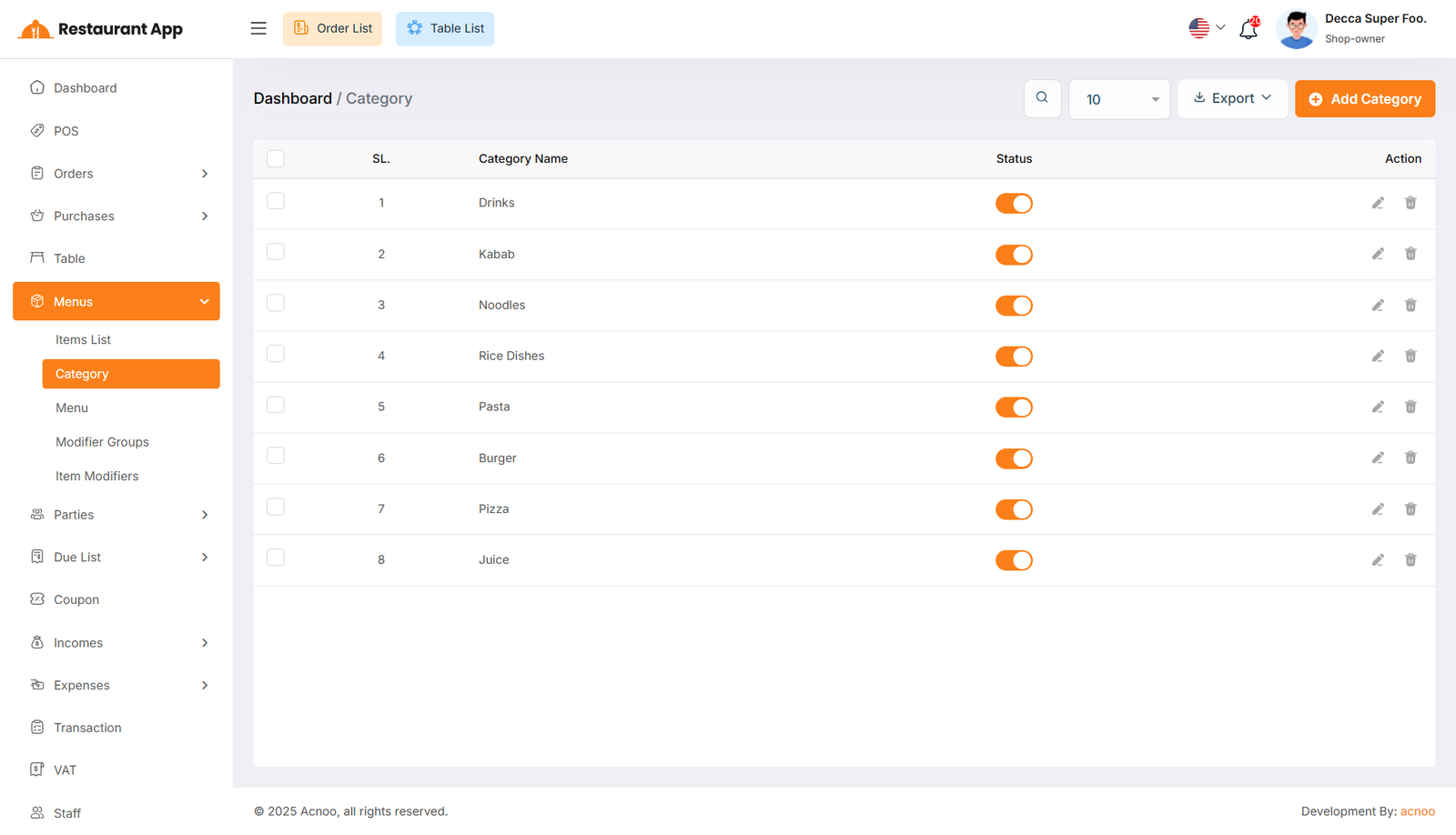
Here, you can view the category list with filtering options available. The list can be exported as Excel, CSV and PDF. Additionally, you can edit, delete, or perform multi-delete actions.
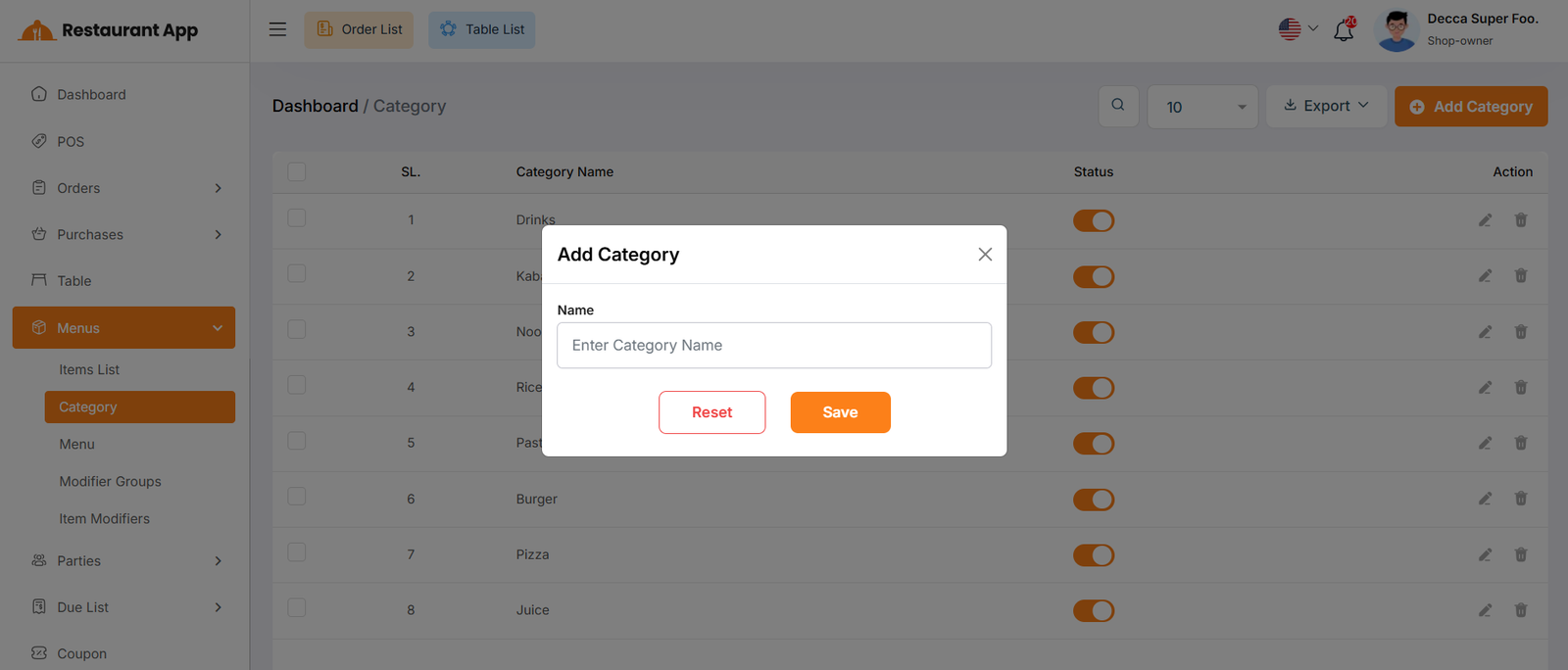
By clicking on the "Add Category" button, you can easily create a new category.
Menu List
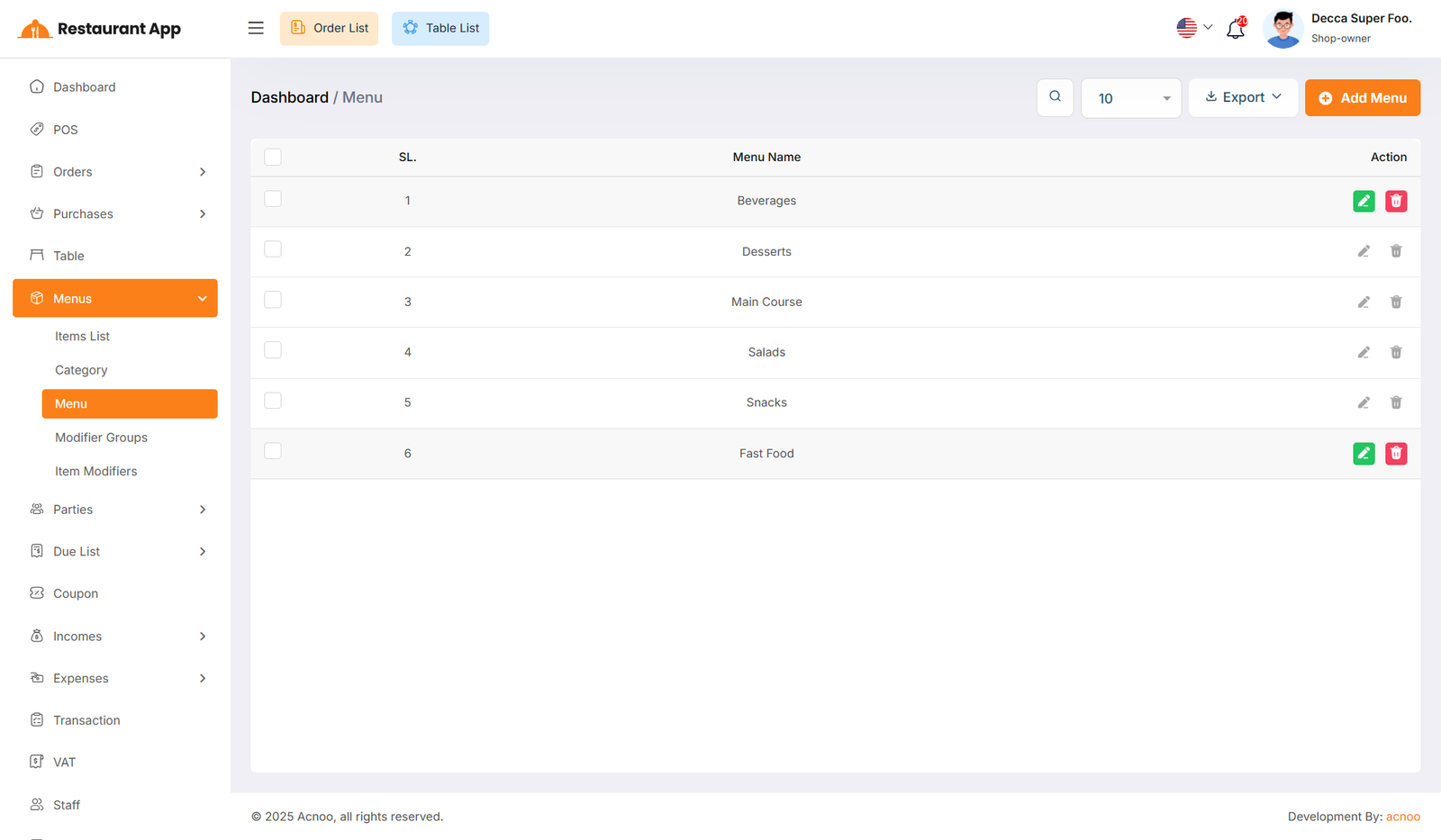
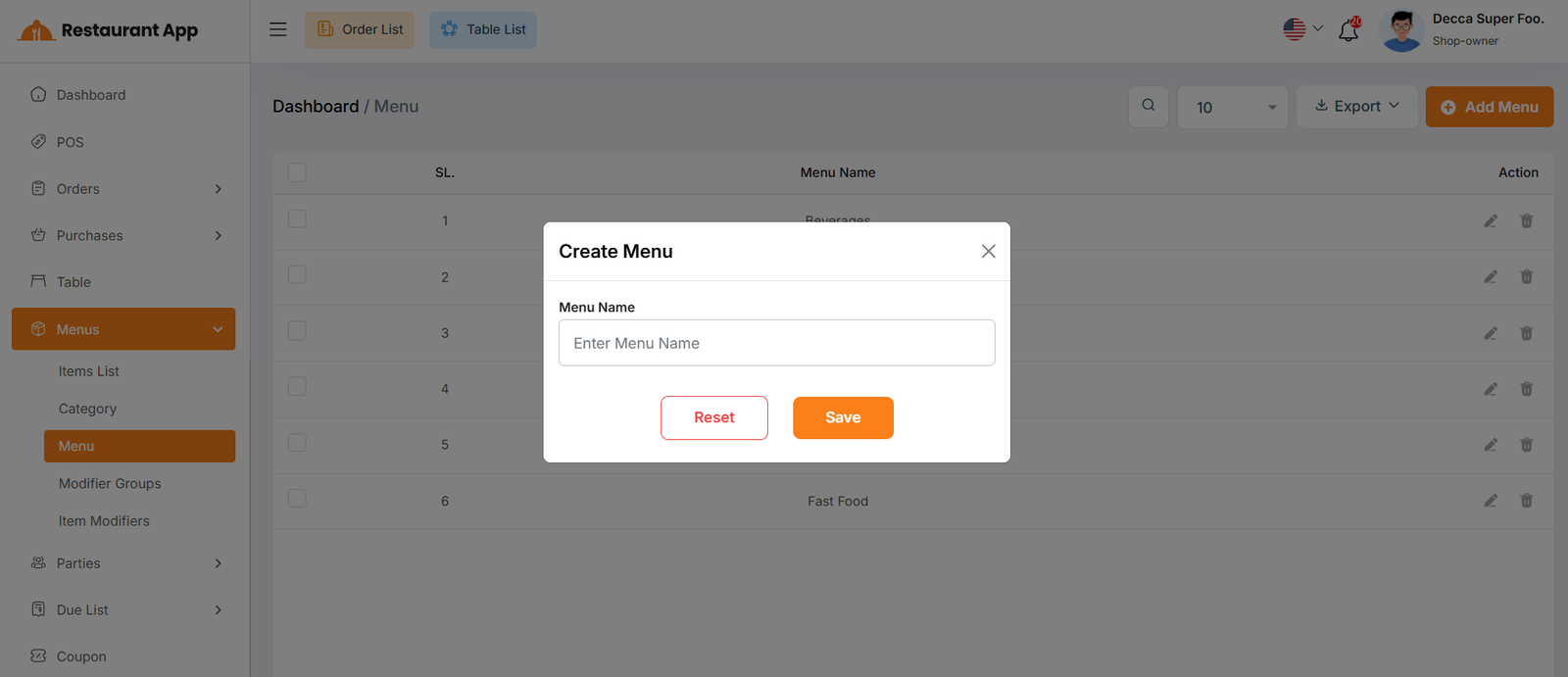
Here, you can view the menu list with filtering options available. The list can be exported as Excel, CSV and PDF. Additionally, you can edit, delete, or perform multi-delete actions.
By clicking on the "Add Menu" button, you can easily create a new menu.
Modifier Group List
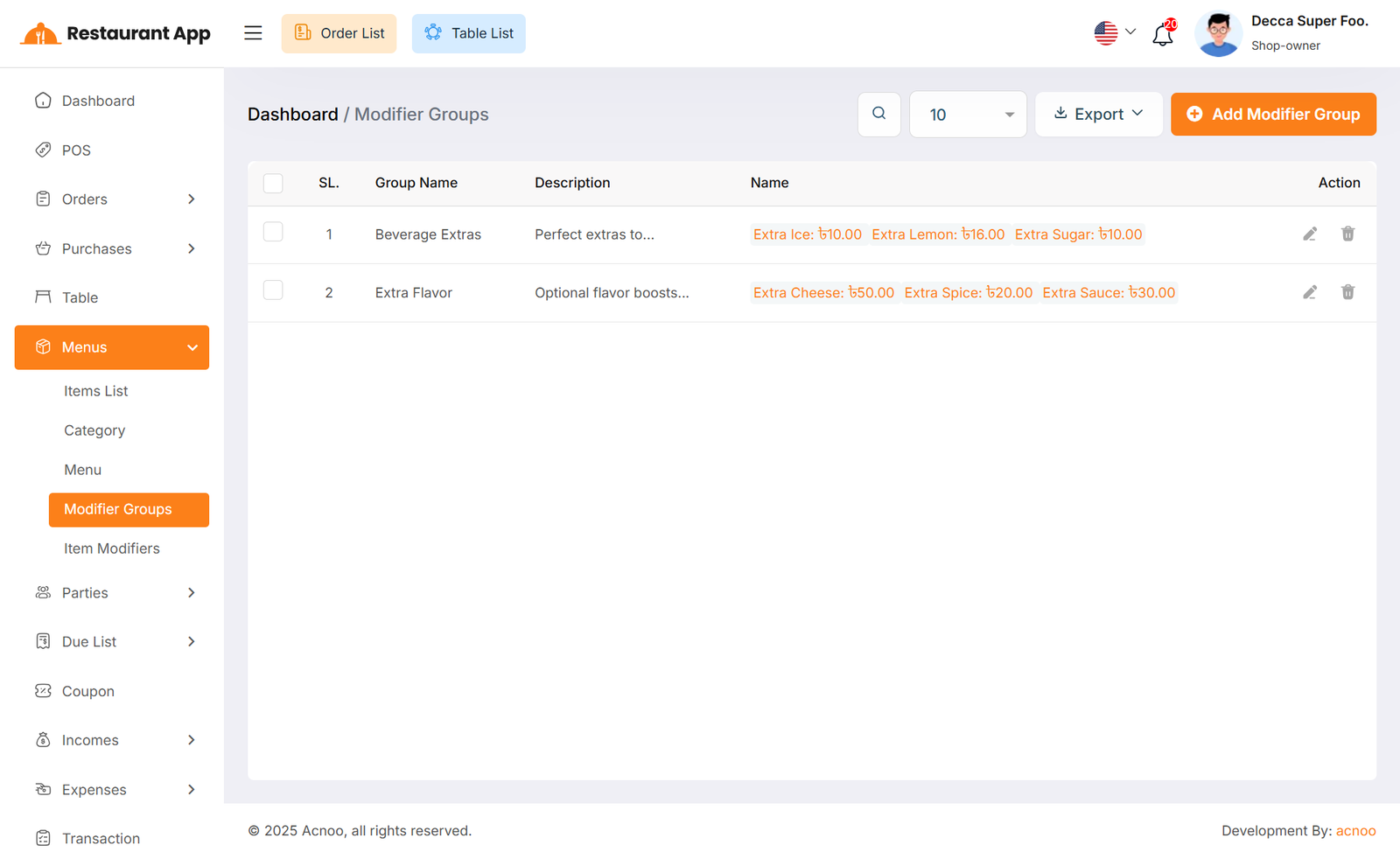
Here, you can view the Modifier Group list with filtering options available. The list can be exported as Excel, CSV and PDF. Additionally, you can edit, delete, or perform multi-delete actions.
Create Modifier Group
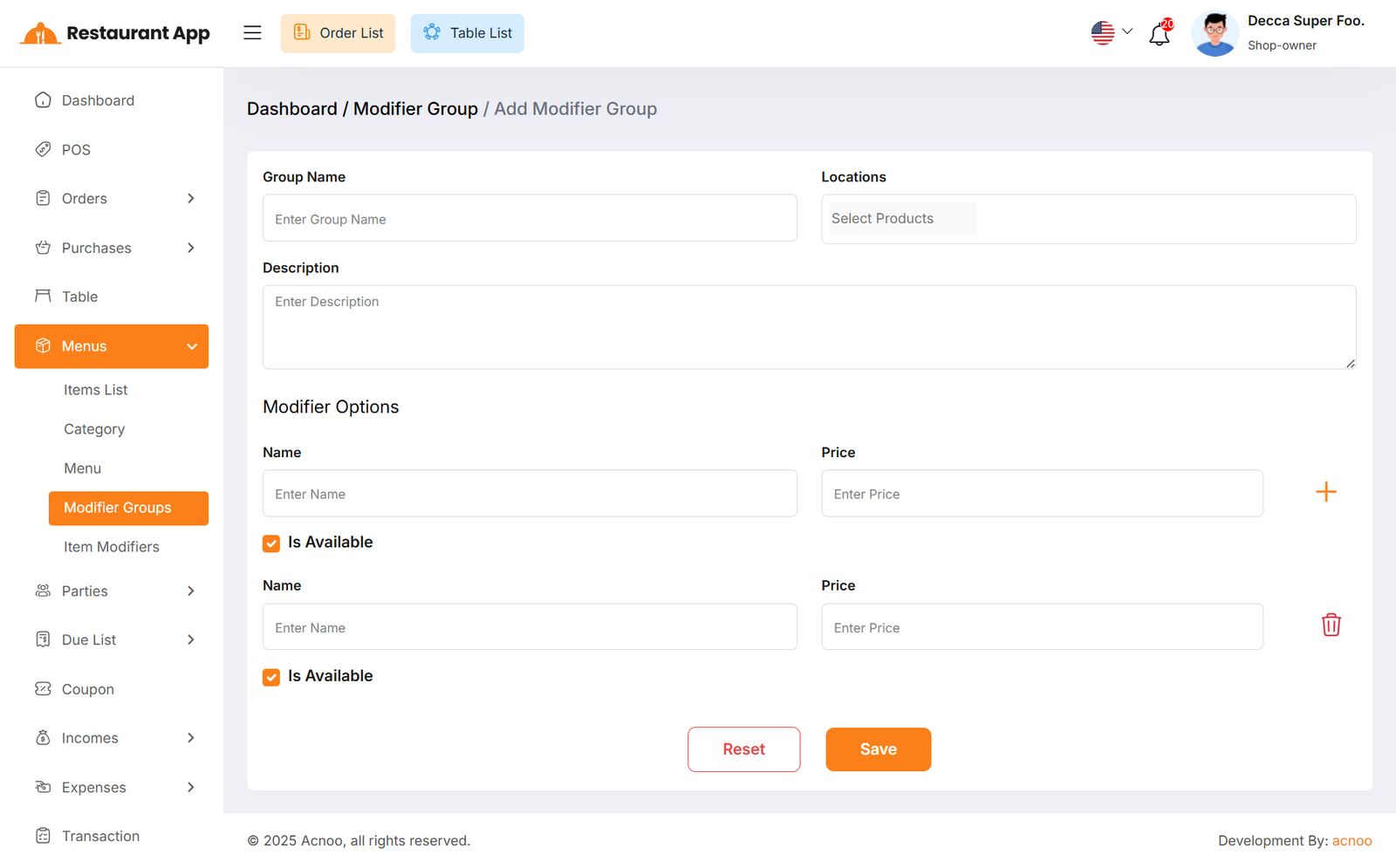
By clicking on the "Add Modifier Group" button, you can easily create a new modifier group by filling in fields such as (name, locations, description, modifier option name, and price). You can add dynamic modifier option fields by clicking the plus (+) button and then enter the name and price. If you no longer need a dynamic field or if there are too many, you can remove it by clicking the red delete button. Additionally, if the "Is Available" option is checked, the modifier option will appear during the sale process. If it is not checked, the option will not be available.
Item Modifier
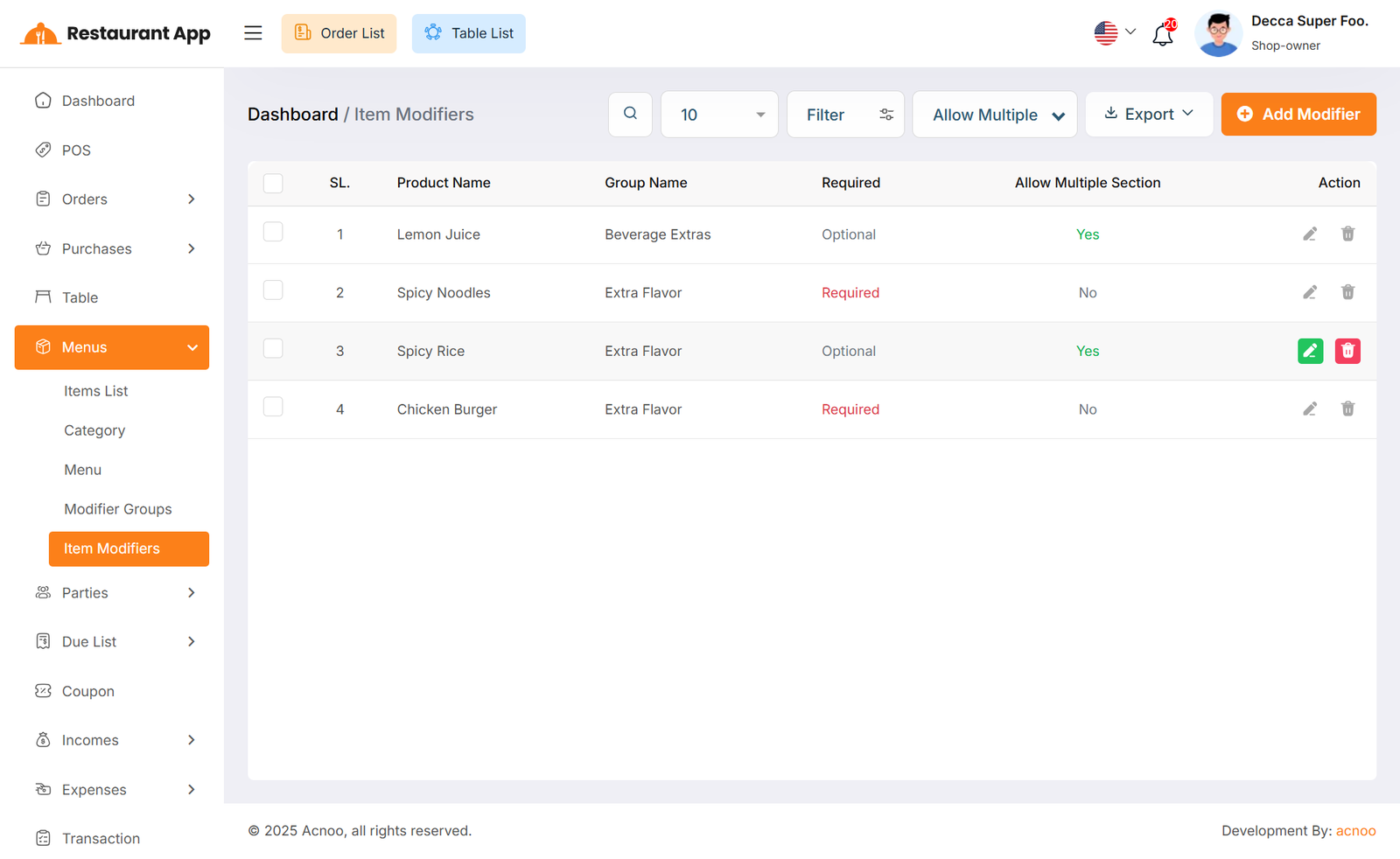
Here, you can view the modifier list with filtering options available. The list can be exported as Excel, CSV and PDF. Additionally, you can edit, delete, or perform multi-delete actions.
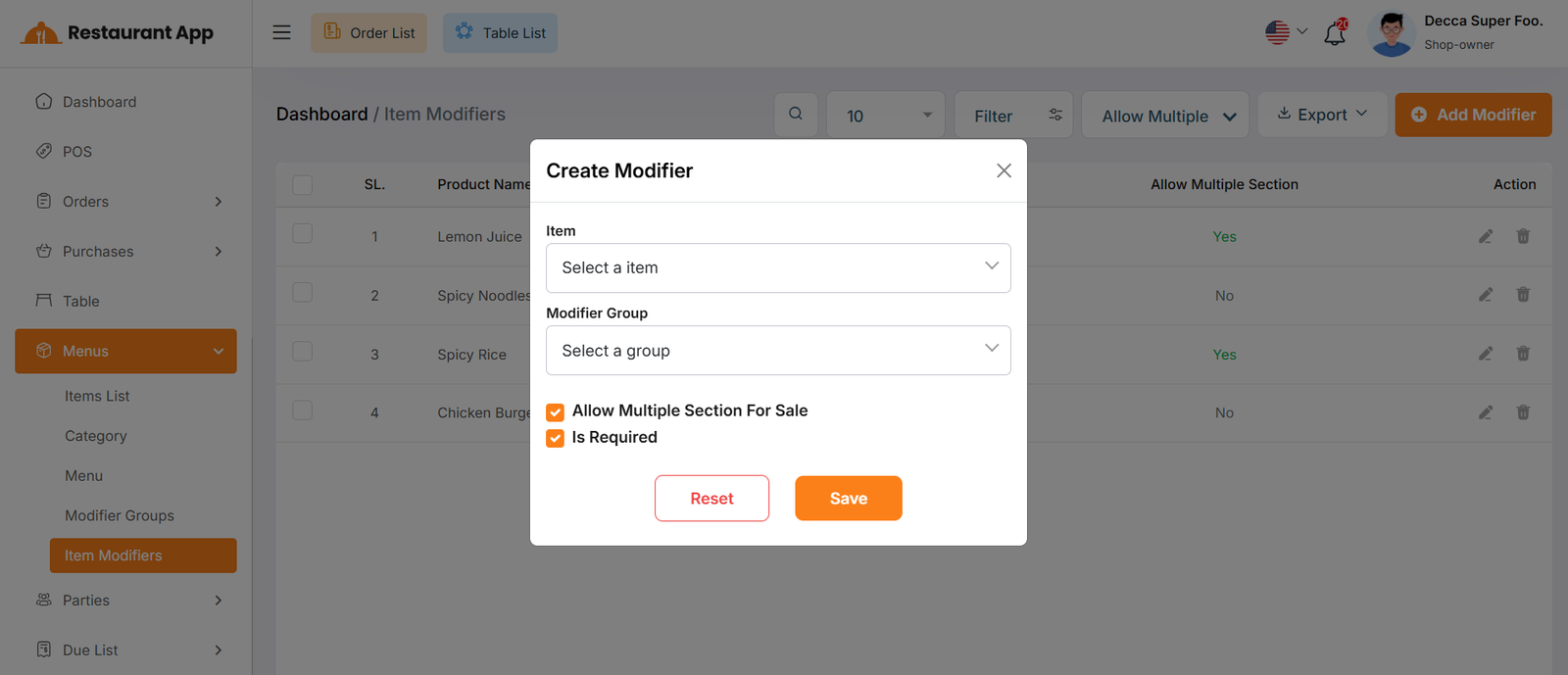
By clicking on the "Add Modifier" button, you can easily create a new modifier after select item & modifier group. If you check the "Allow Multiple Selection For Sale" option while creating a modifier, then during the item sale, customers will be able to select multiple modifier options. If this option is not checked, only one option can be selected.
Additionally, if you check the "Is Required" option, customers will not be able to add the item to the cart without selecting a modifier option. If this option is not checked, customers can add the item to the cart without selecting any modifier options.