Home
The Home screen is the main hub of the Restaurant App. It features a bottom tab bar with five main sections: Sales, Orders, Items, Reports, and Profile. Each tab provides specific functionality as described below.
Sales Tab
The Sales tab is the Point of Sale (POS) interface where you can create new orders. Select items from the menu, add them to the cart, apply discounts or coupons, and complete the payment. You can choose order types such as Dine-in, Pickup, or Delivery. The system supports multiple payment methods including cash, card, and other configured gateways.
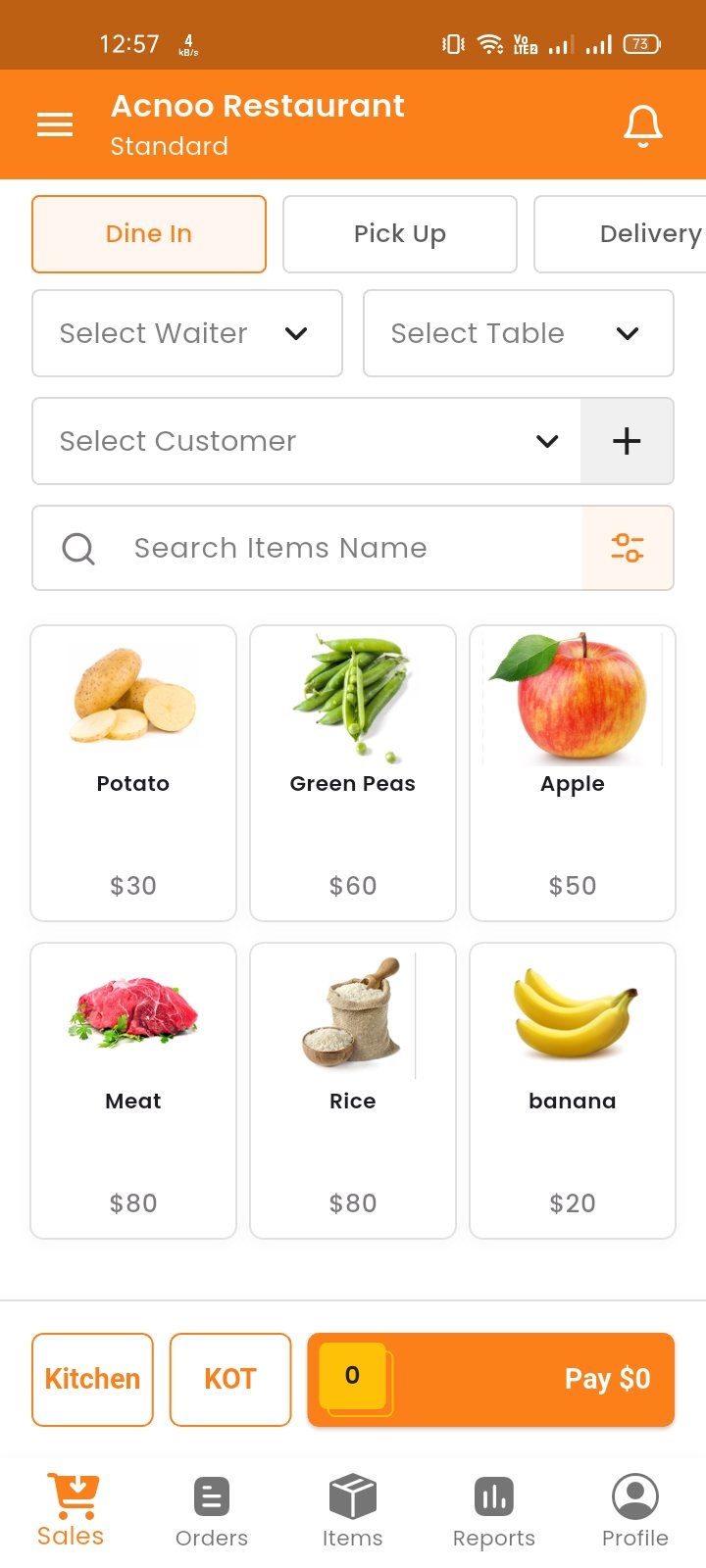
Select Item
You can search items by name or filter by category. When you tap on an item, if it has variations (e.g., Small, Medium, Large) or modifiers (e.g., extra cheese), a pop-up will appear to select options before adding to cart.
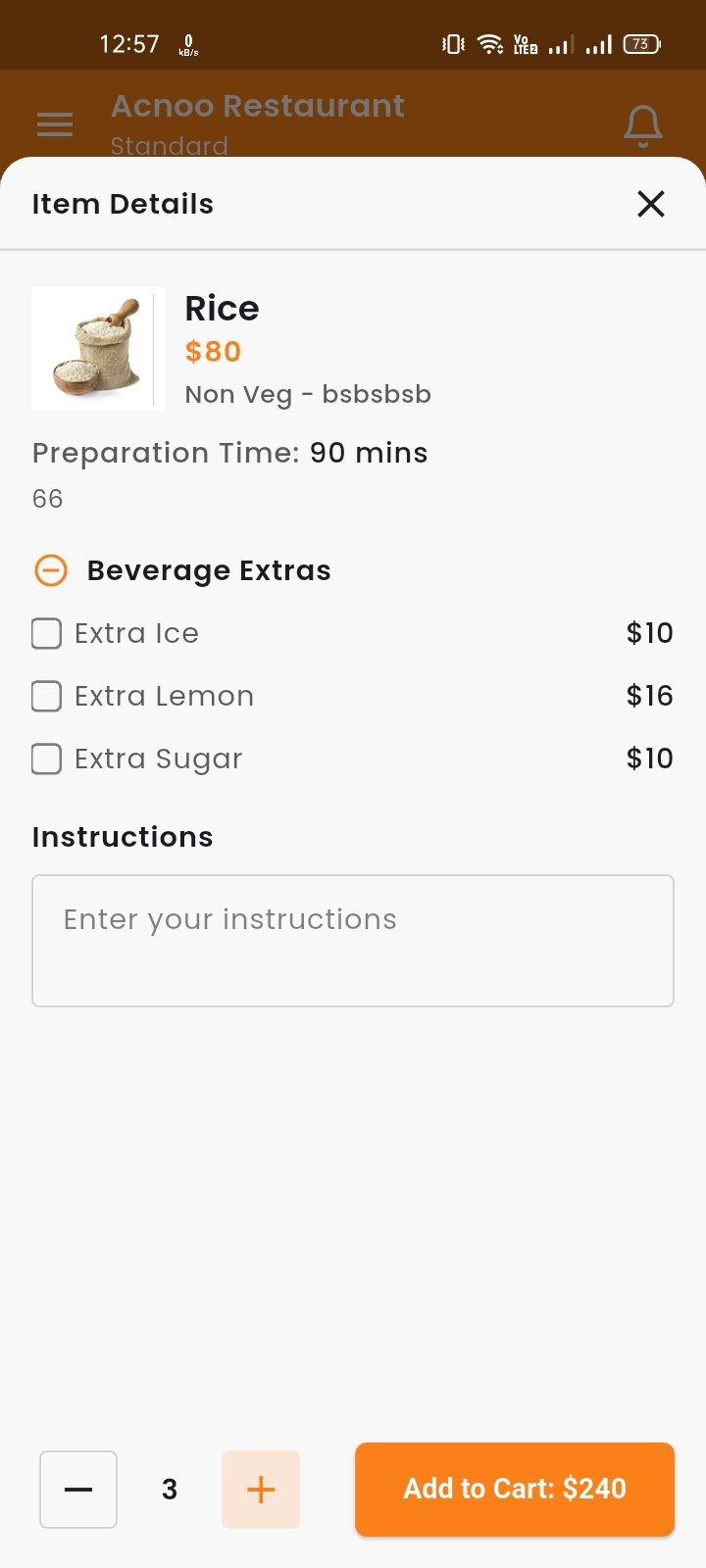
Create Sale
To create a sale, browse or search for items, select quantities, and add them to the cart. You can select customer, waiter, and table for dine-in orders. The cart shows subtotal, VAT, discounts, and total amount. Enter the received amount to calculate change or due amount.
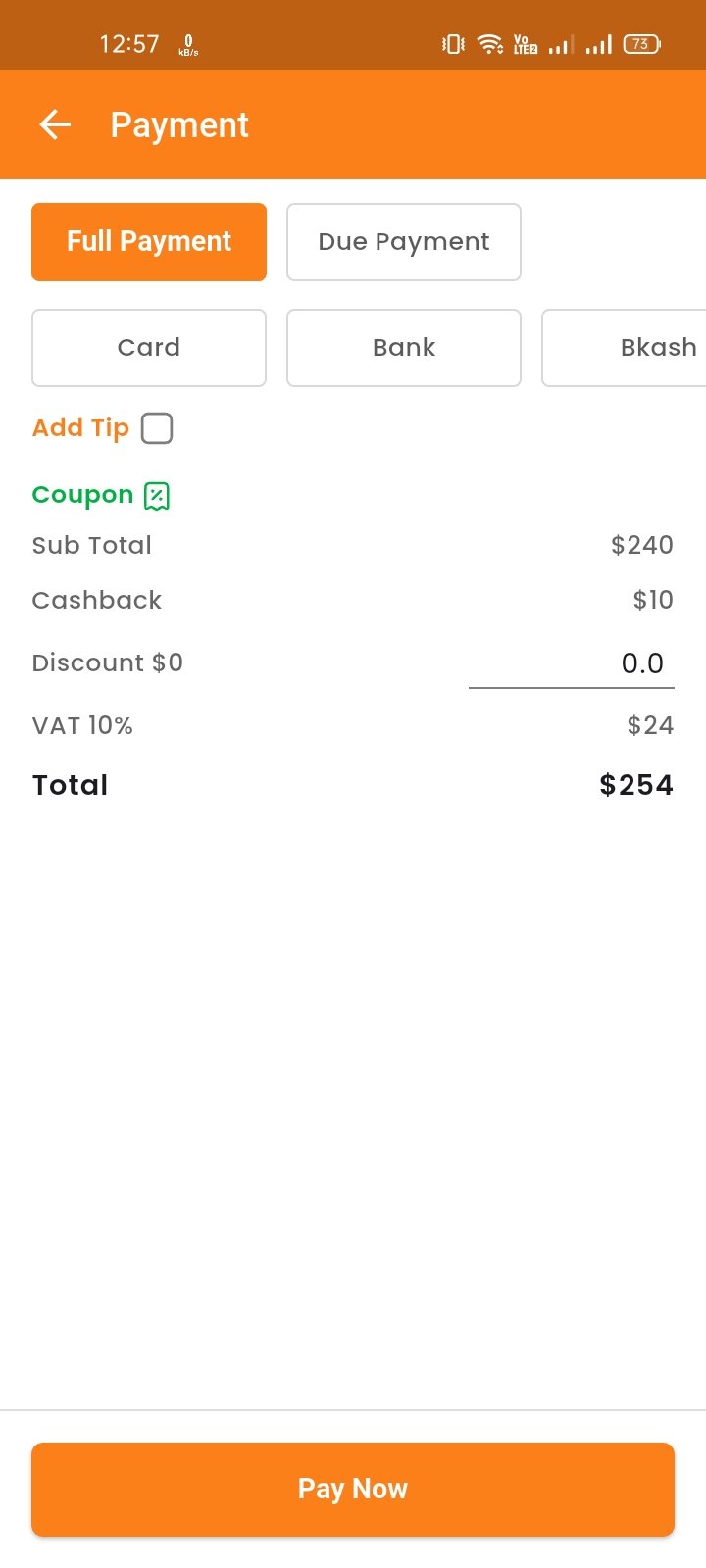
Cart & Payment
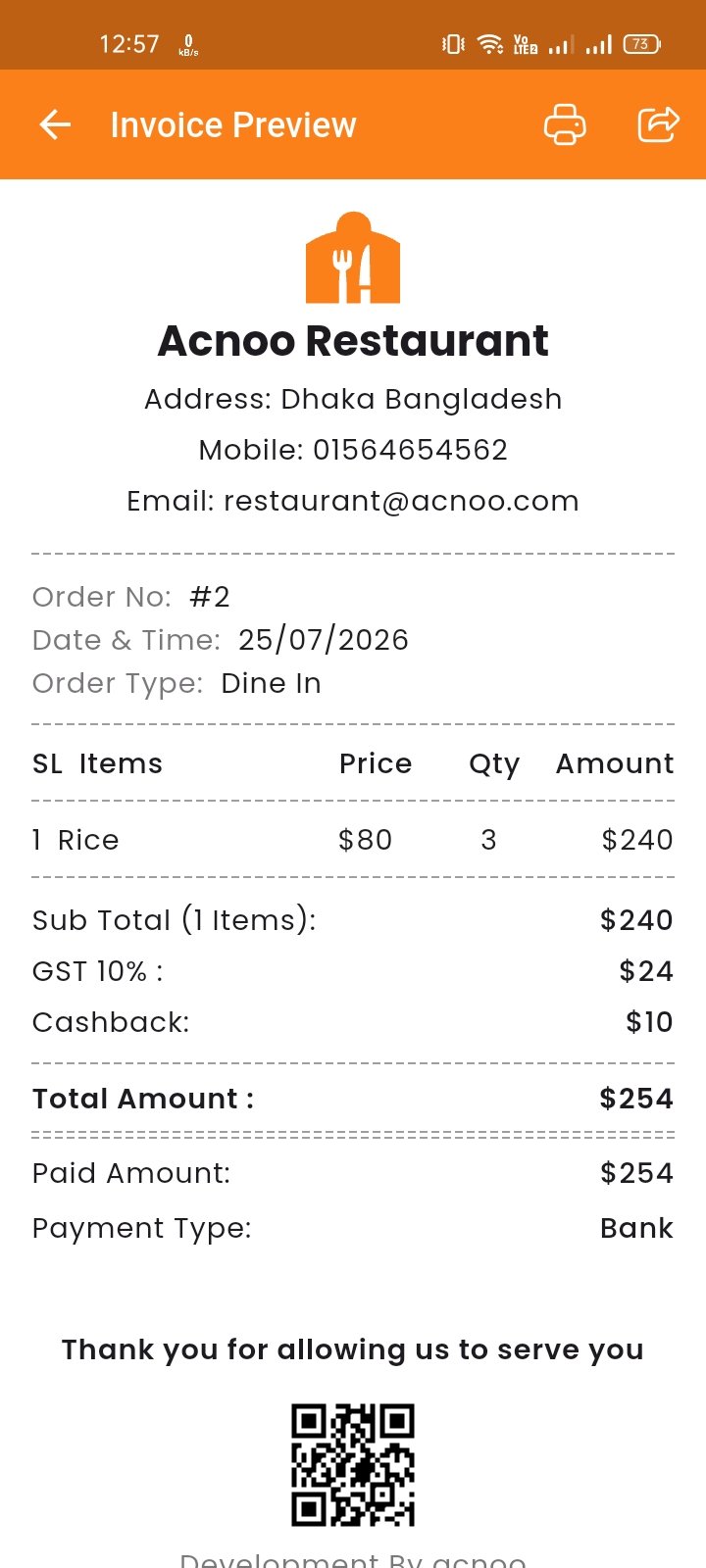
Adjust quantities, apply coupons, add tips, and view the total. Select payment type, enter received amount, and complete the order. The system auto-calculates change and due amounts. Also generate a invoice to view.
Orders Tab
The Orders tab displays a complete list of all orders placed. You can filter orders by date, payment status, order type and search by order ID or customer name. Also edit, delete & view orders.
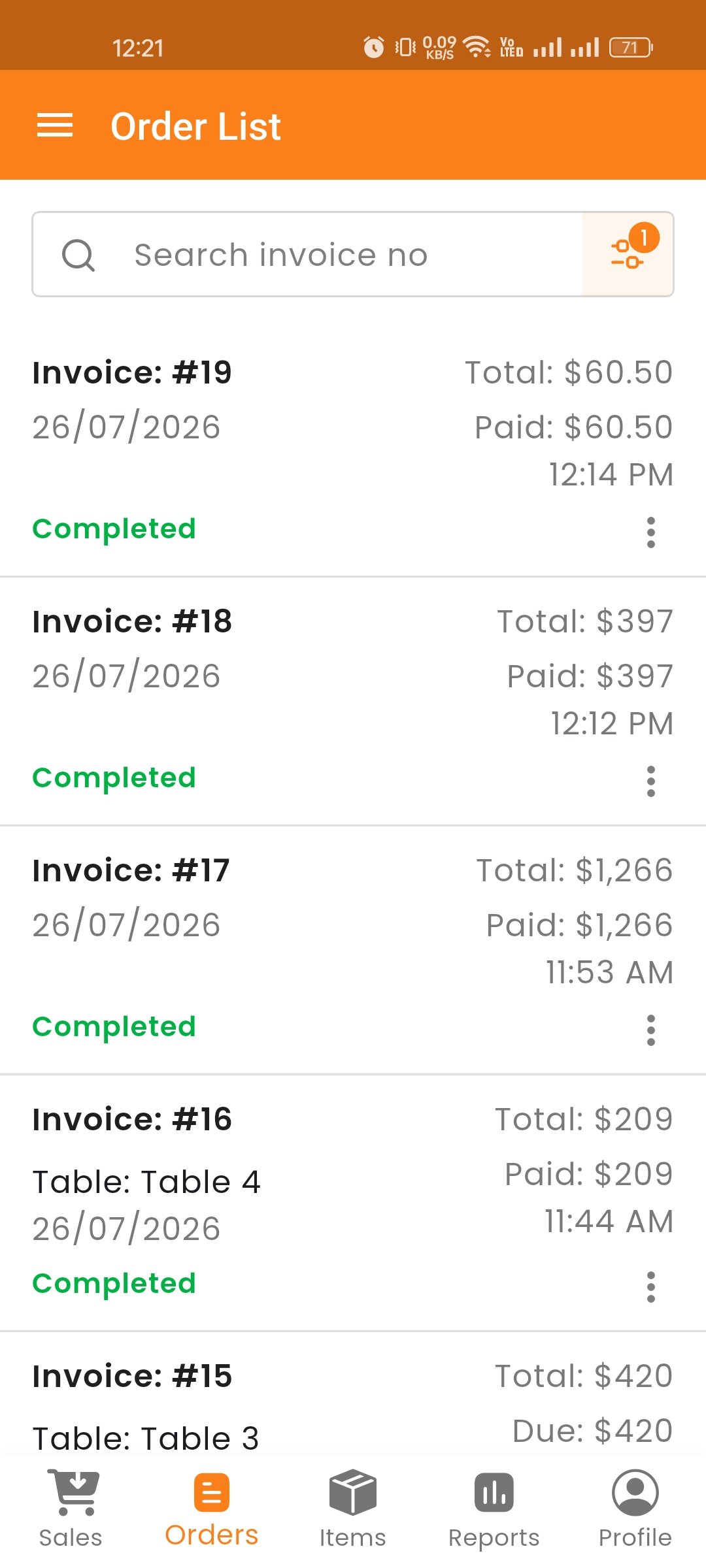
Invoice
View and print invoices for any completed order. The invoice includes item details, quantities, prices, taxes, and total amount.
Items Tab
The Items tab allows you to manage all menu items. You can view the item list with search, add new items, edit existing ones, and delete items.
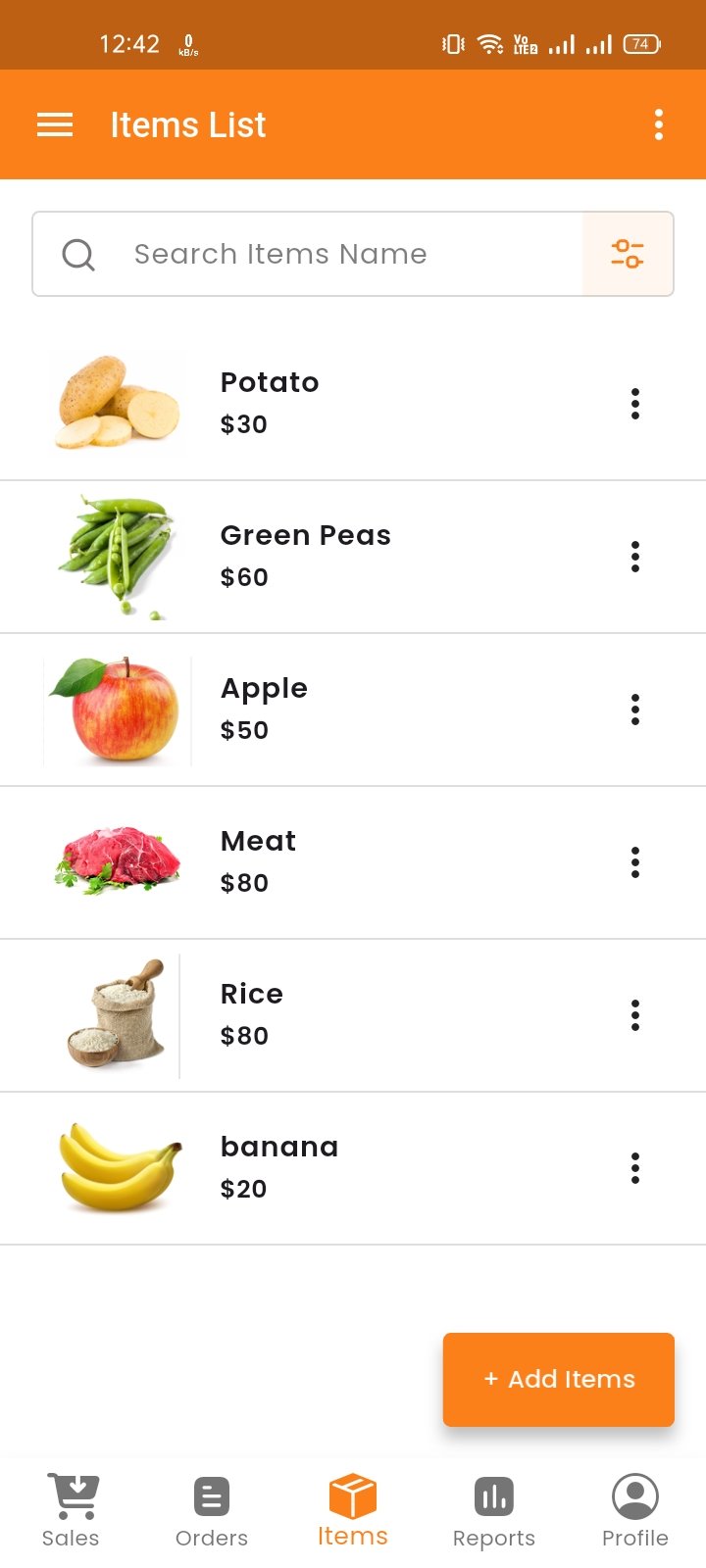
3-Dot Menu (More Options)
Tap the three-dot icon at the top to access additional management features:
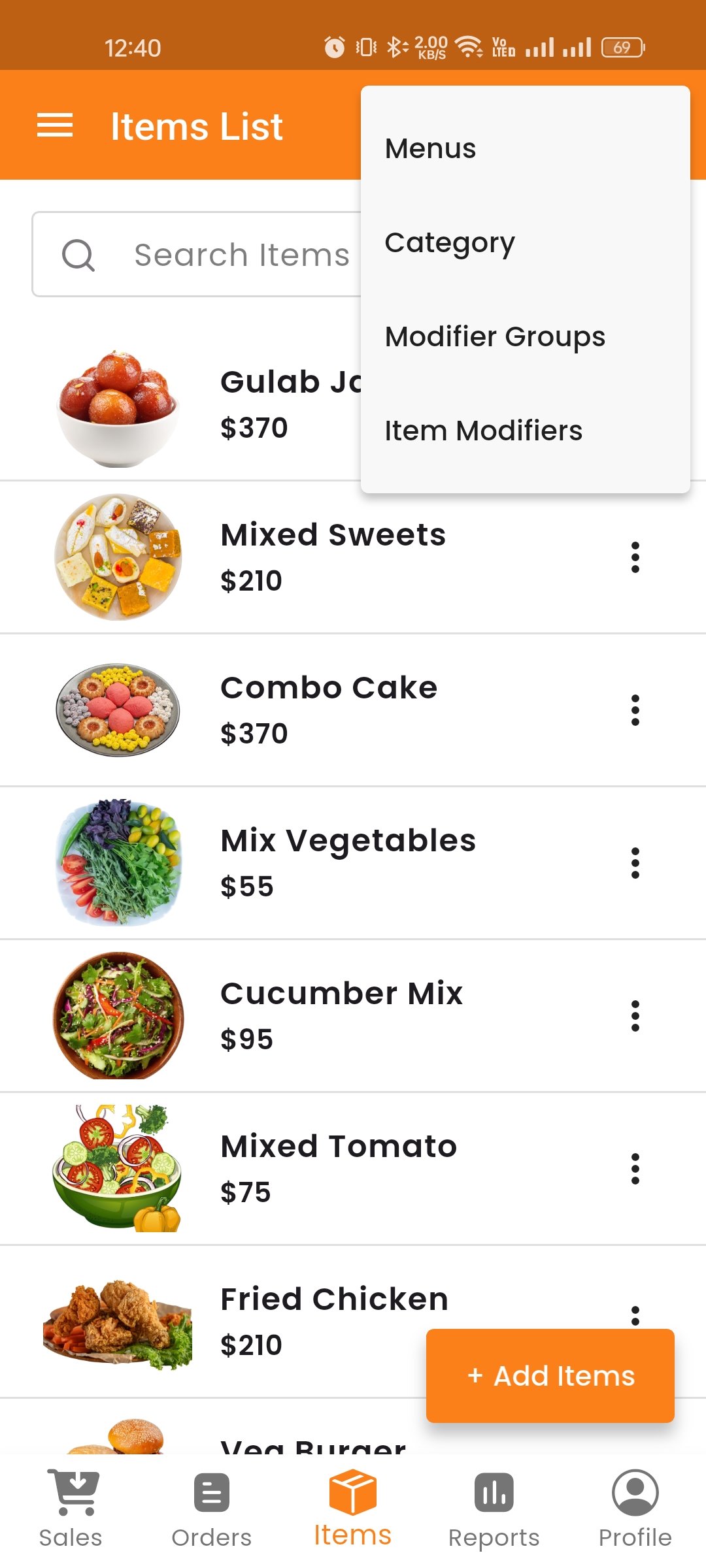
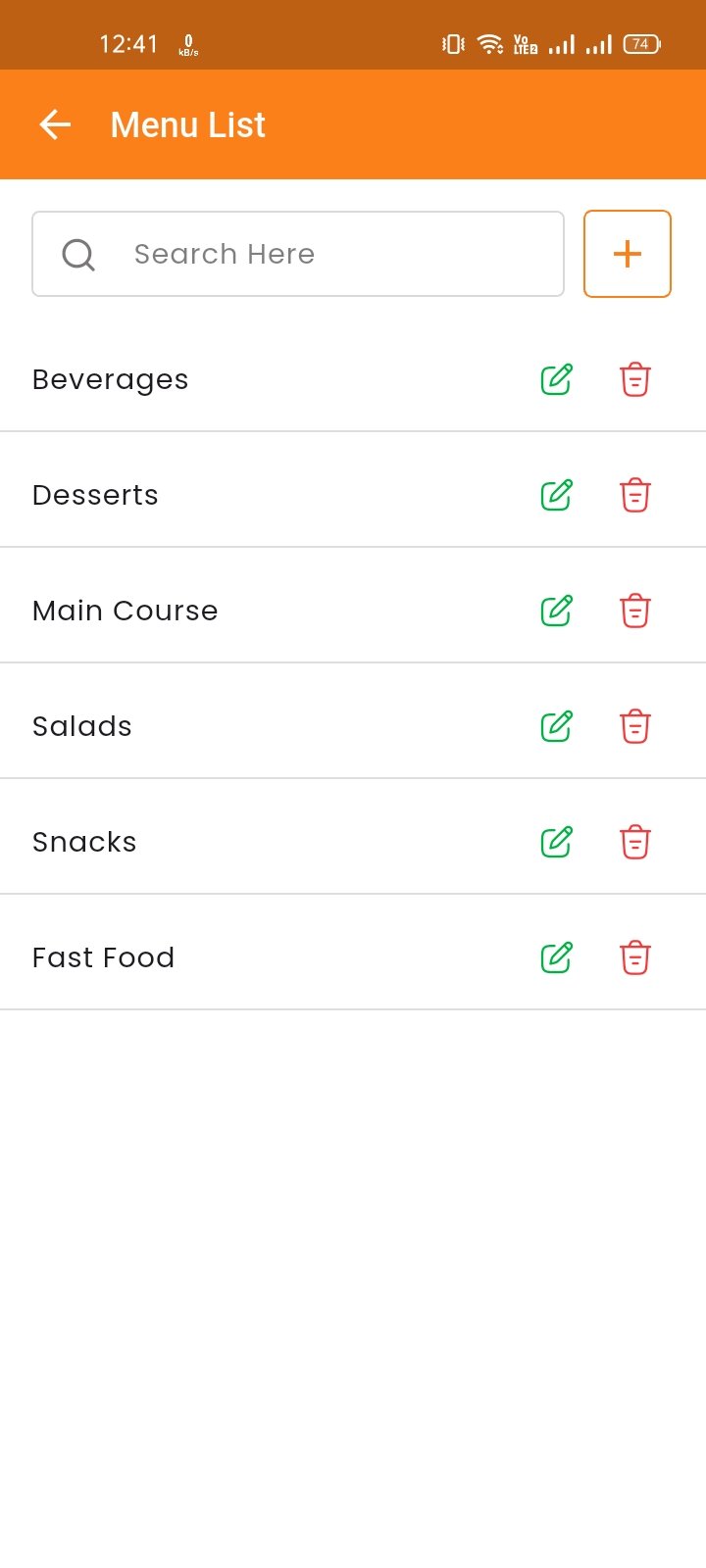
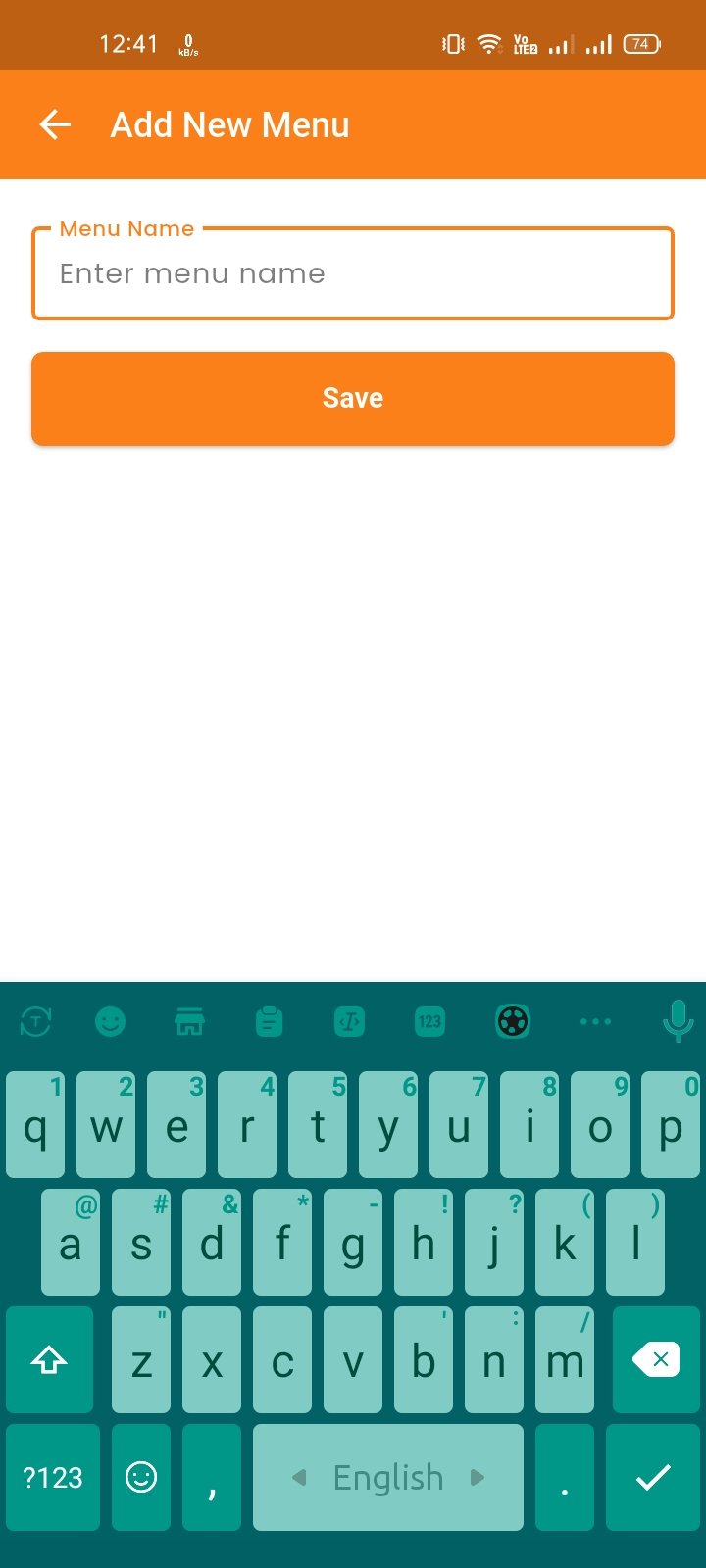
Menu List
Manage menu groups/categories. Add, edit, delete, and search menus.
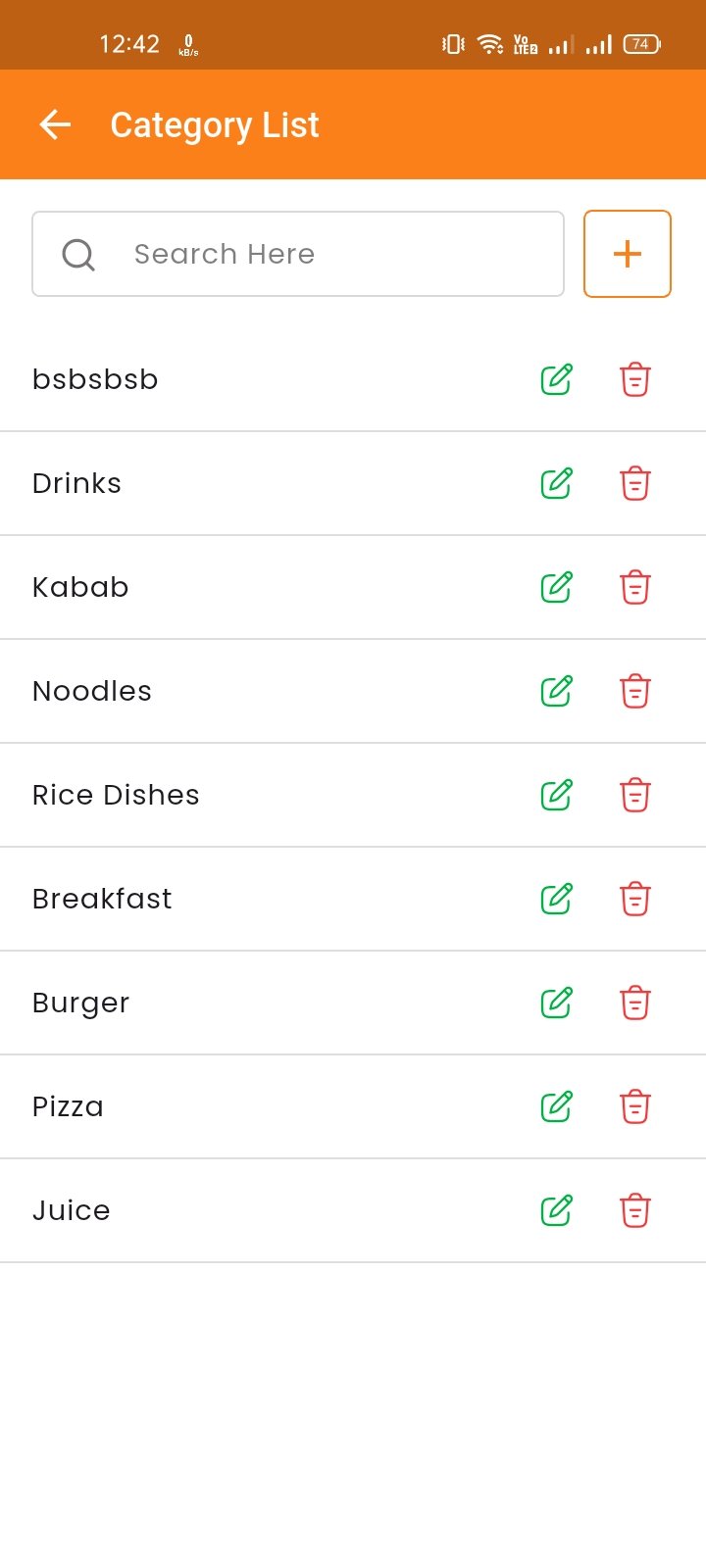
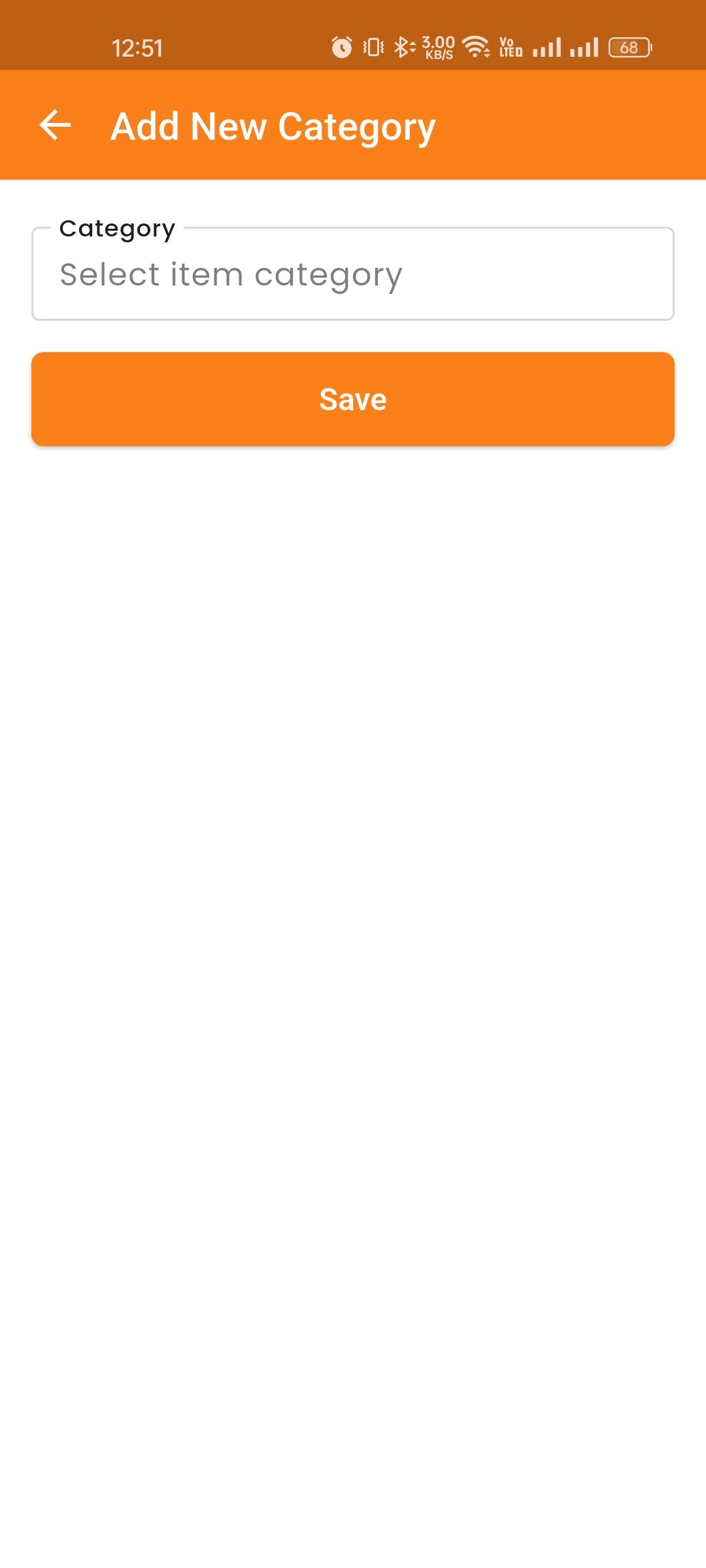
Category List
Manage item categories. Also Add, edit, delete, and search categories. Organize items into logical groups for easy browsing.
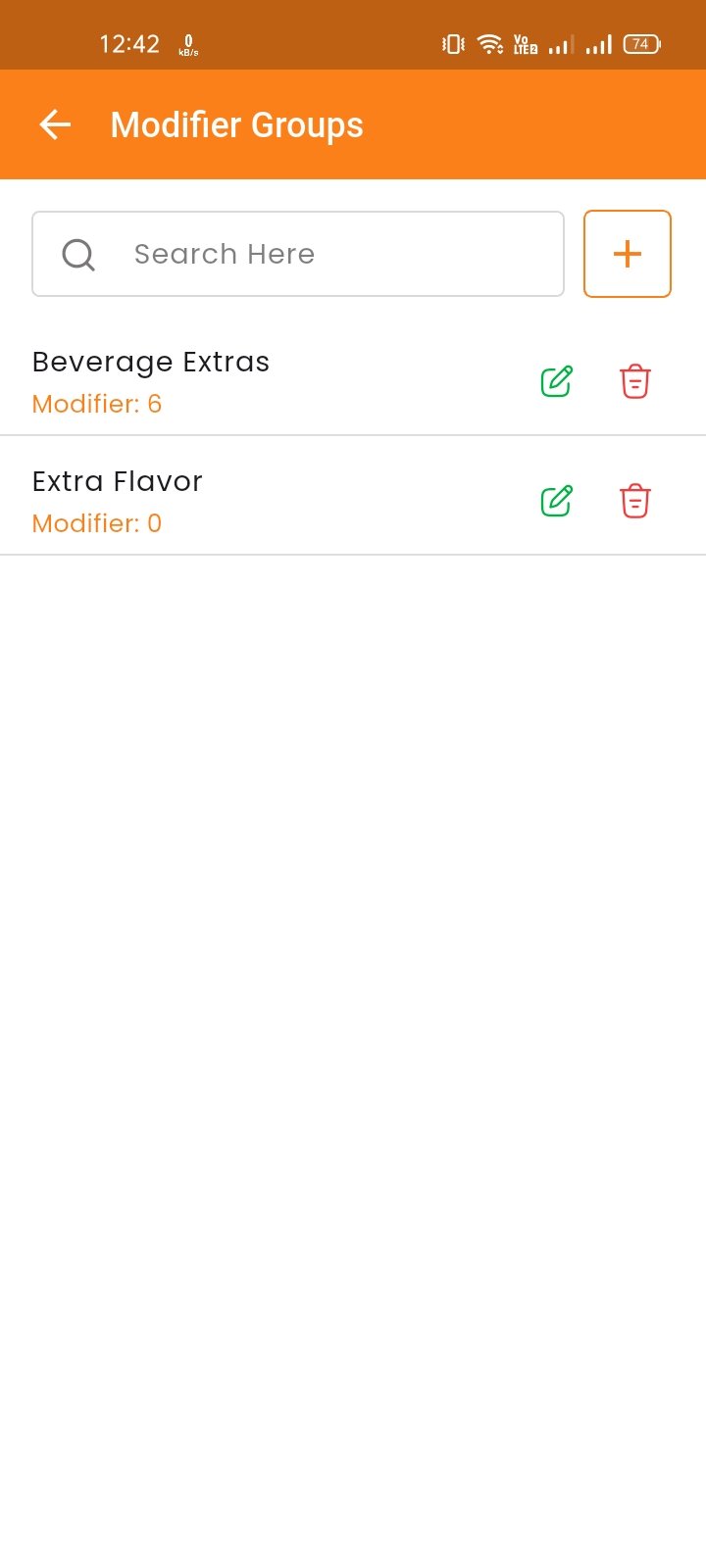
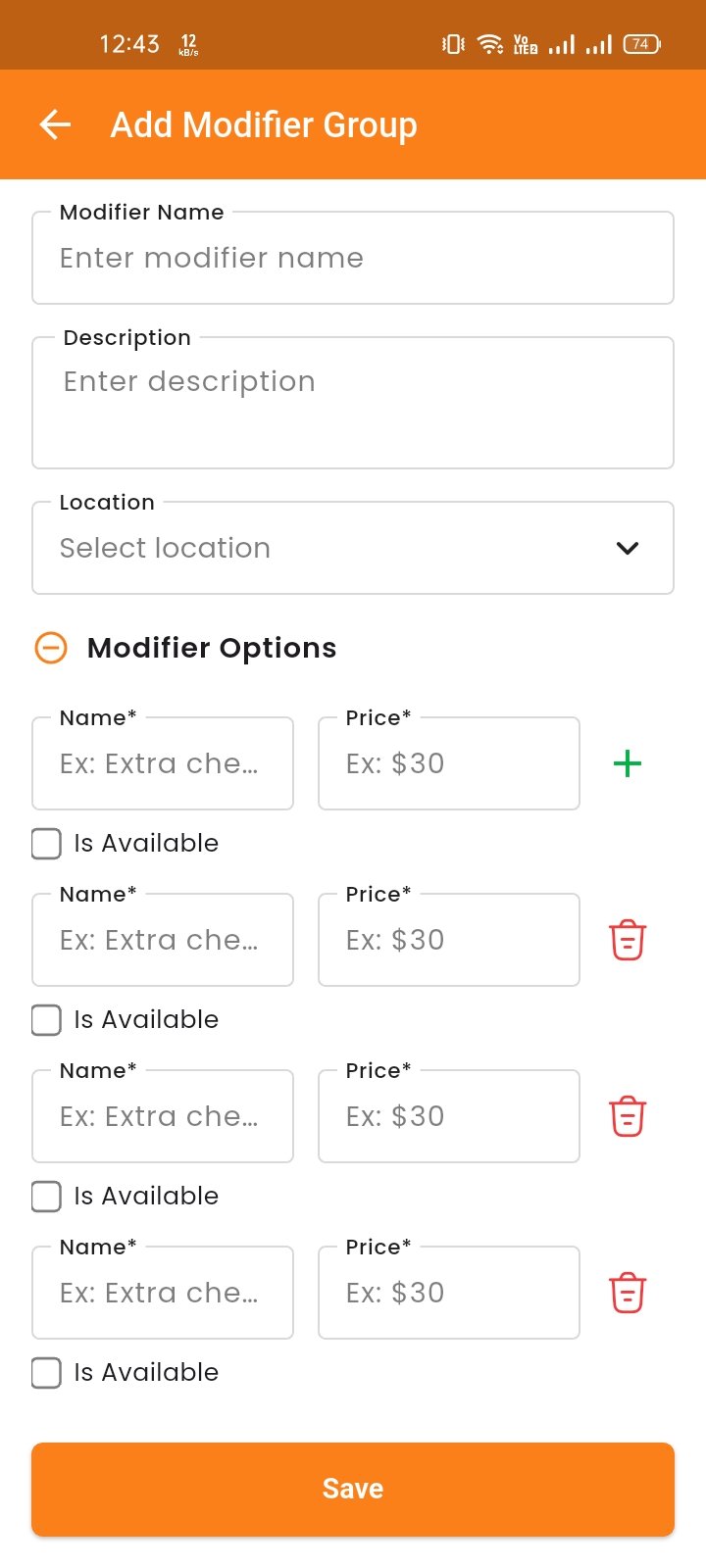
Modifier Groups
Create and manage modifier groups (e.g., Extra Toppings, Drink Sizes). Each group can have multiple modifier options with prices.
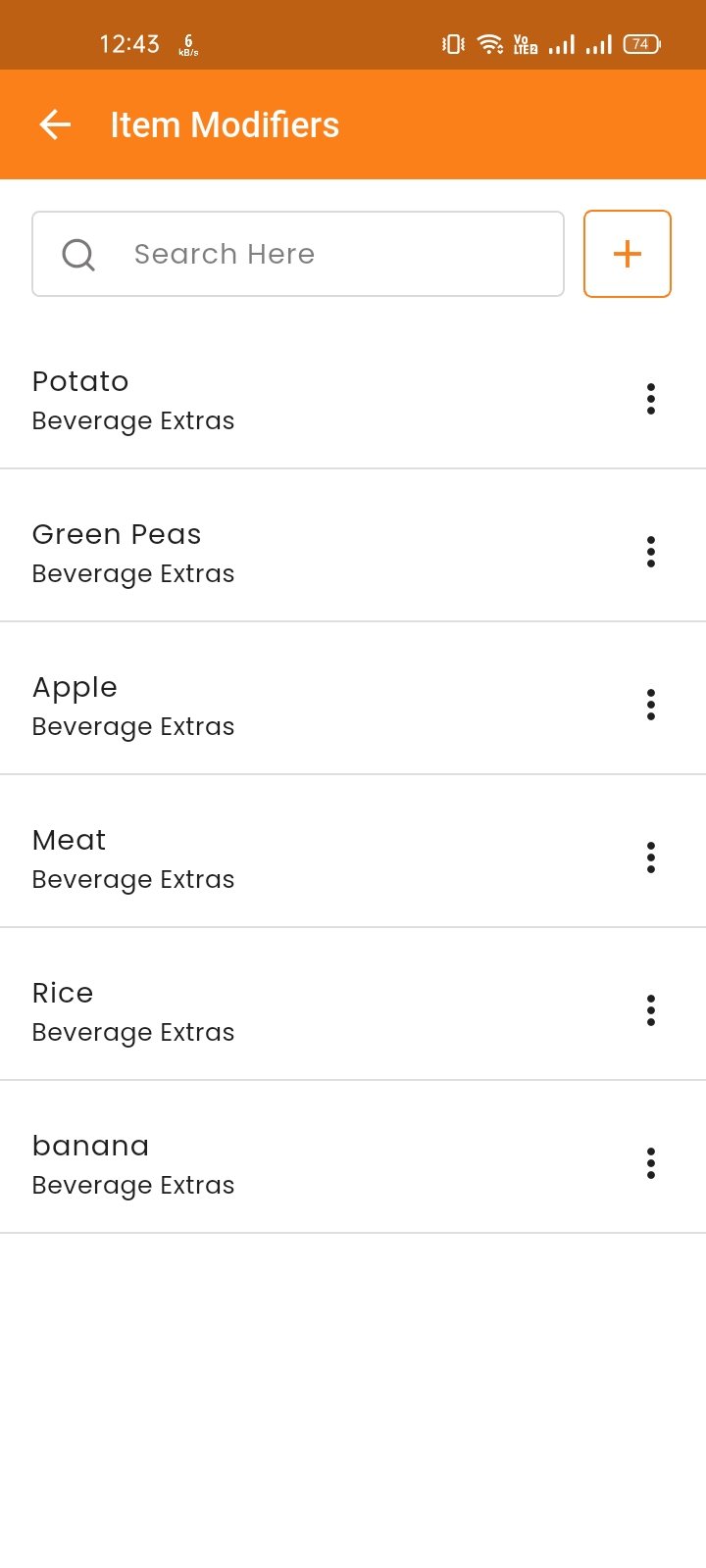
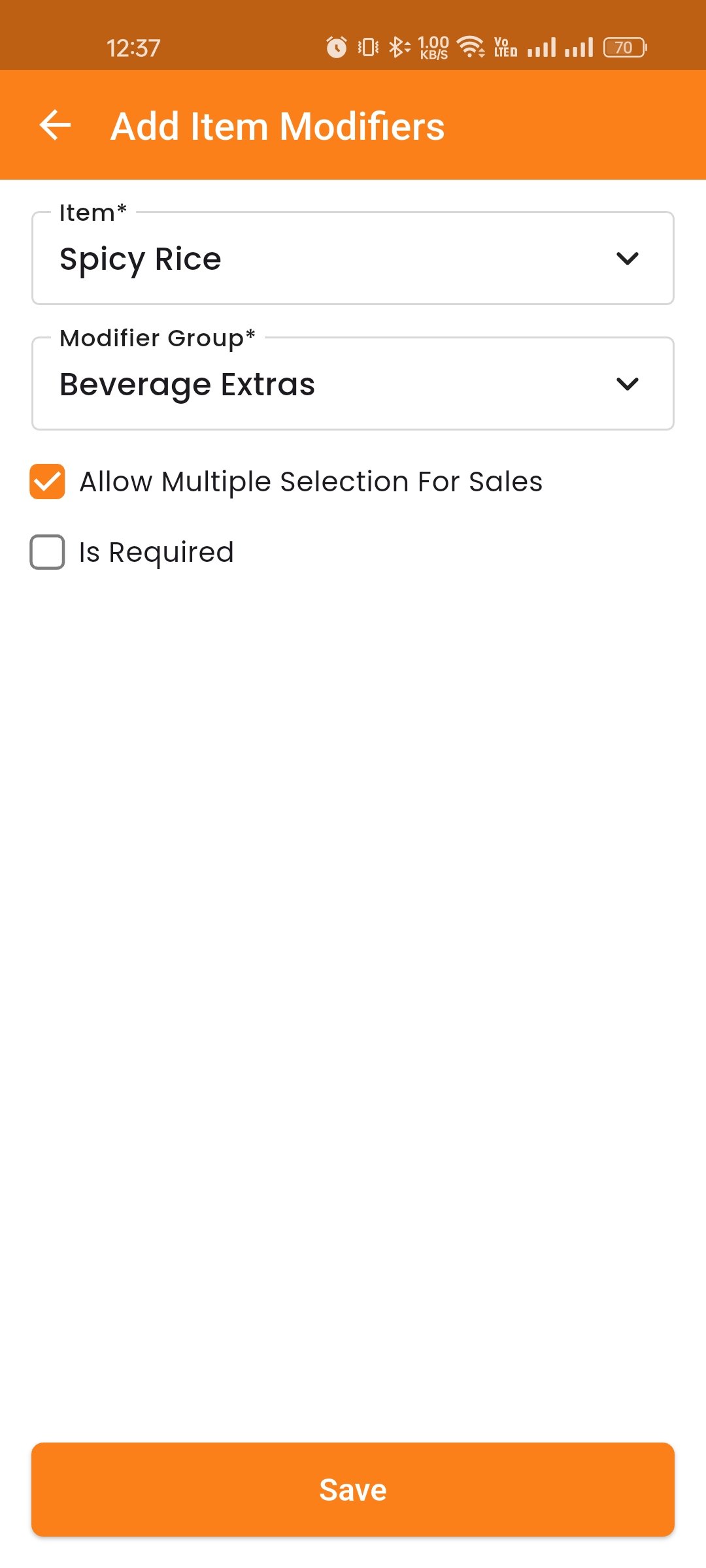
Item Modifier
Assign modifier groups to specific items. Configure whether multiple selections are allowed and if modifiers are required.
Reports Tab
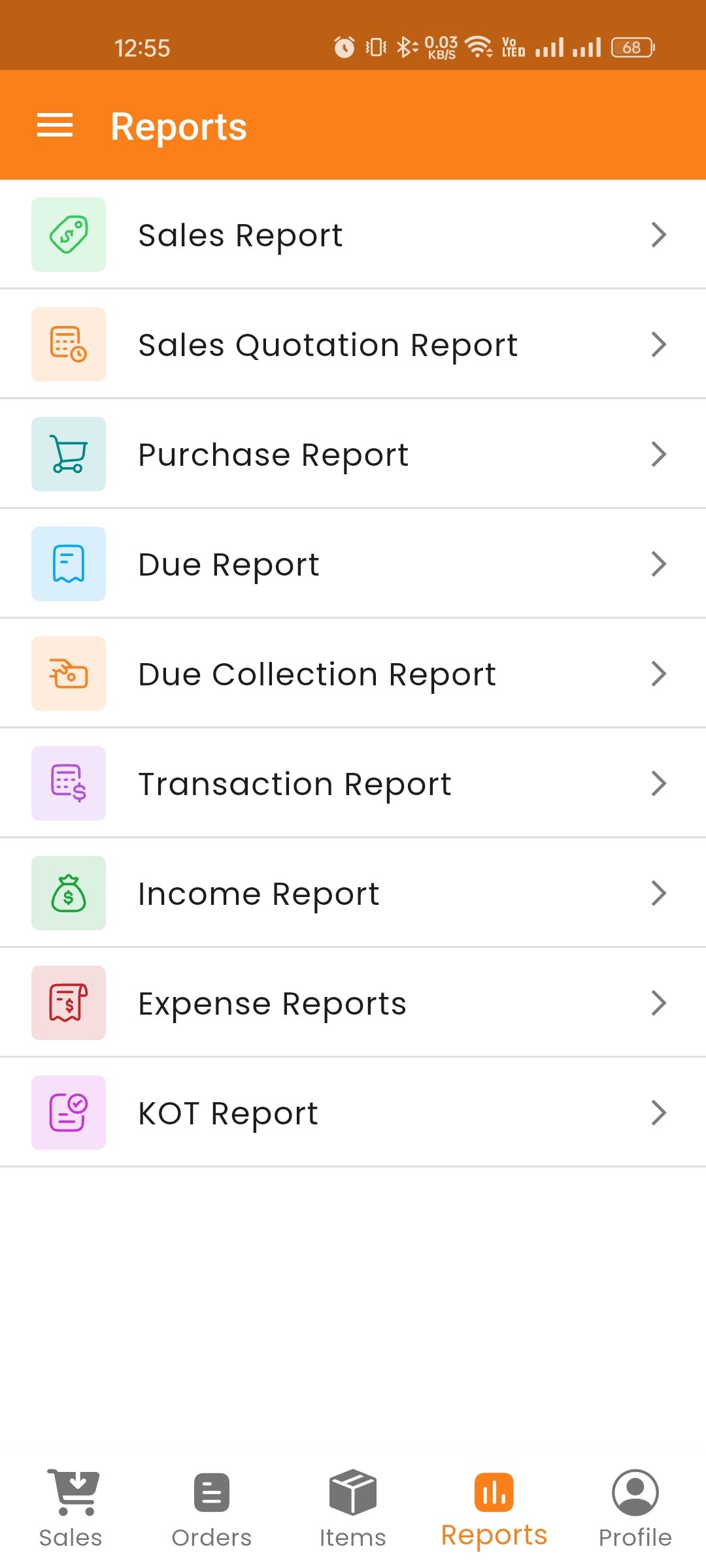
The Reports tab provides detailed analytics and reports on various aspects of restaurant operations. The following reports are available:
- Sales Report — View sales data with filters for date range and payment type.
- Sales Quotation — View and manage quotation reports.
- Purchase Report — Track all purchases with detailed breakdowns.
- Due Report — View all due amounts from customers and suppliers.
- Due Collection — Track collected due amounts and payment history.
- Transaction Report — View all financial transactions with filtering options.
- Income Report — Track all income sources and amounts.
- Expense Report — Monitor business expenses by category.
- KOT Report — View Kitchen Order Ticket reports for order preparation tracking.
Profile Tab
The Profile tab provides access to your account management. Tap "My Profile" to open the profile menu with the following options:
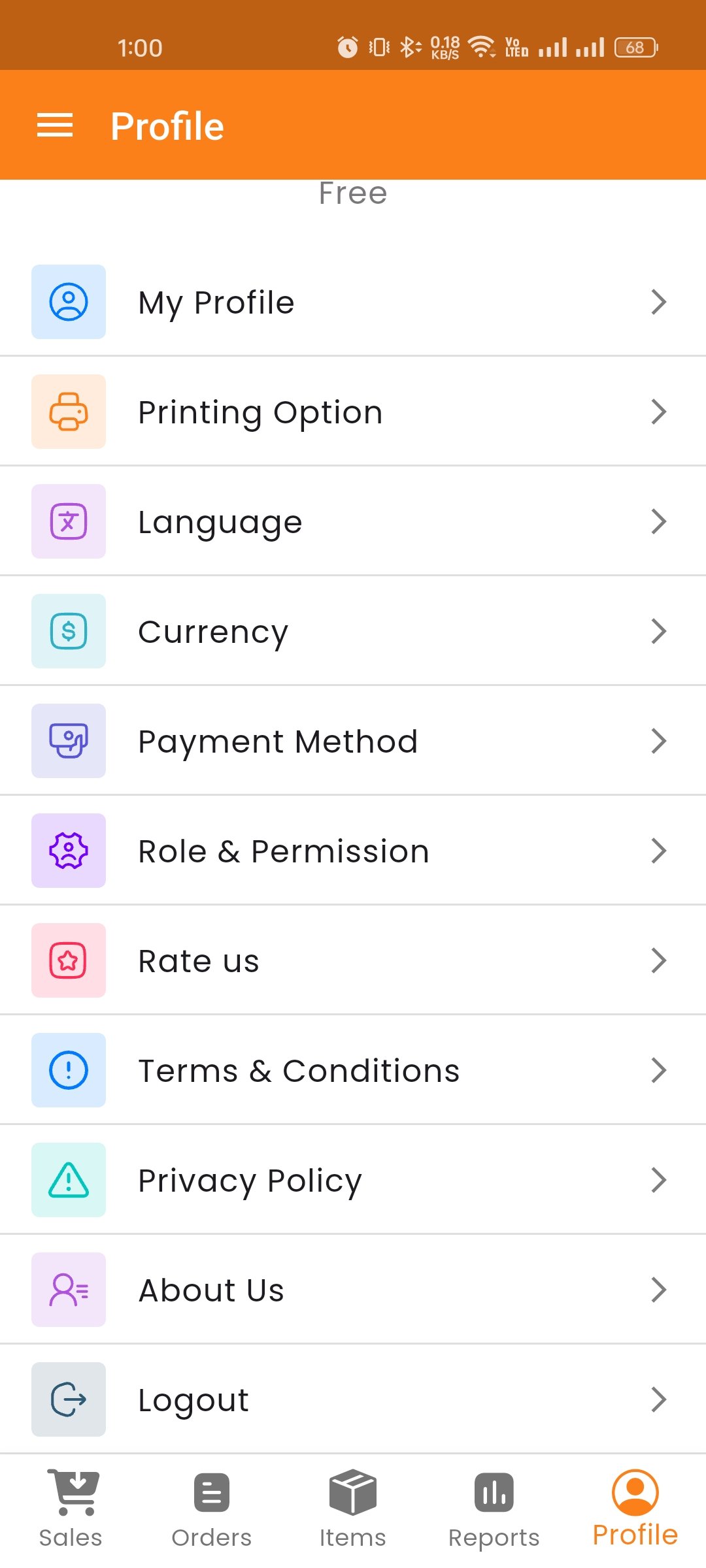
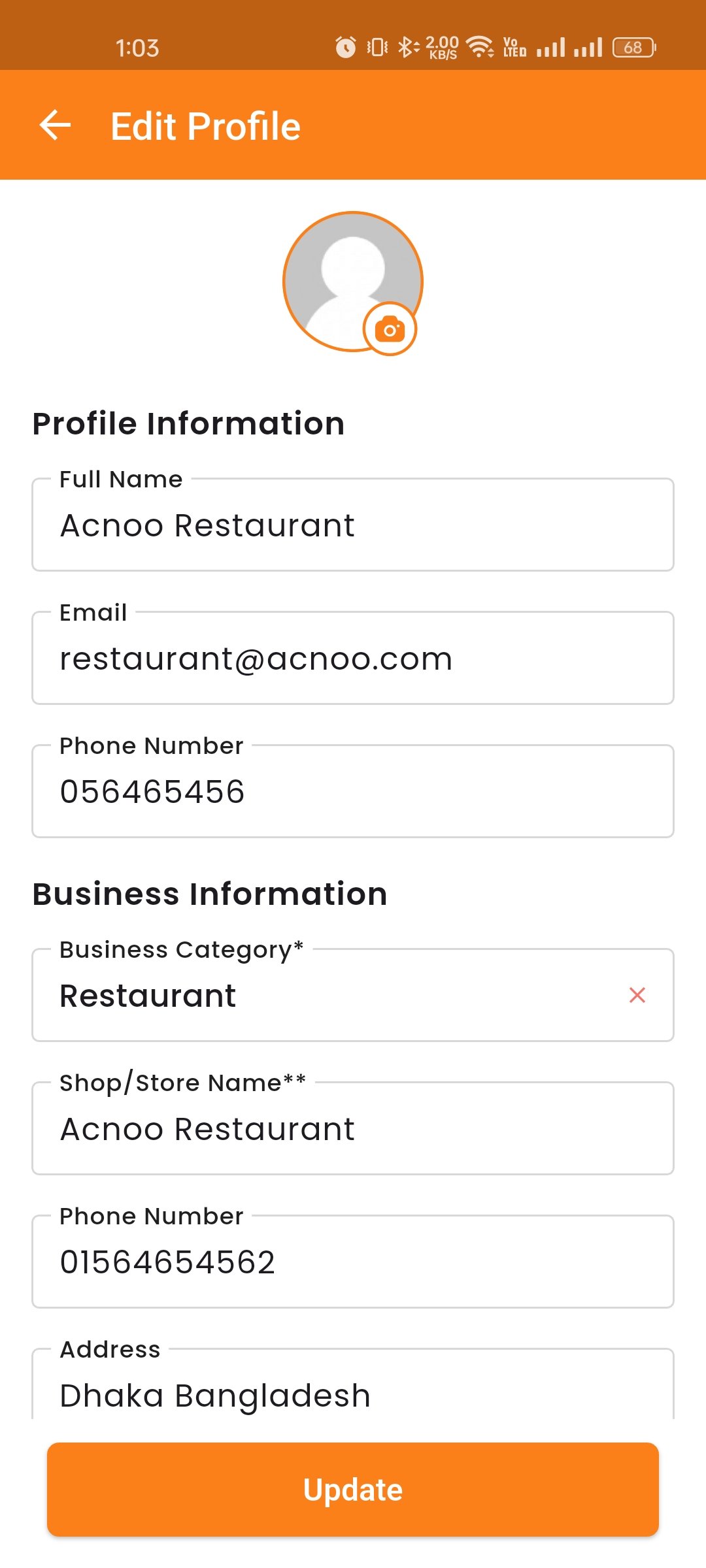
My Profile
View and update your personal information including name, email, phone number, and profile picture. Also update your business details such as business name, address, contact information, and other settings
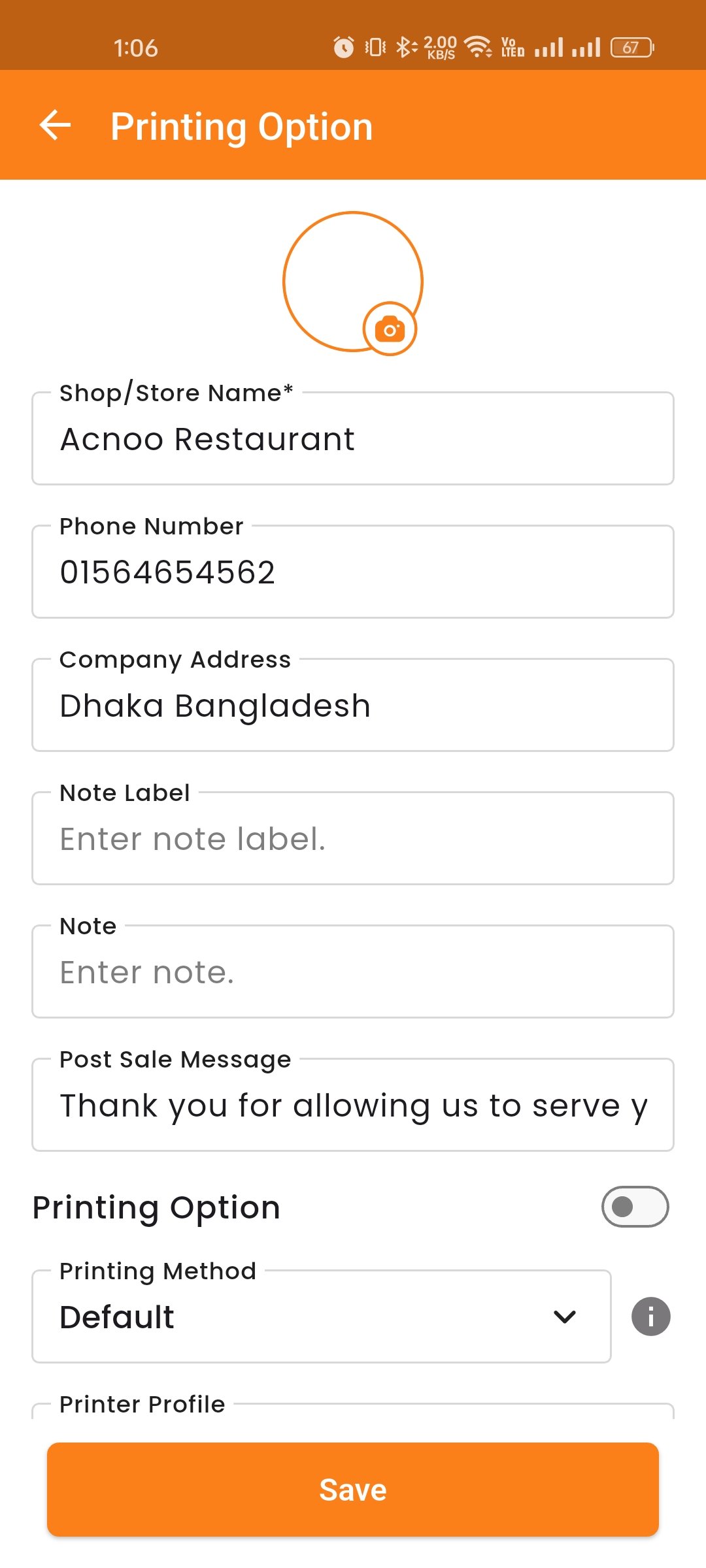
Printing Option
Configure printing settings for thermal printers and invoices. Choose print format, paper size, and other preferences.
Language
Change the app language from available options for a localized experience.
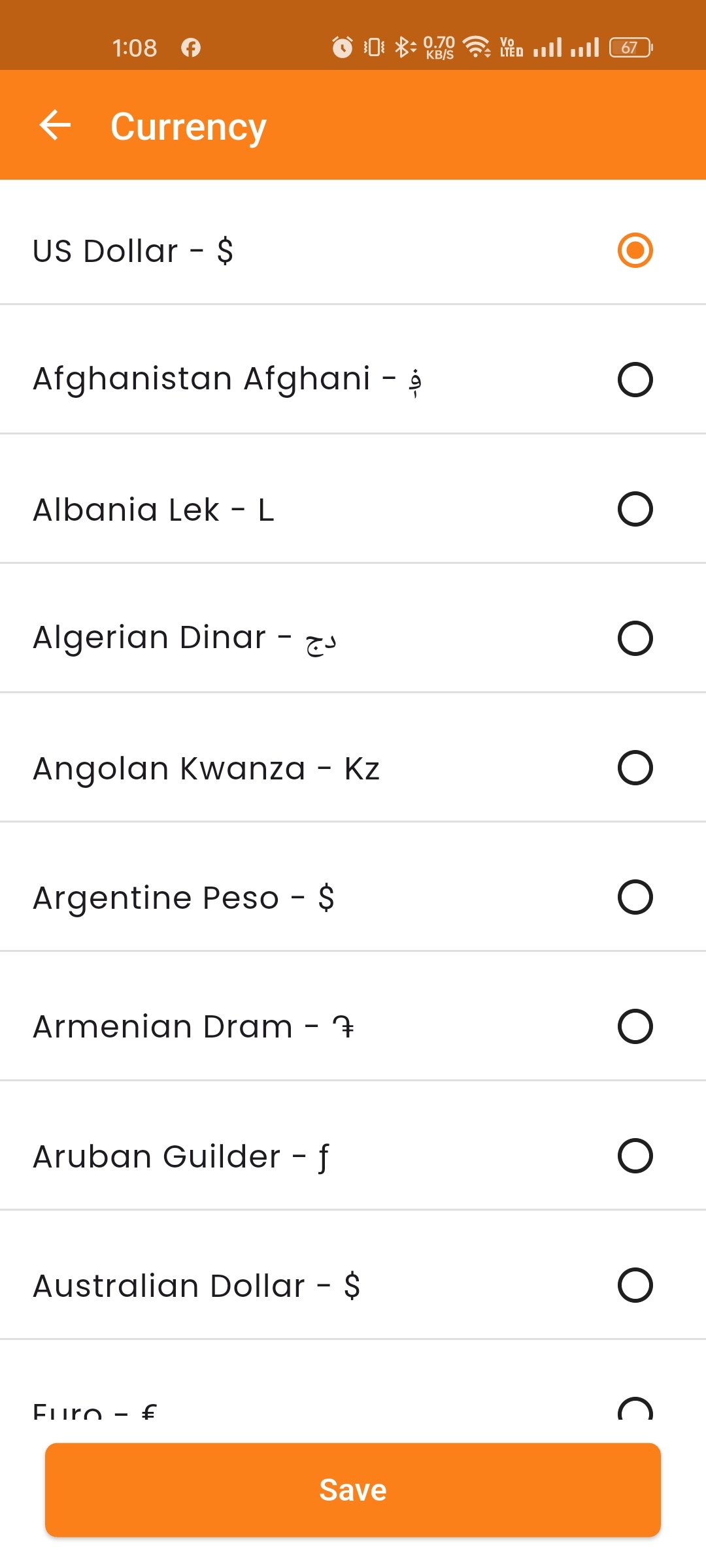
Currency
Set your preferred currency for transactions and reporting.
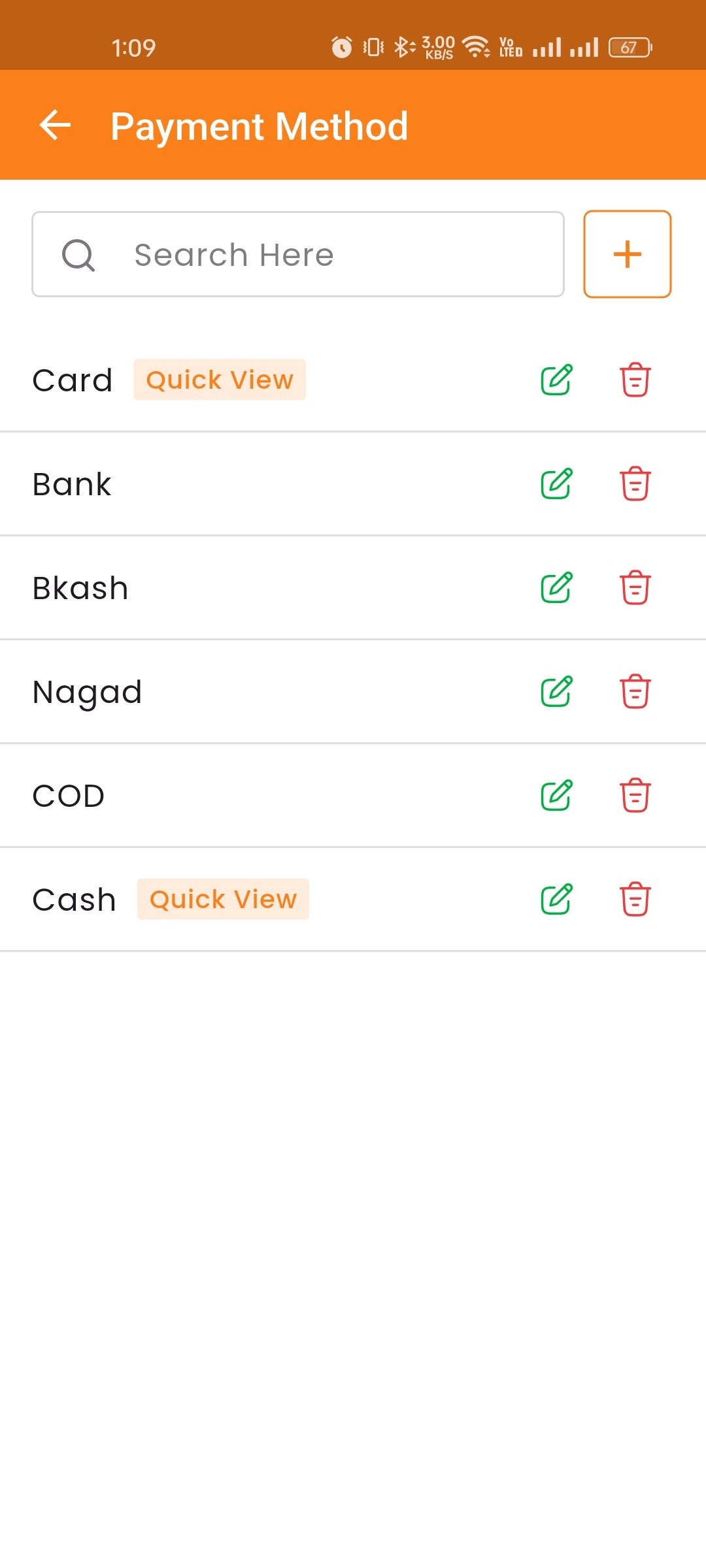
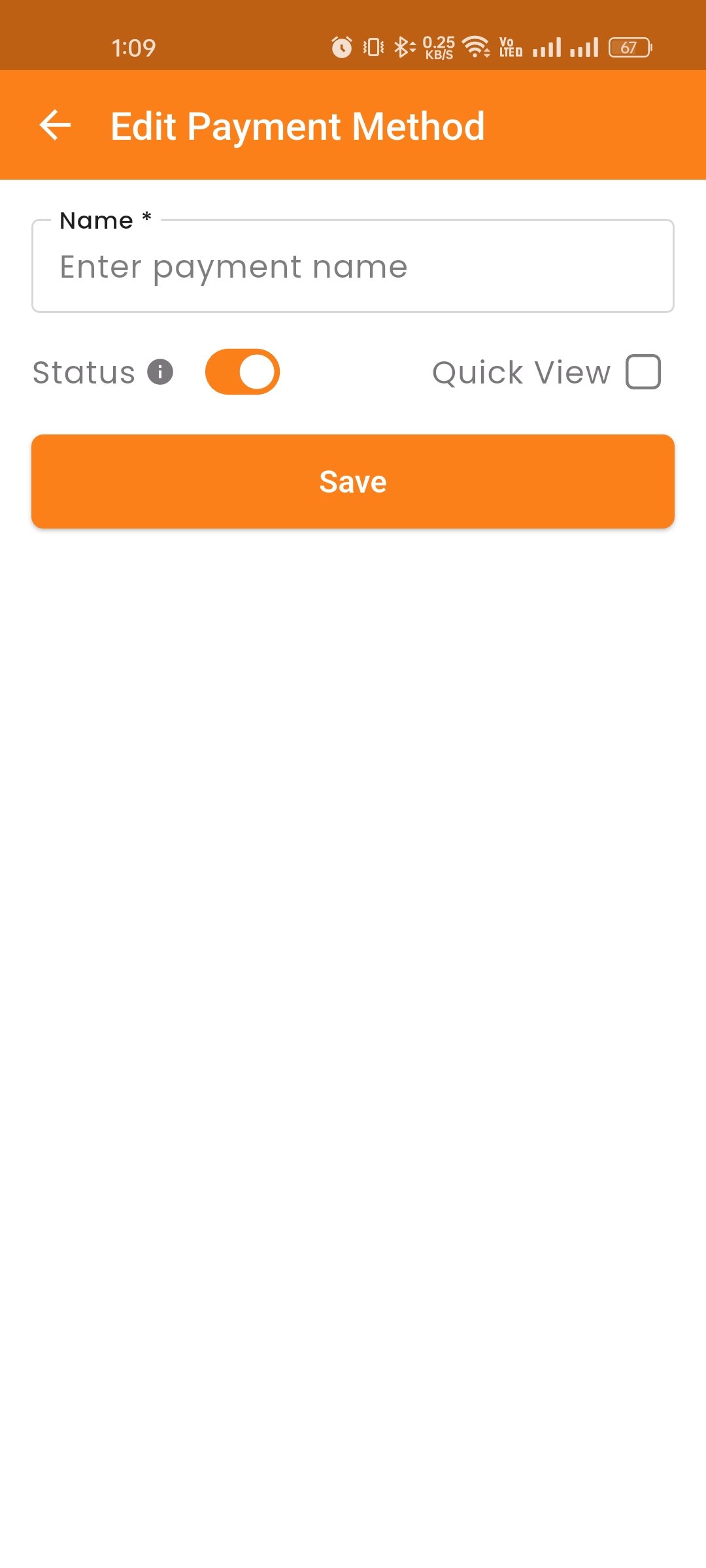
Payment Method
View create, edit, delete, search and configure available payment methods for your business.
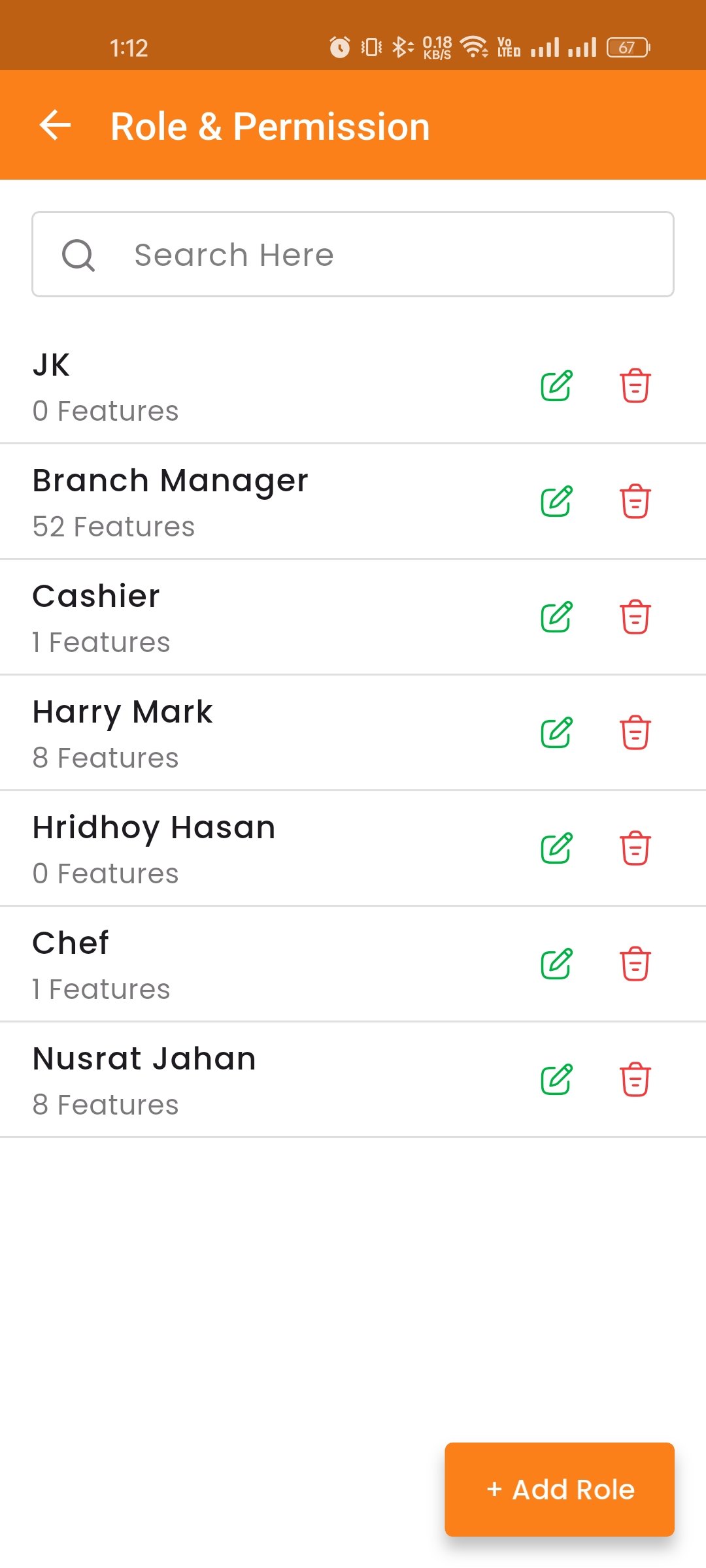
Roles & Permissions
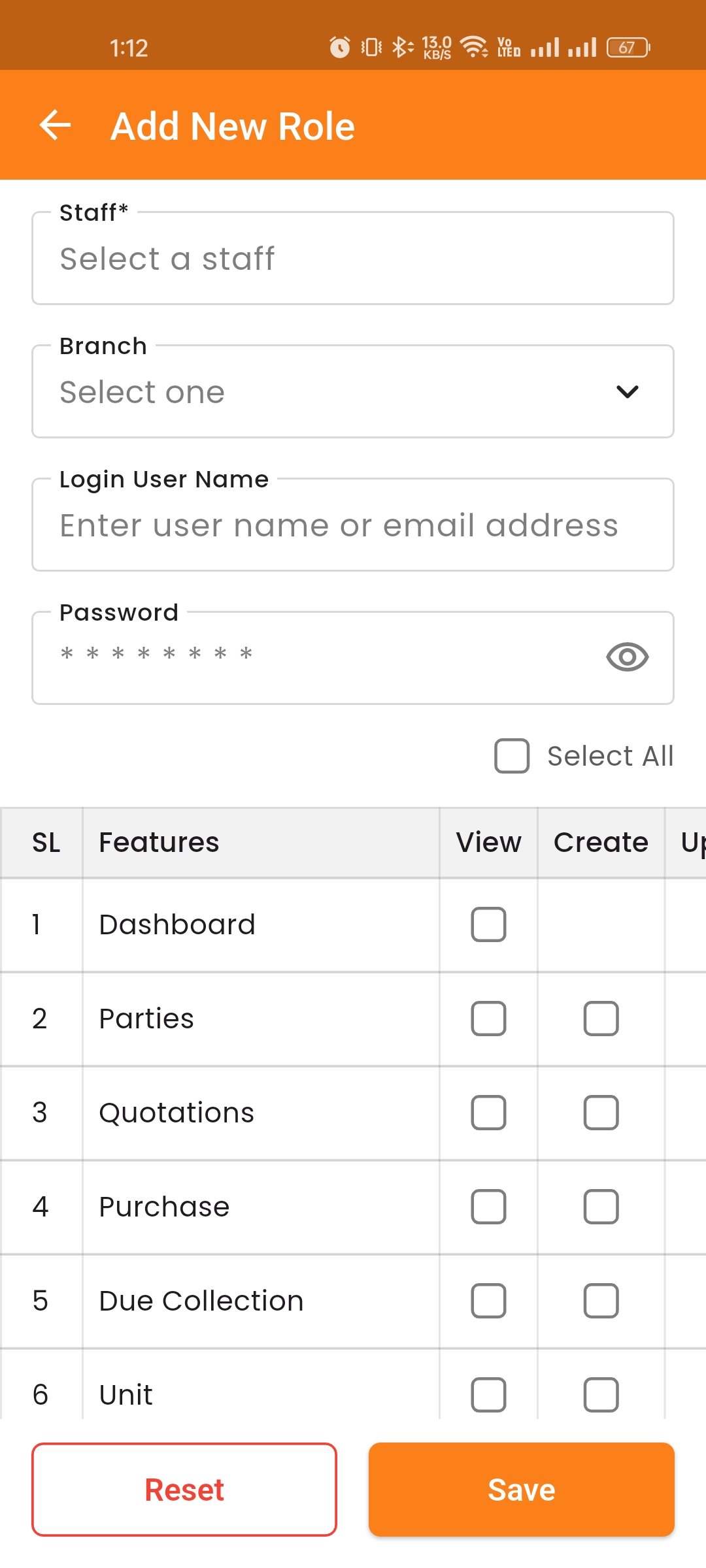
Manage user roles and configure permissions for different staff members.
About, Terms & Privacy
View about us, terms of service and privacy policy of the application.
Logout
To log out of your account, click the "Logout" option from the menu. You will be securely logged out of the Restaurant Panel and redirected to the Login Page.