Settings
In the Setting section, you have the capability to configure the fundamental aspects or core elements of this project.
Currency List
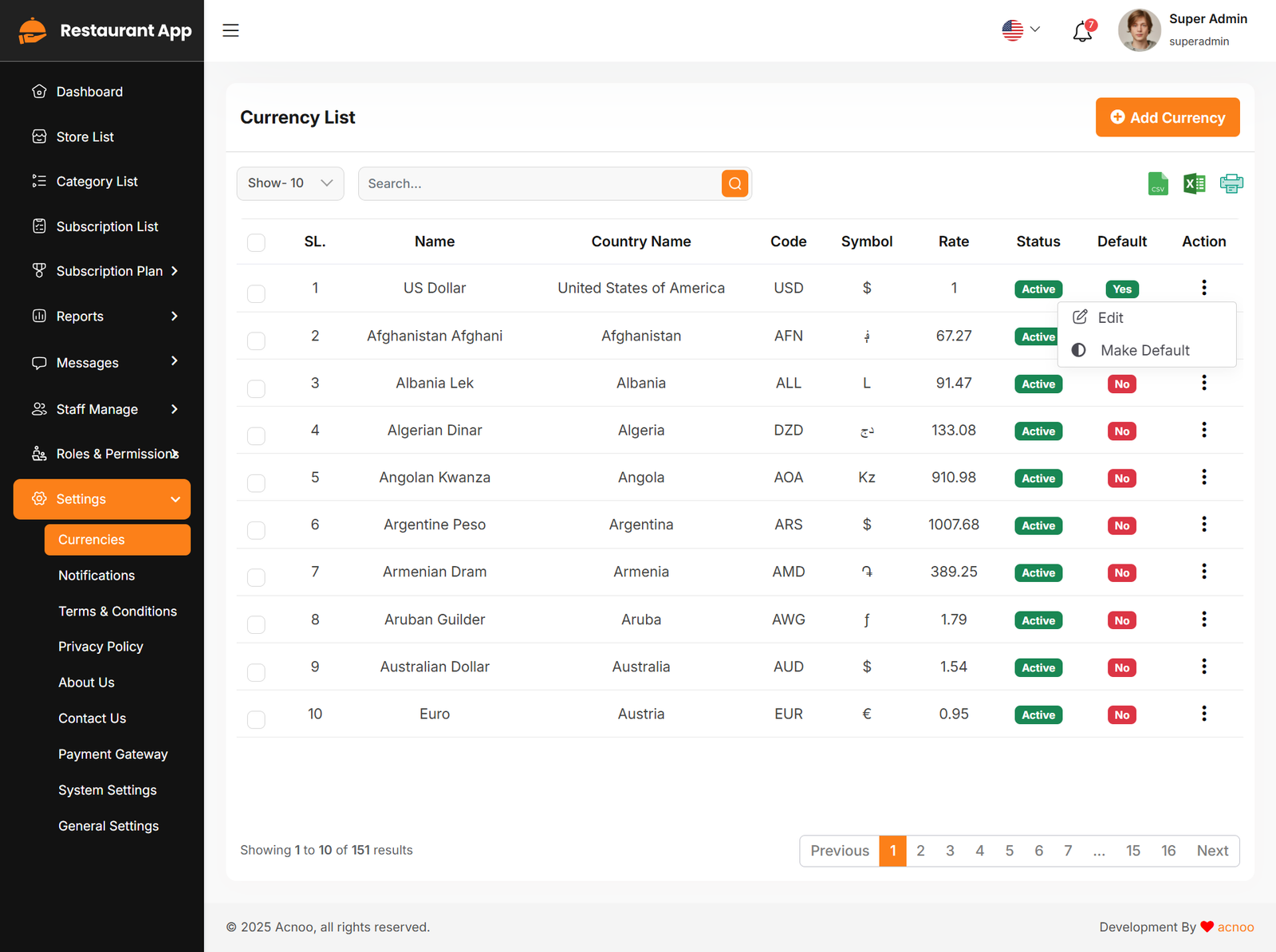
Here, you can view a list of currencies with filtering options. Additionally, there is an option to edit currencies, and you can also set a default currency.
Create Currency
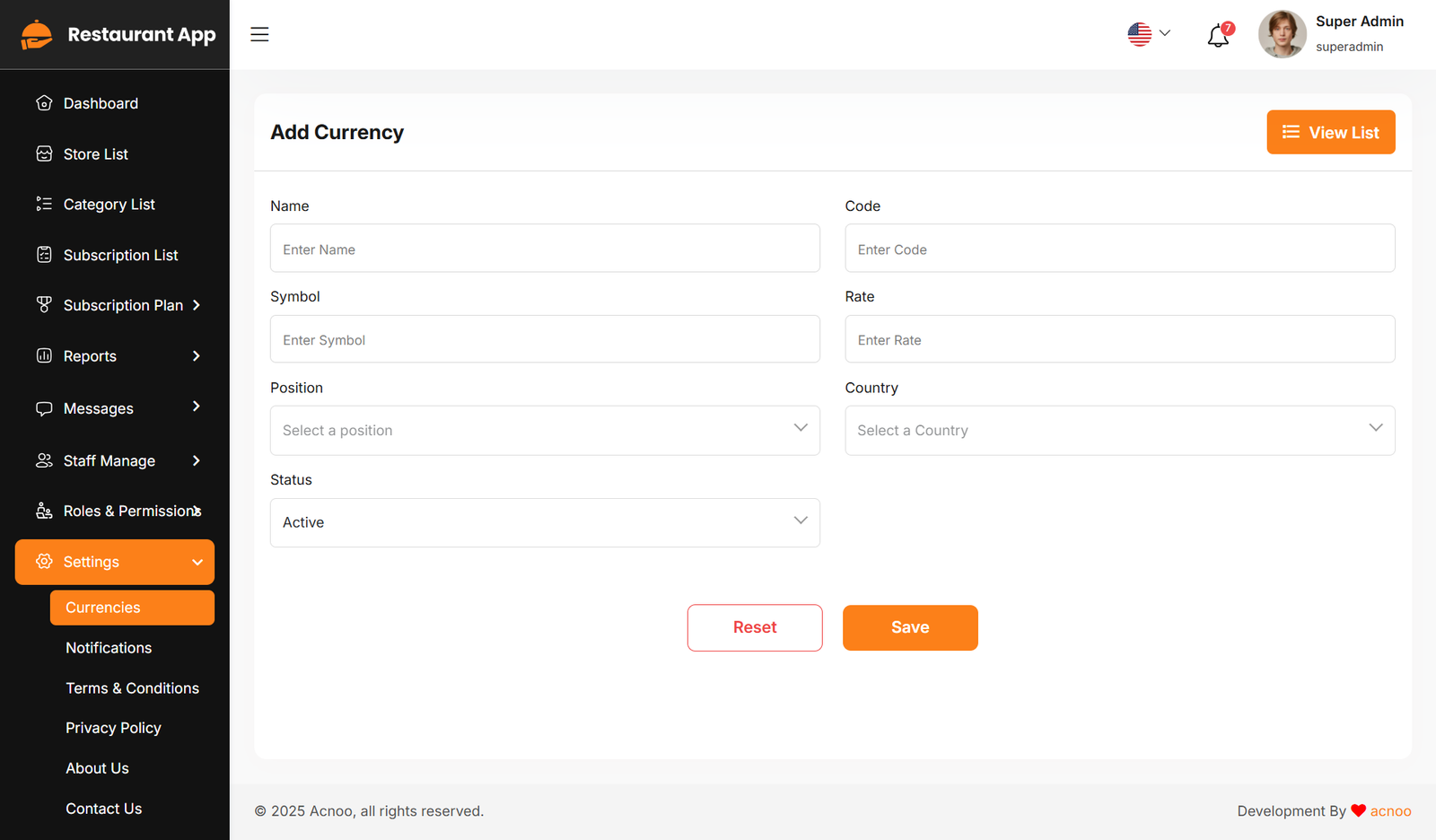
You have the option to include currency from this location.
Notification
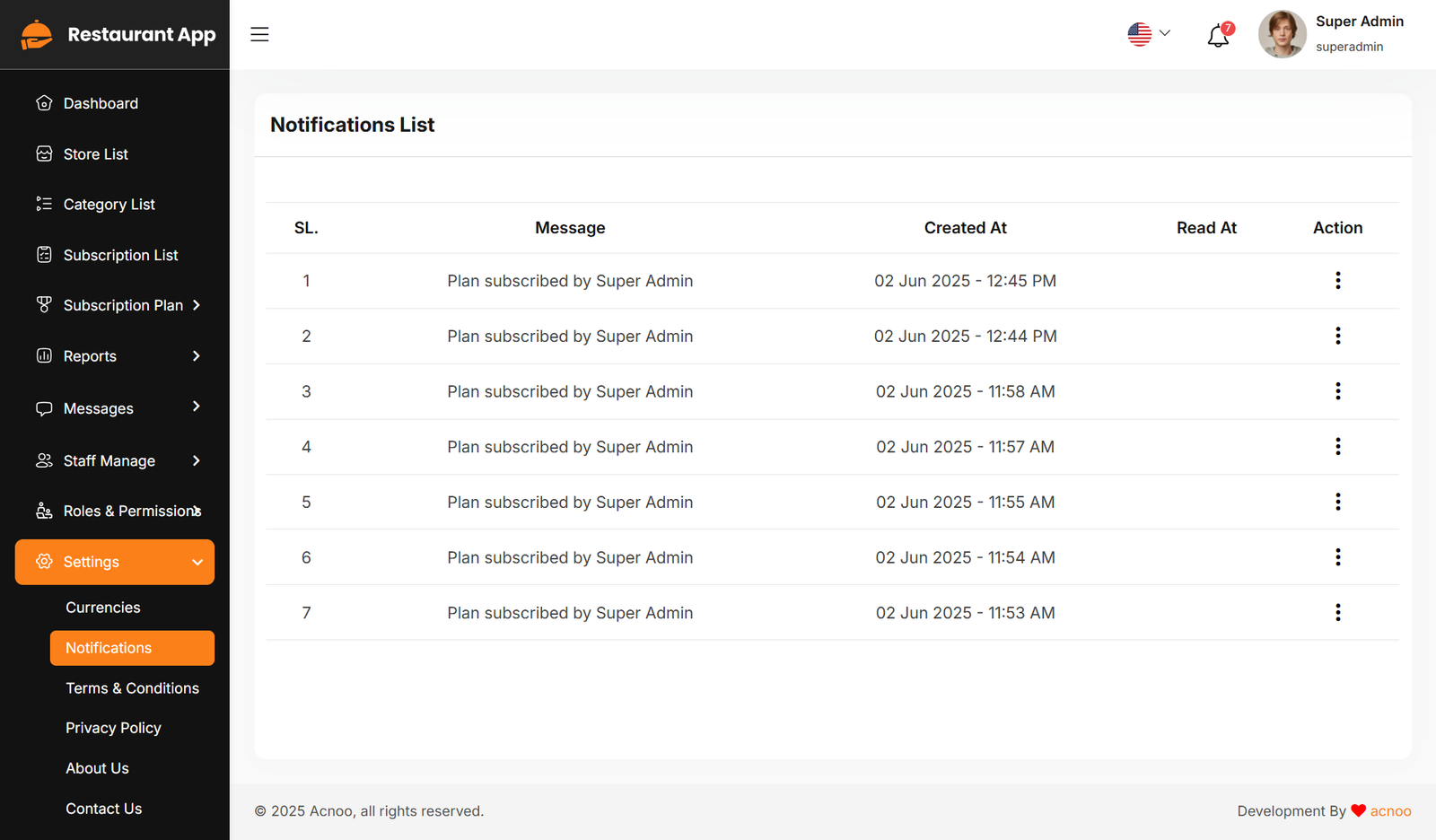
Here, you can view a list of various notifications. You also have the option to filter these notifications based on available criteria. In each list, clicking the "View" button allows you to see detailed information.
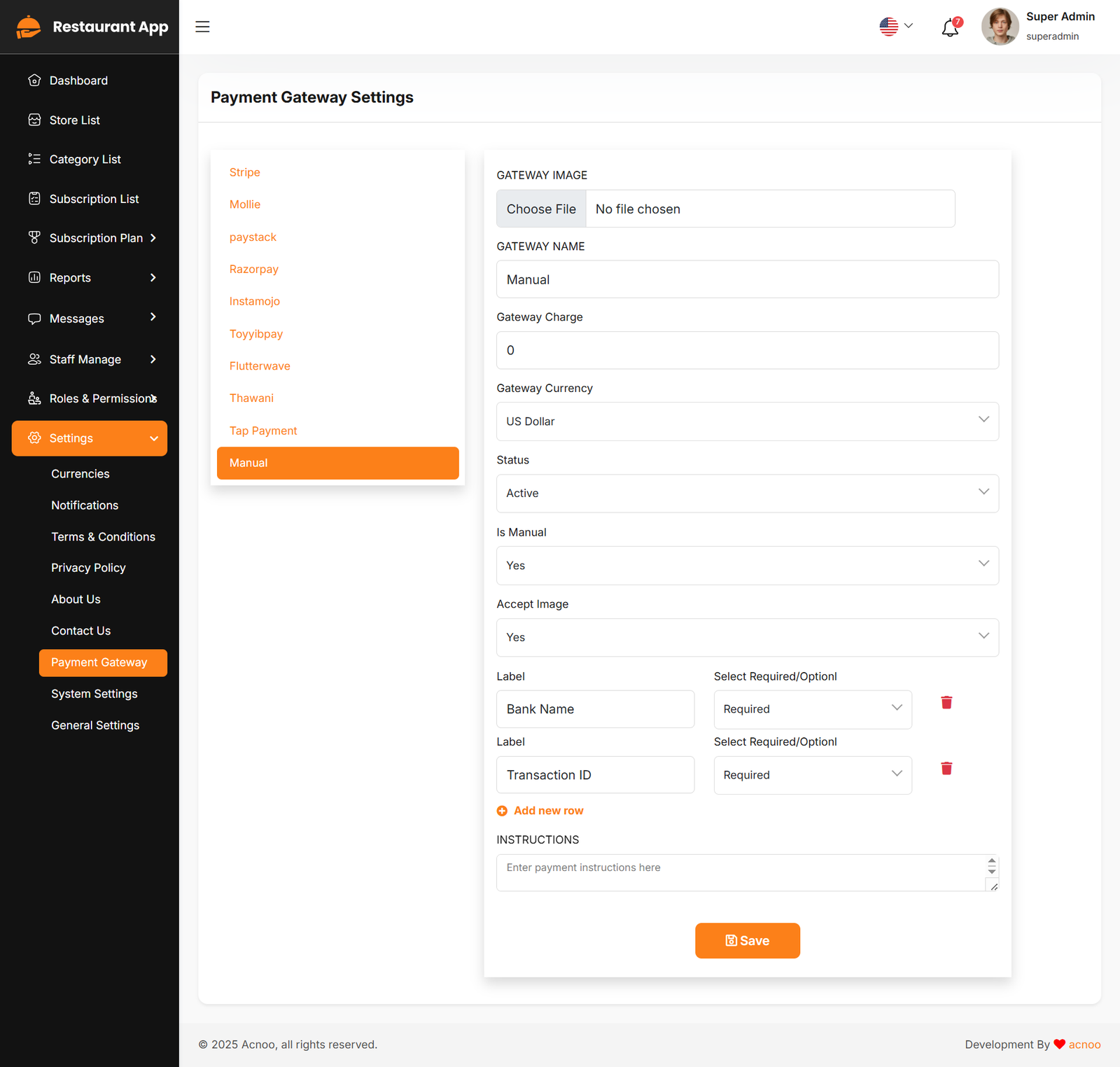
Payment Gateway Settings
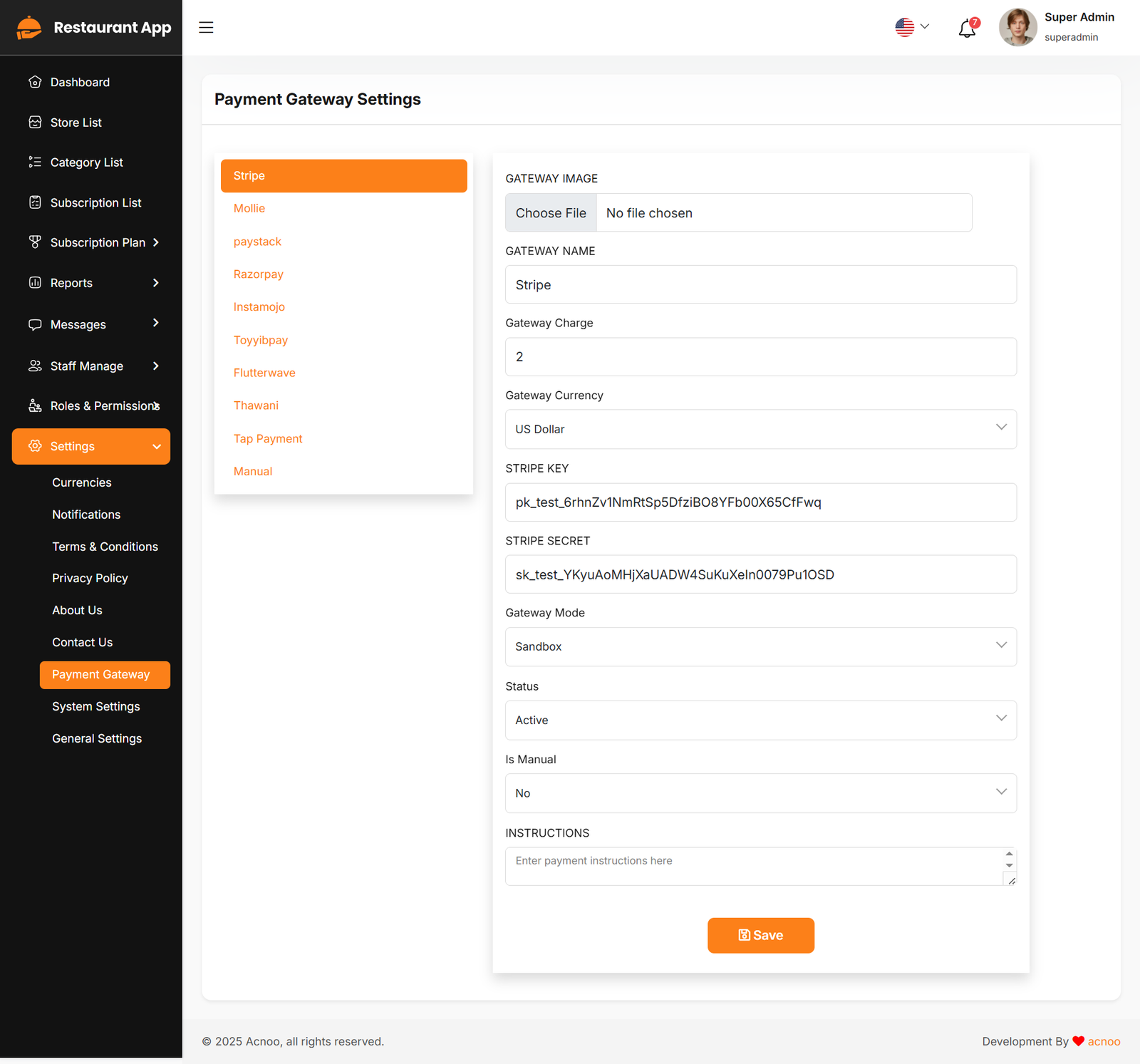
Here, you can modify various payment gateways like Stripe, PayPal, SSLCommerz, manual and many other options.
Stripe
Mobile
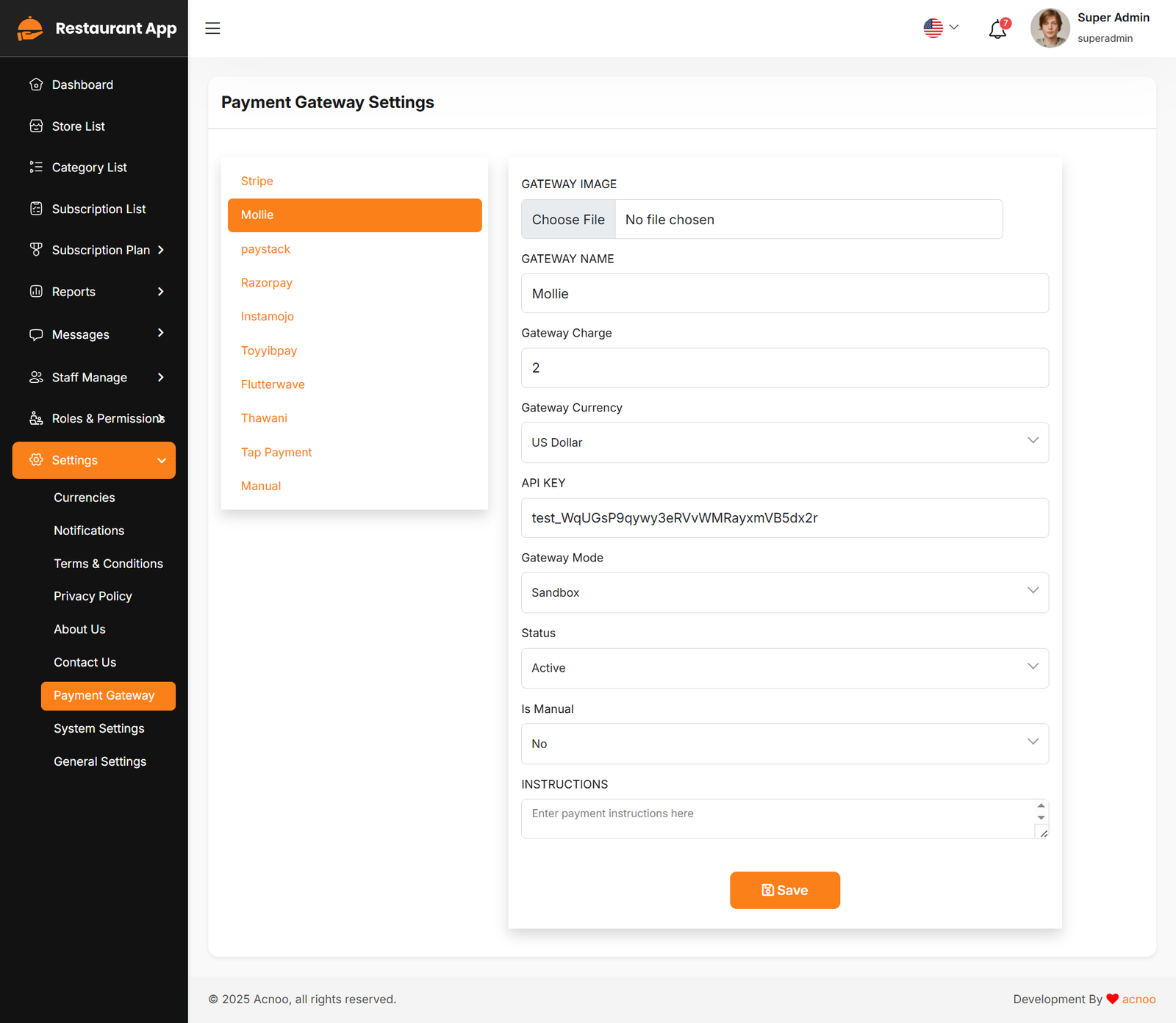
Paystack
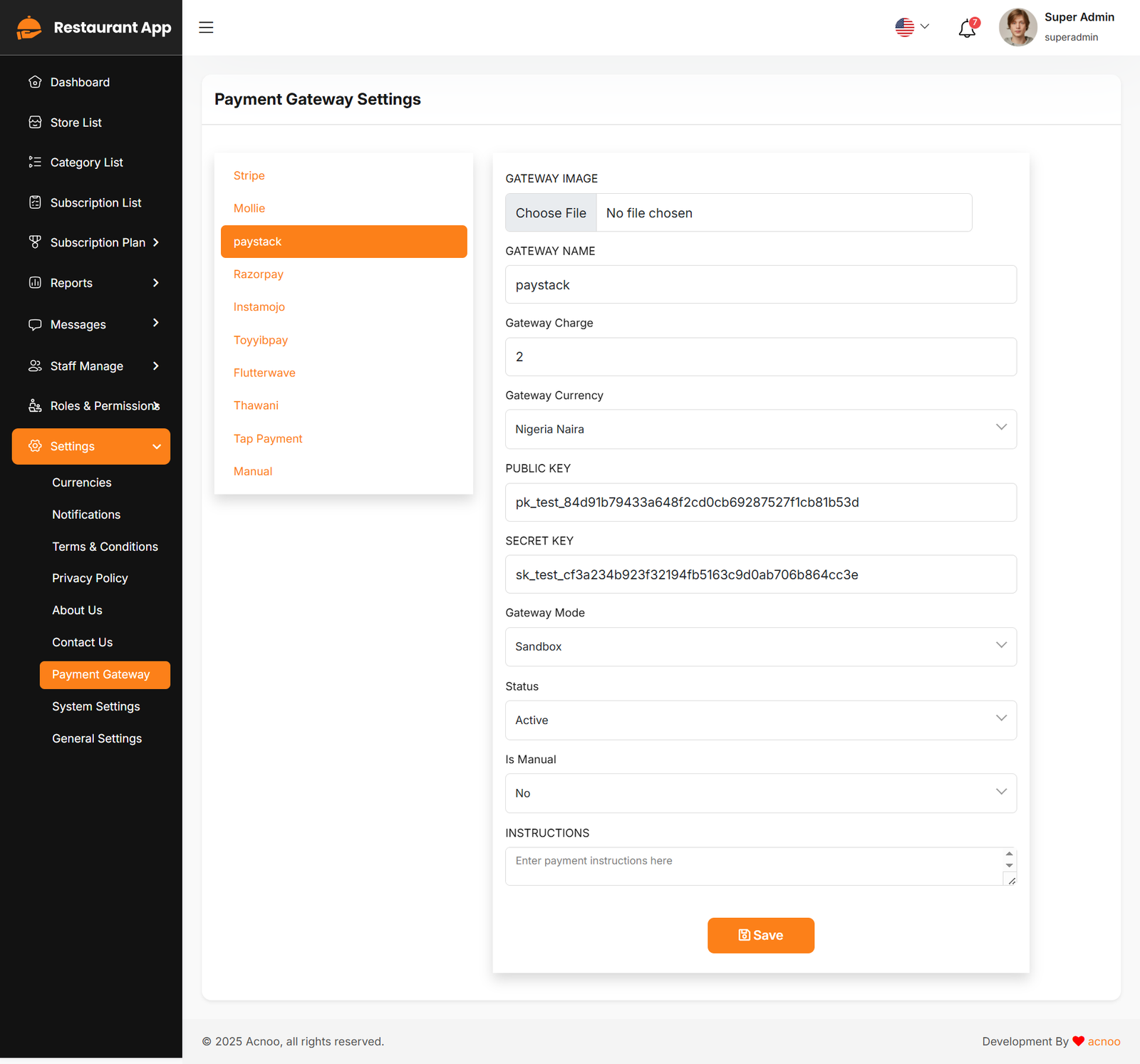
Razorpay
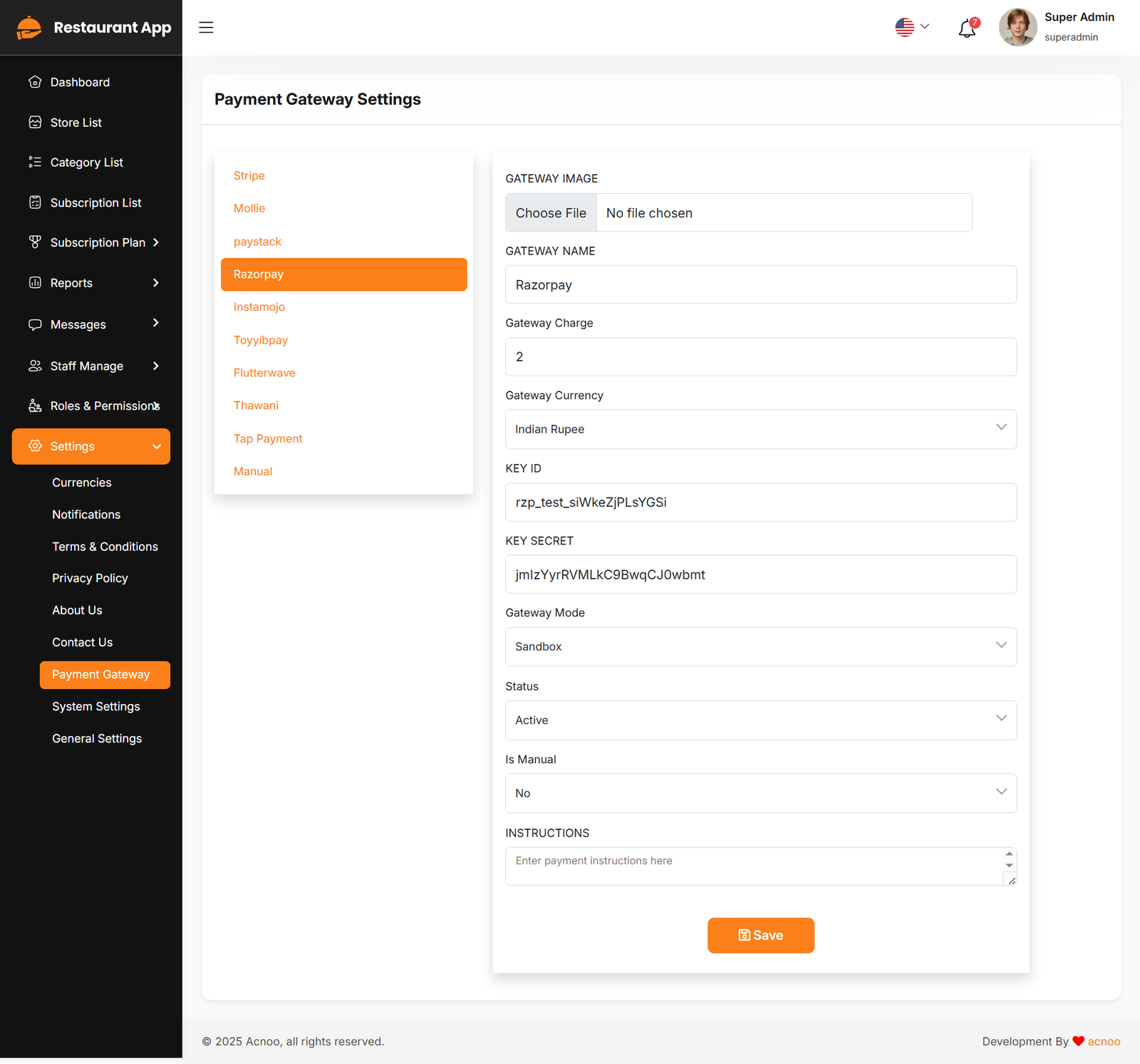
Instamojo
Toyyibpay
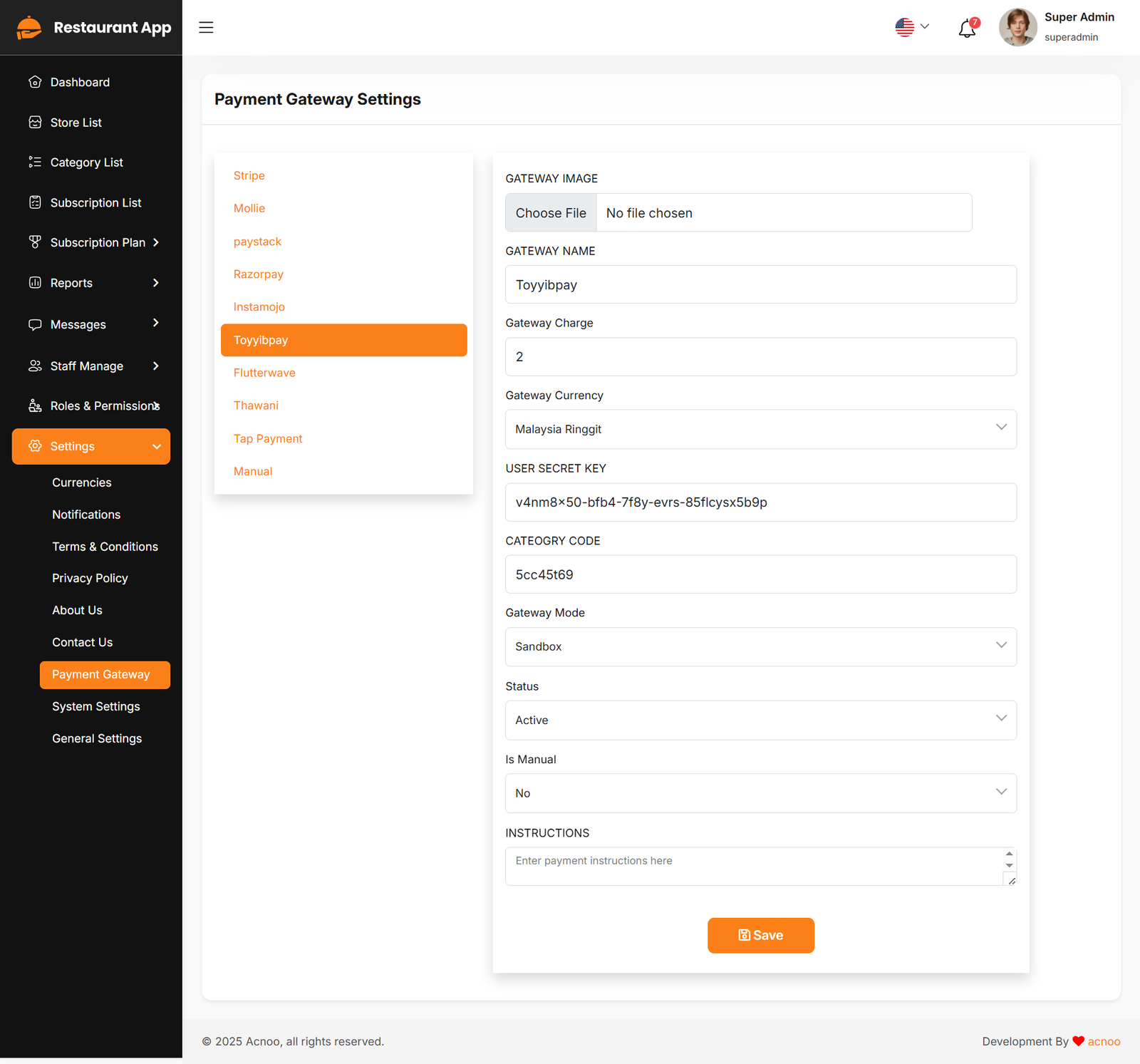
Flutter Wave
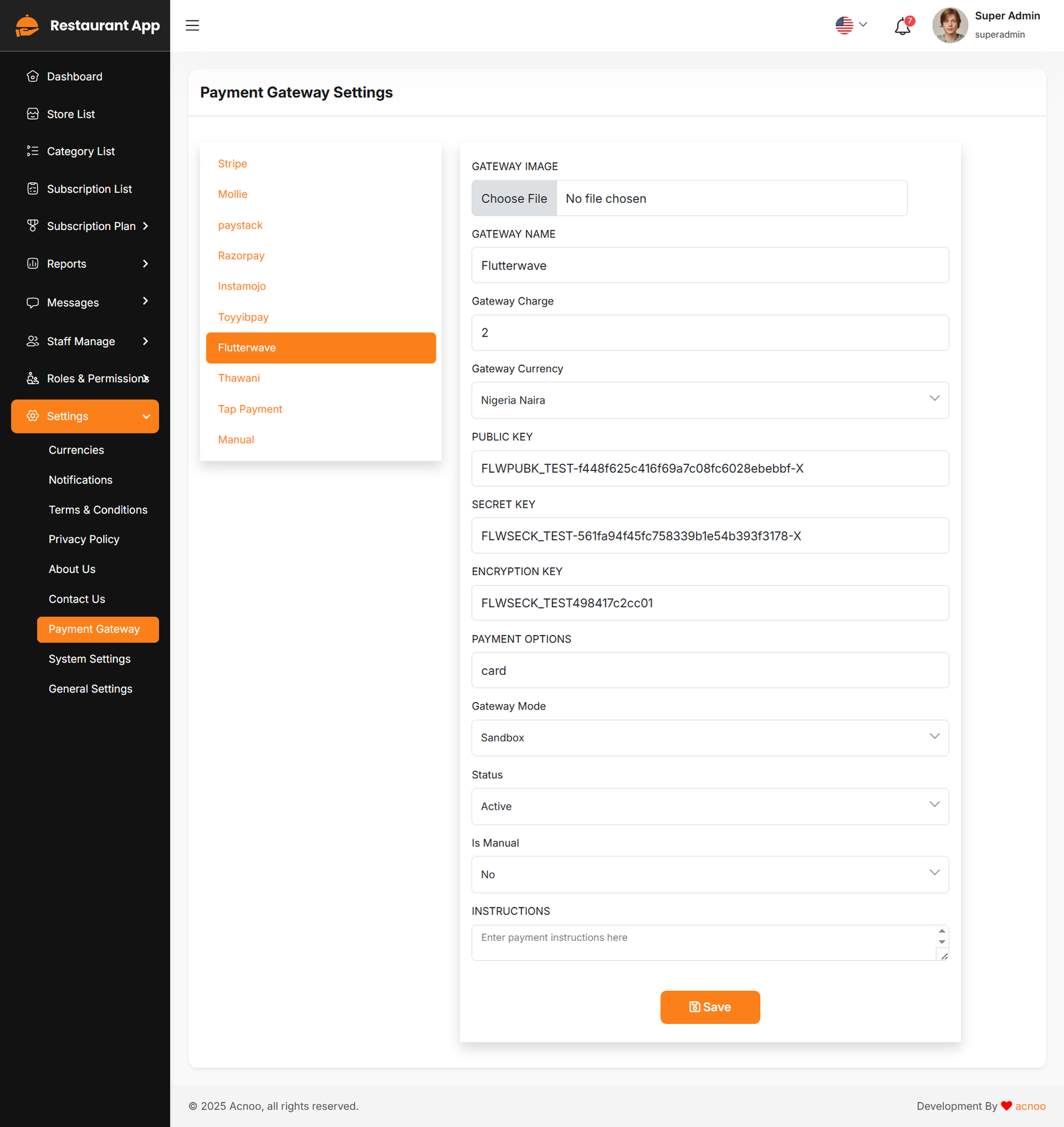
Thawani
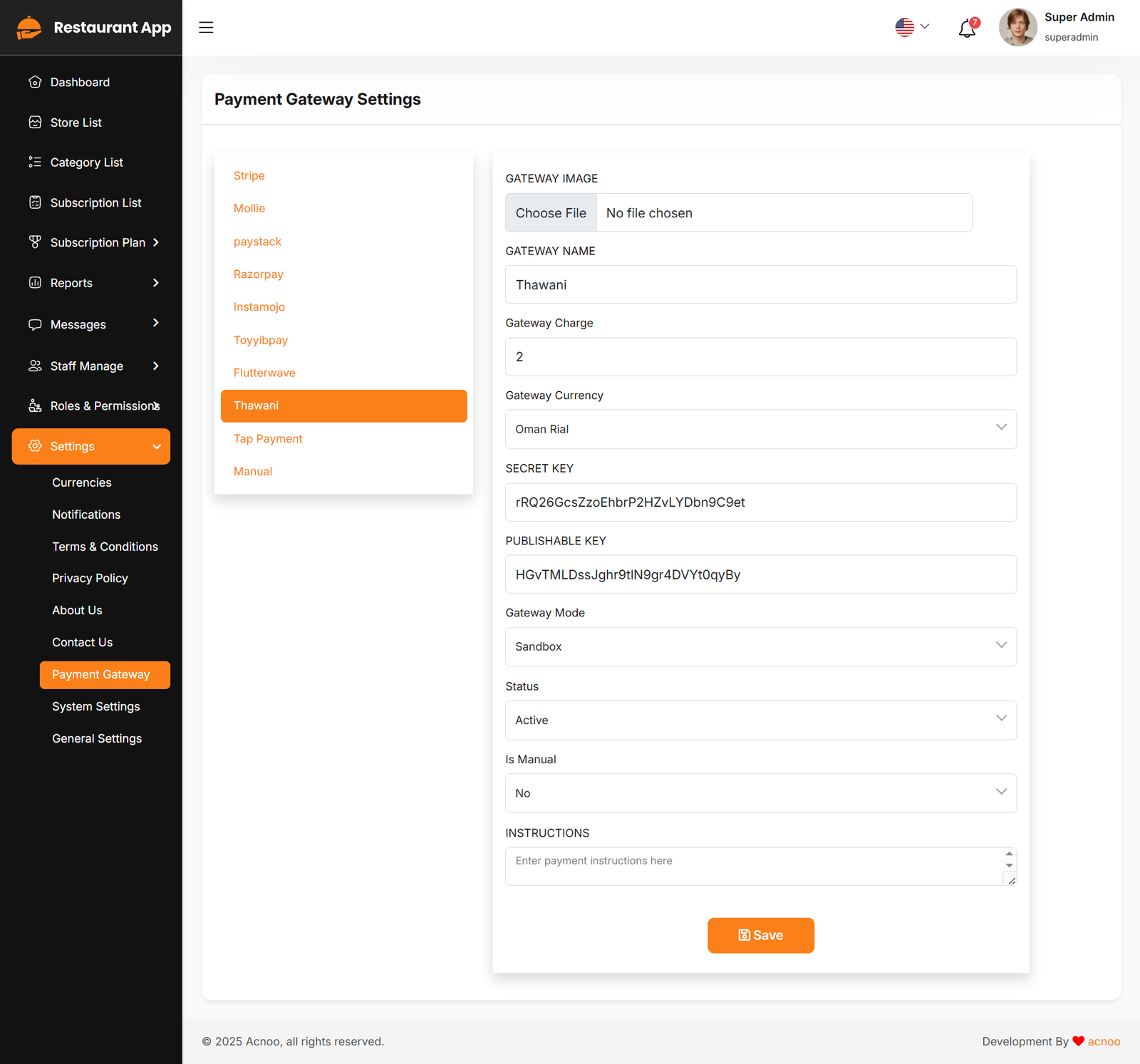
Tap Payment
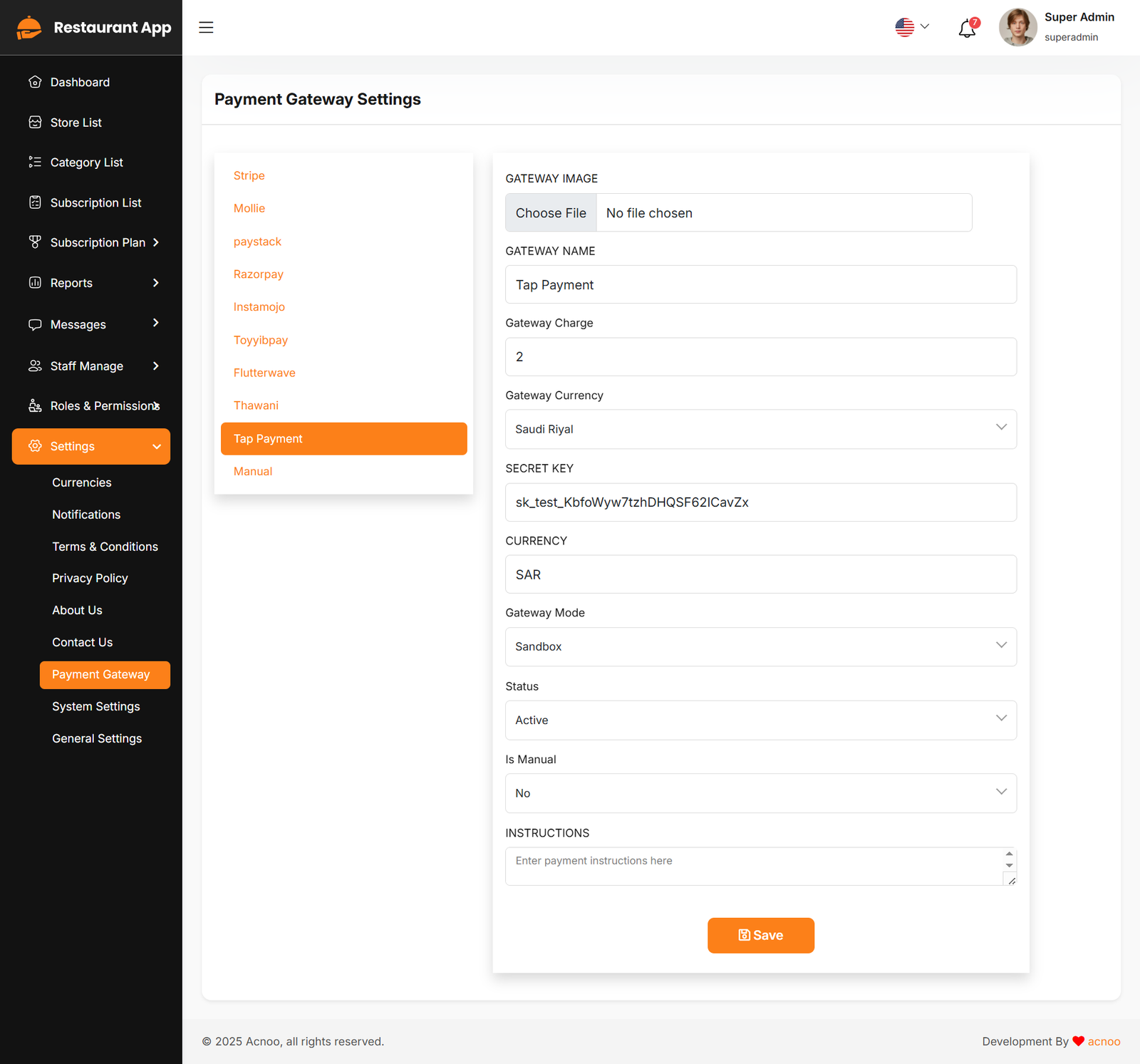
Manual
System Settings
In this section, you can configure various backend settings for the project, including application setup, driver configurations, mail settings, storage configurations, and other essential components. It's crucial to handle these configurations with care as they impact the functionality and security of the system.
App
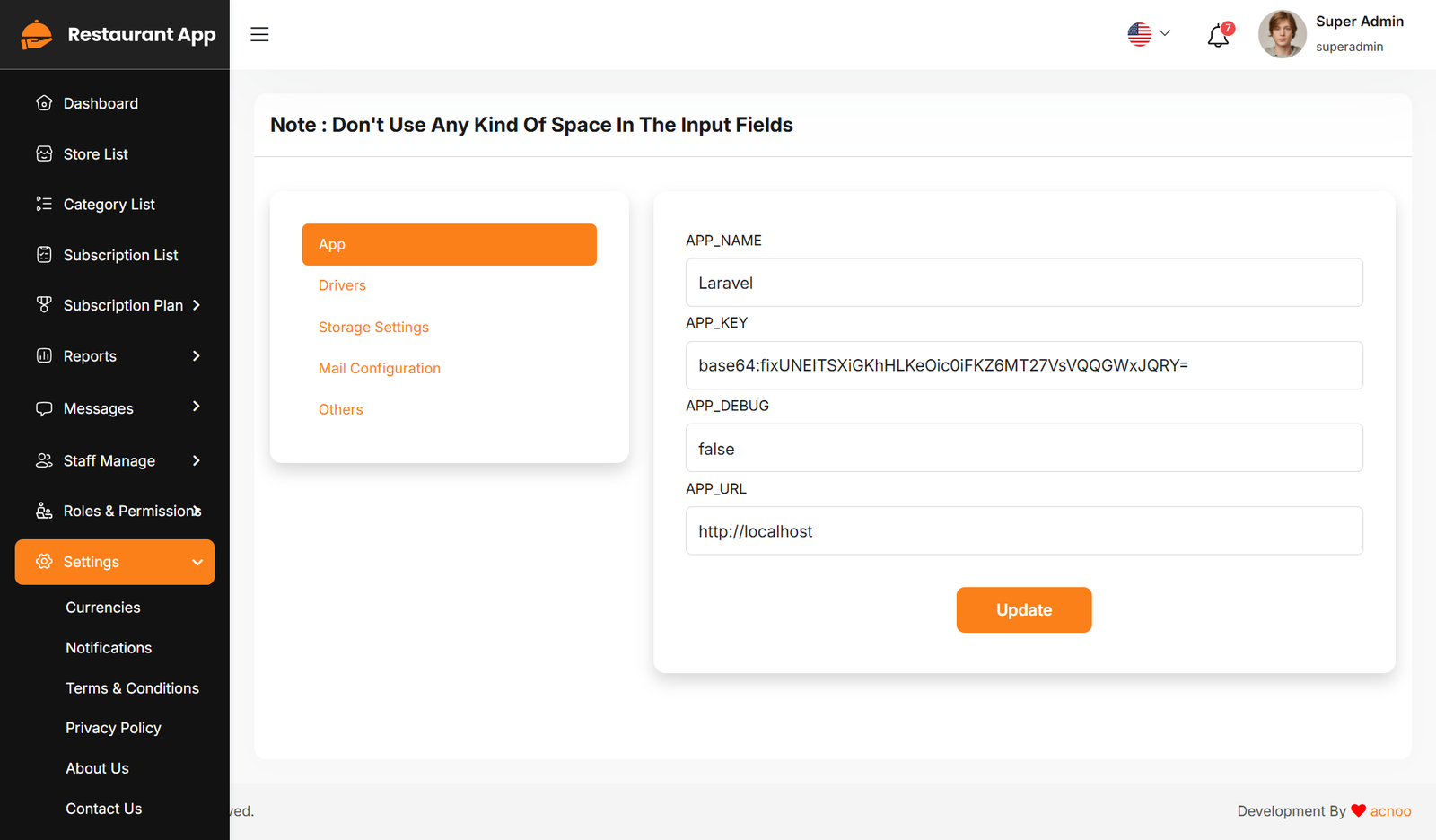
Drivers
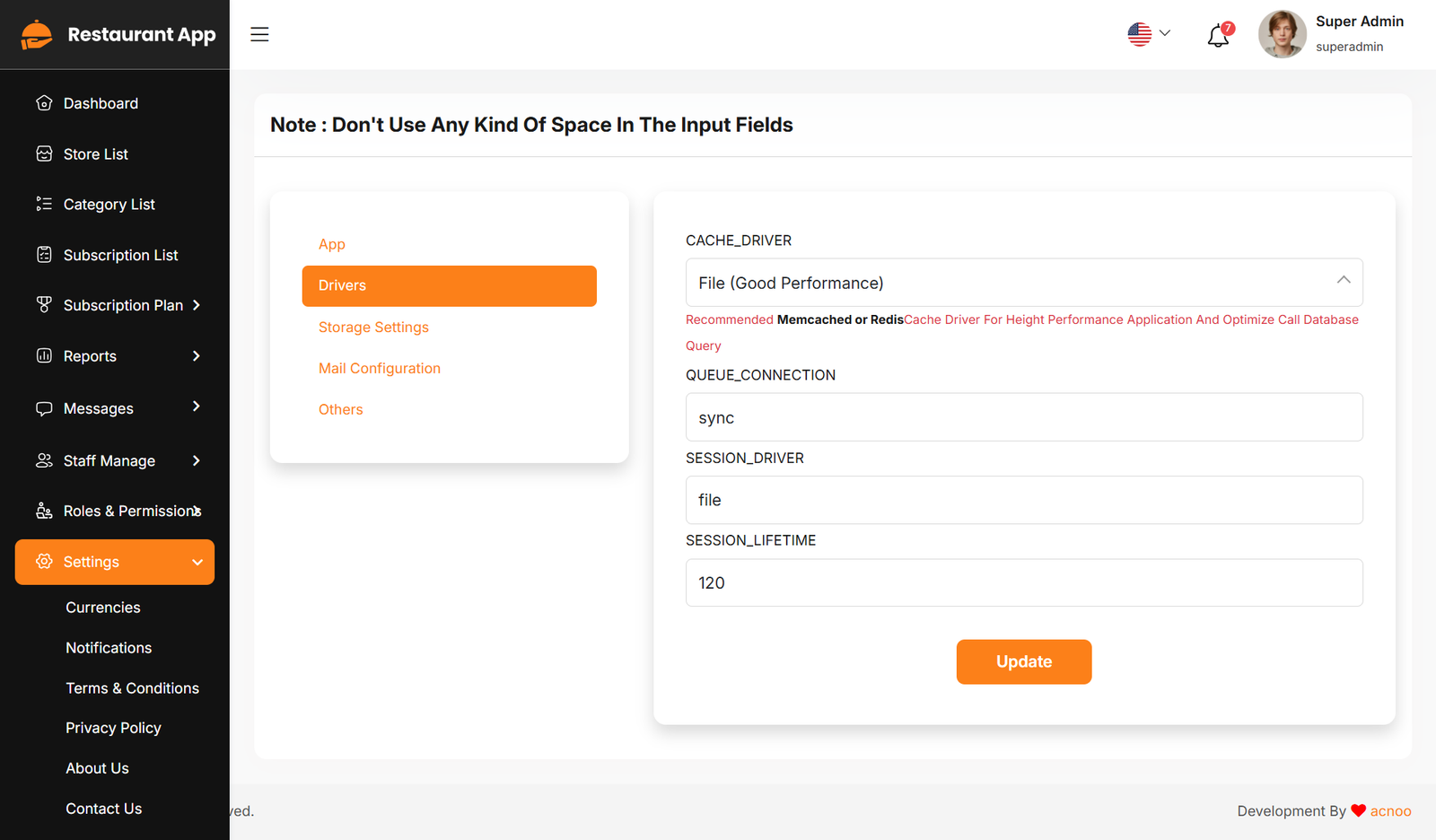
Storage Settings
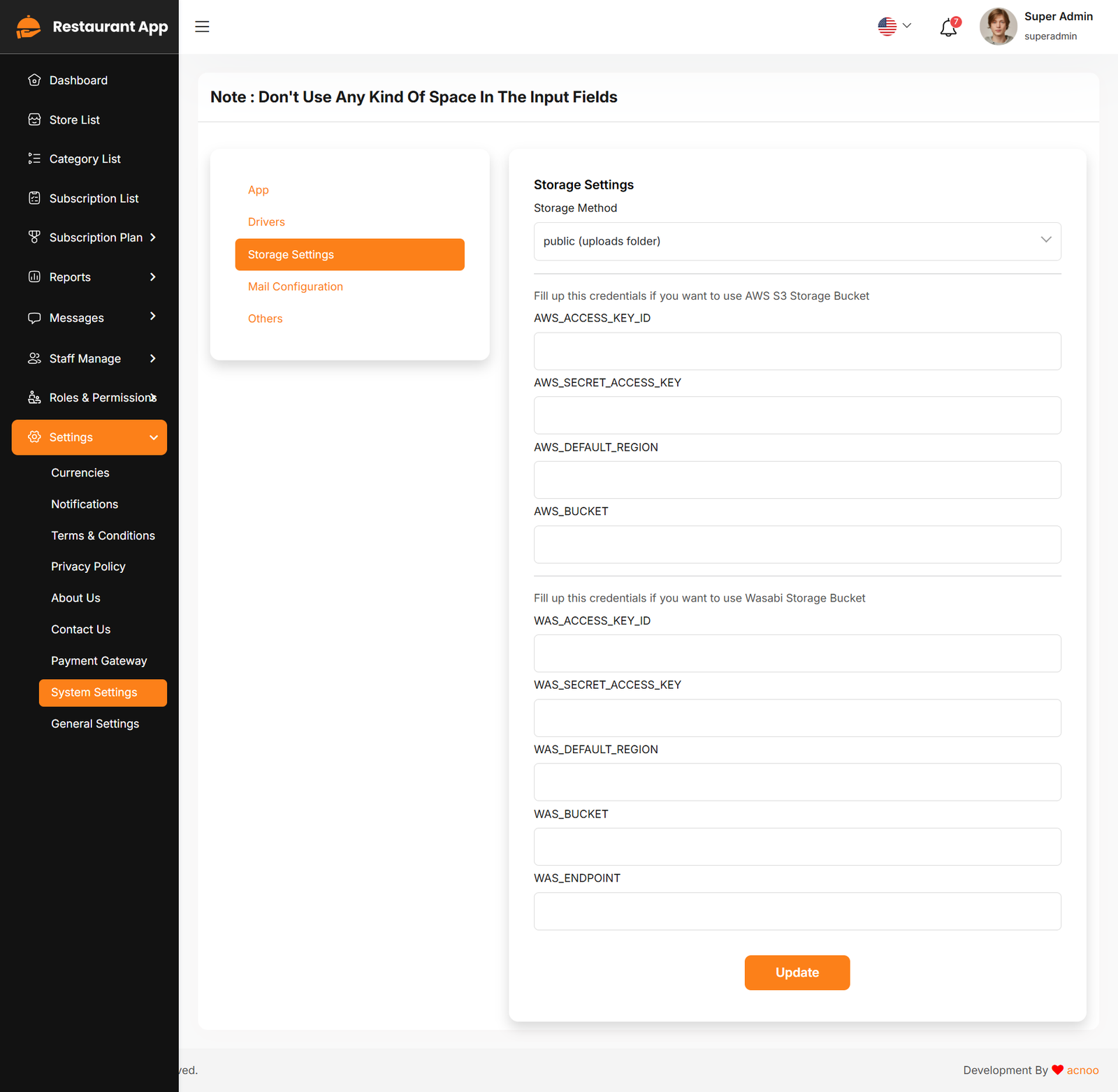
Mail Configuration
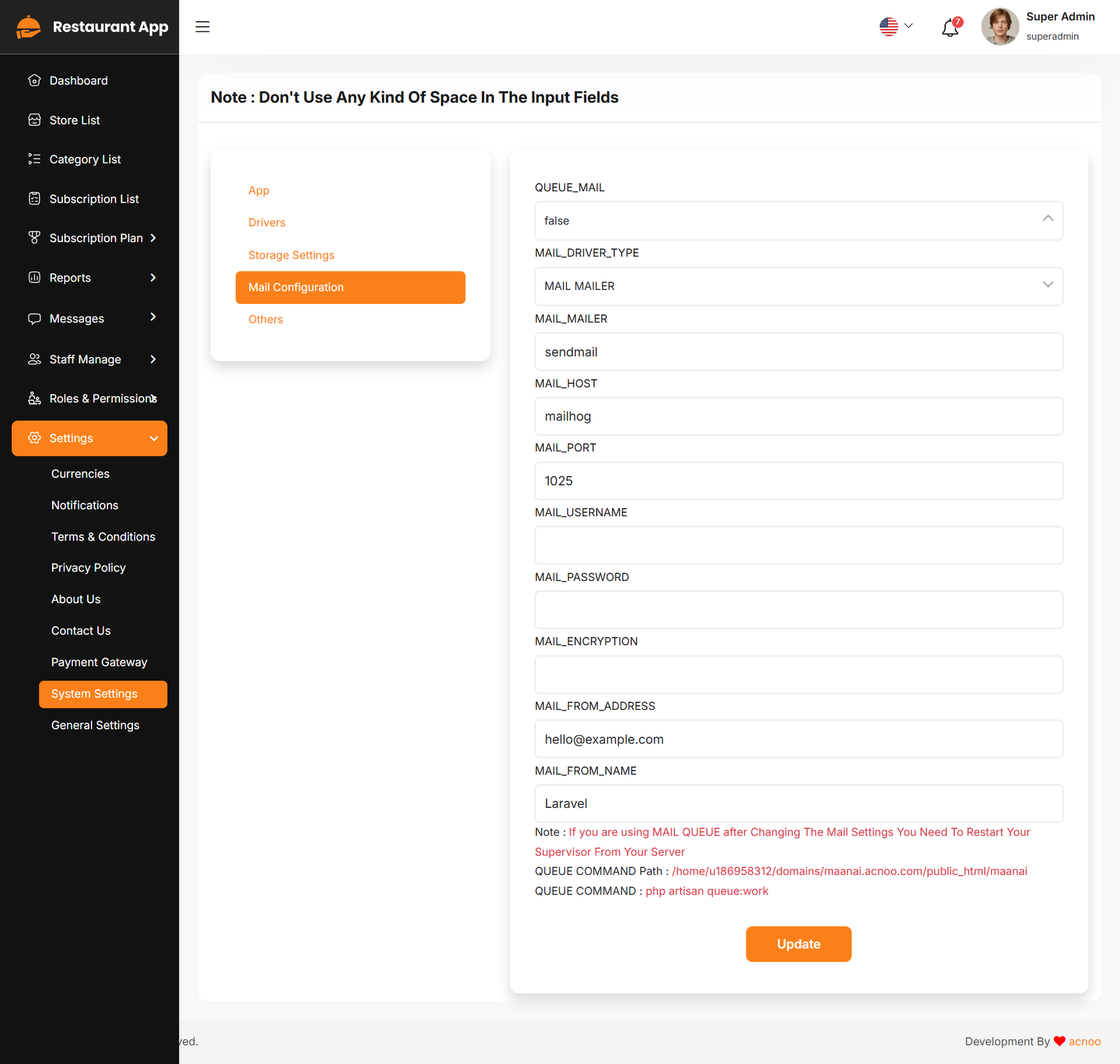
Please note that if you change QUEUE_MAIL from false to true, you need to run the following command: php artisan queue:work. Remember: The command path should be: /home/u186958312/domains/yourdomain.com/public_html. Make sure you're in the correct path.
If you're not familiar with running the command, there's another option. Simply visit yourdomain.com/queue-work and it will be executed automatically.
If you select QUEUE_MAIL as true but do not run the command or visit the URL, email functionality will not work properly.
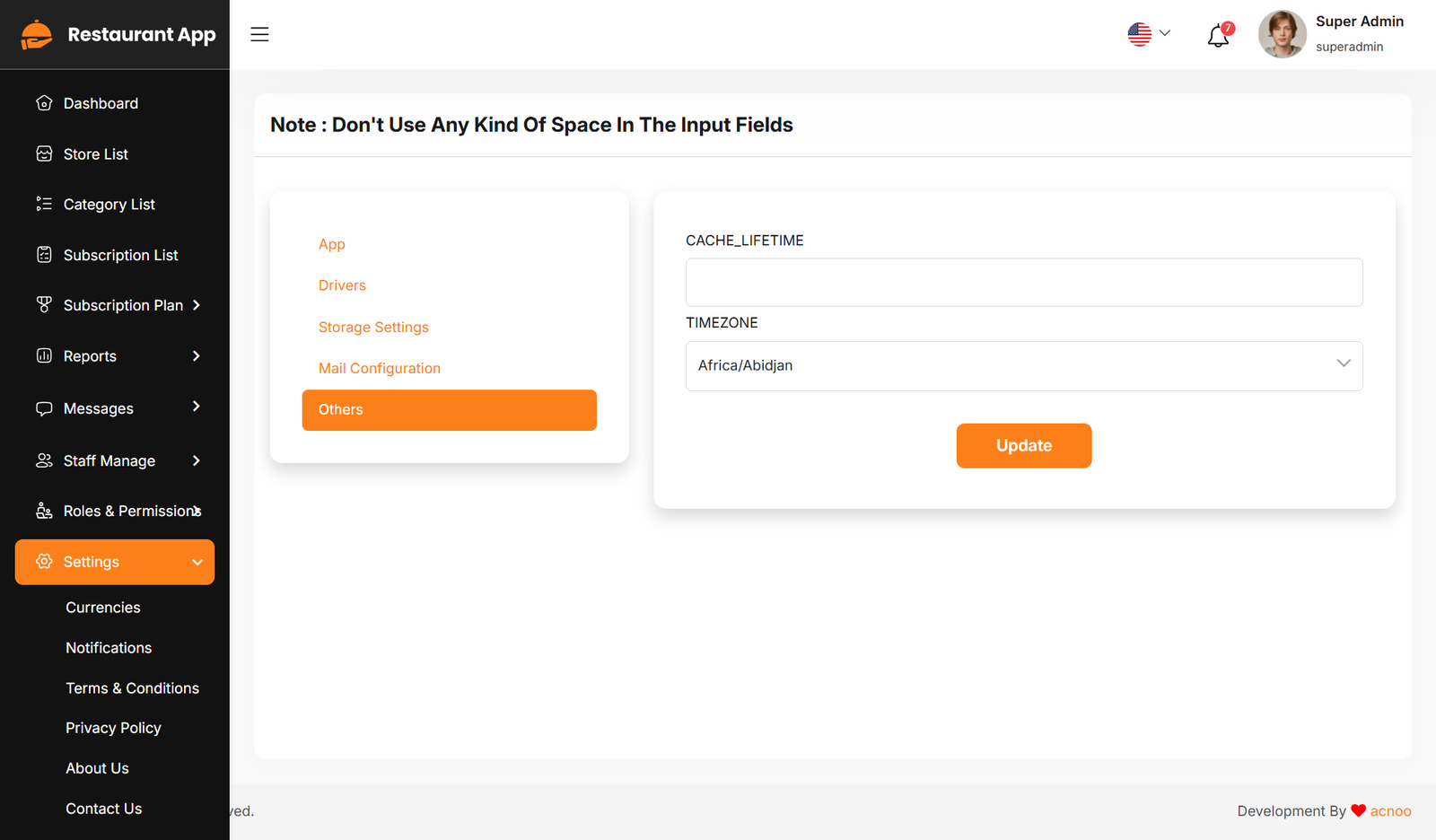
Others
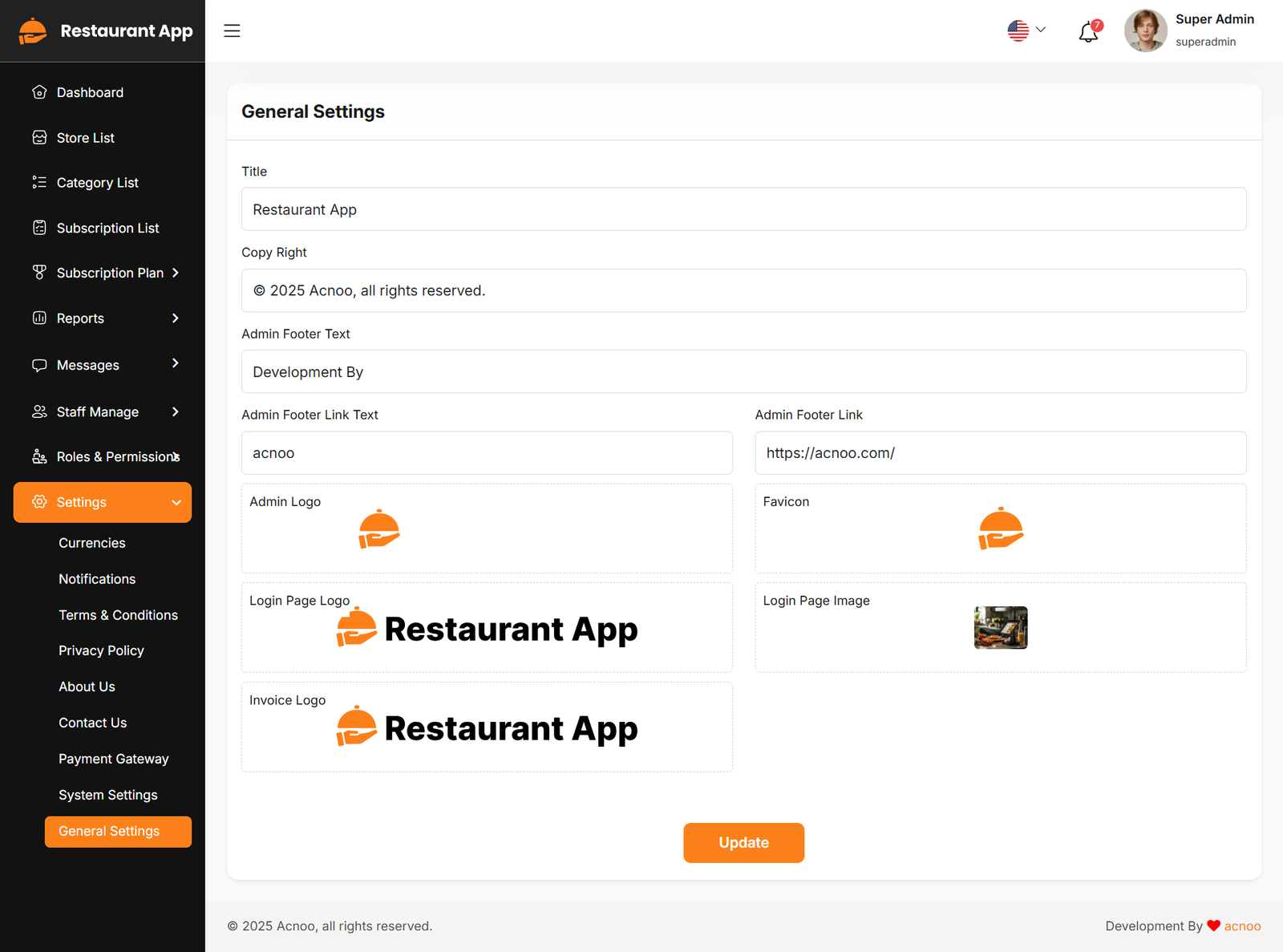
General Settings
You have the capability to modify the general project information.
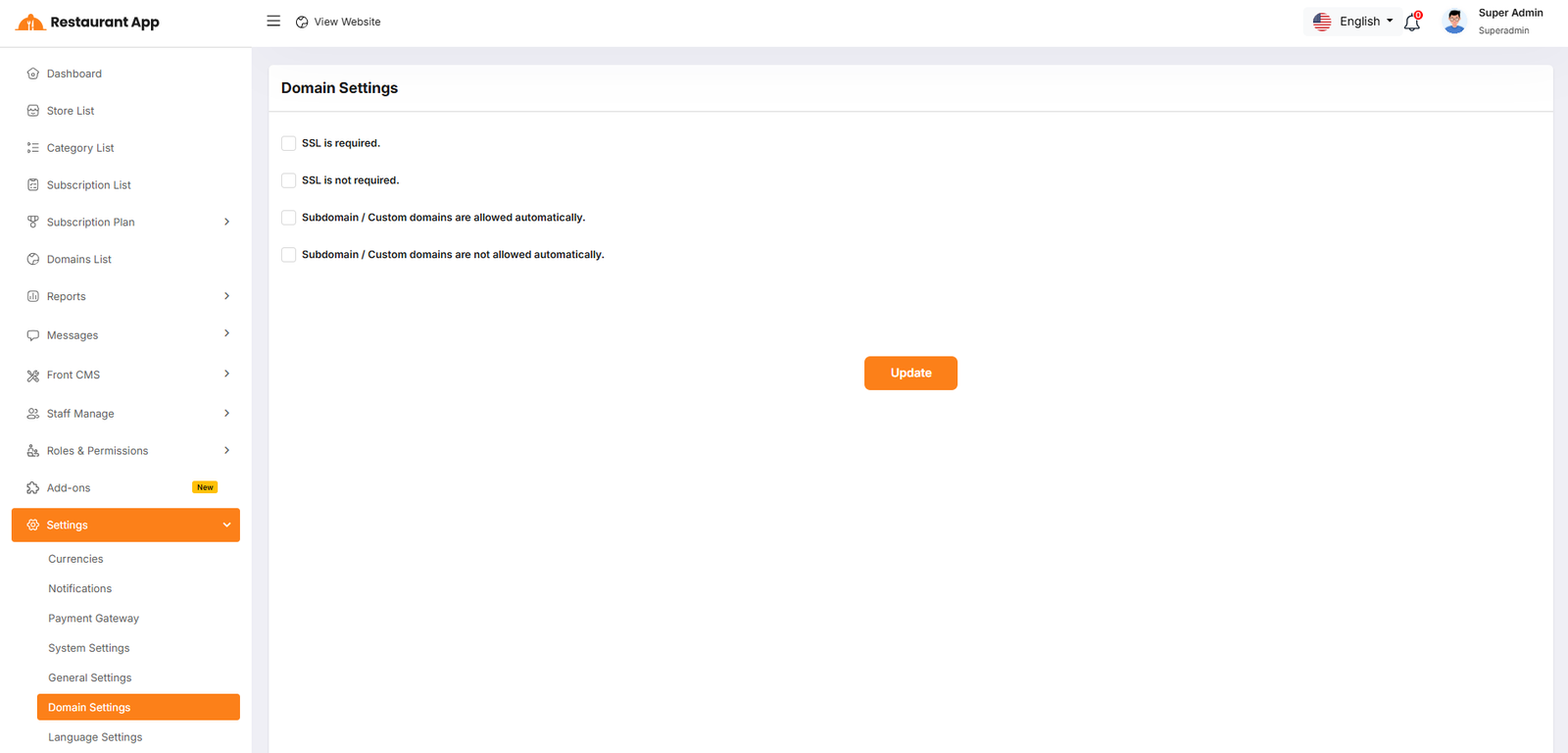
Domain Settings
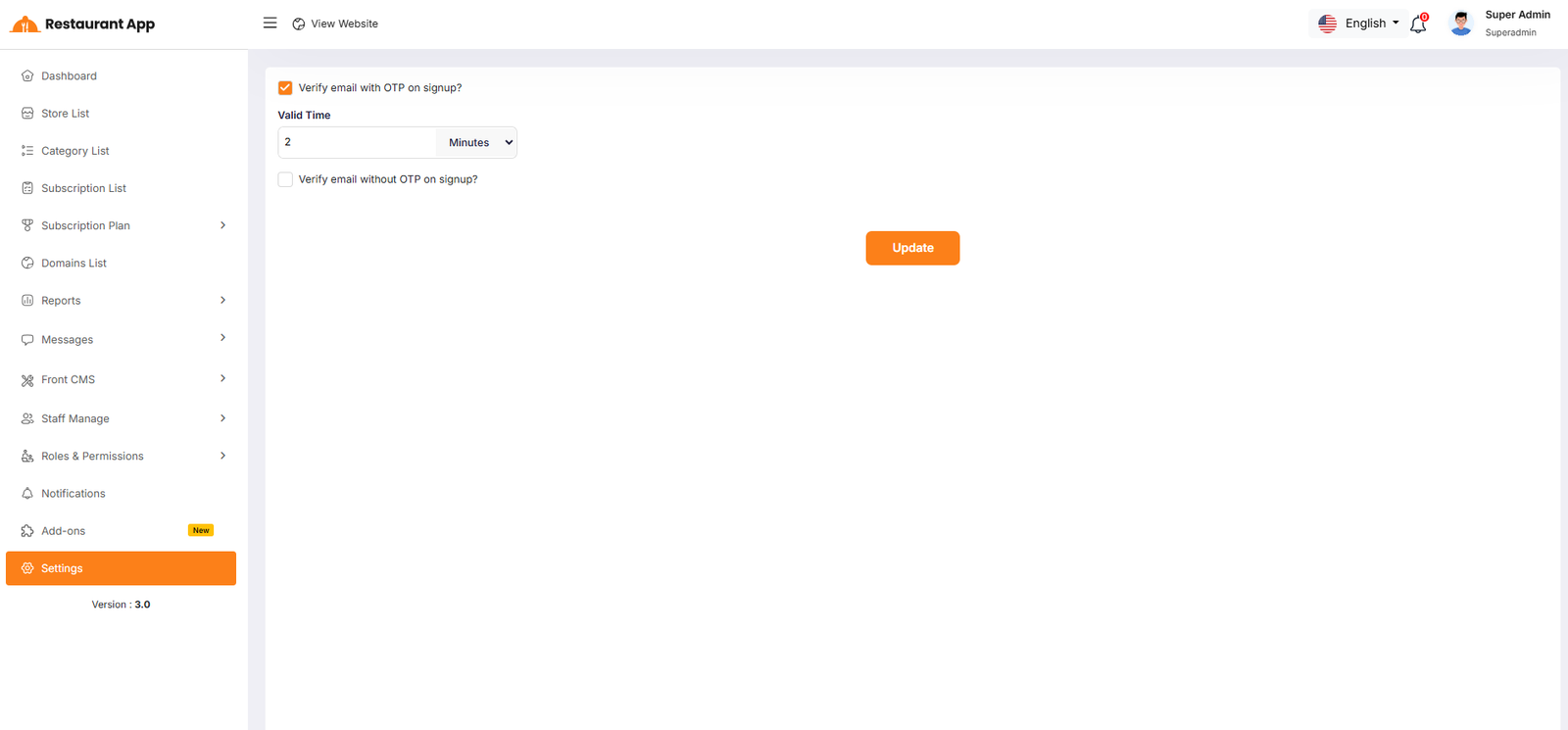
This guide outlines the configuration options available within the Domain Settings section of the Restaurant App admin panel. These settings control the security protocols and automation rules for how subdomains and custom domains interact with the platform.
User Sign Up
- Email Verification — Configure if users must verify email with OTP on signup to ensure high security, or verify email without OTP on signup for a faster onboarding experience.
- OTP Valid Time — Set the specific duration (in minutes) that a One-Time Password (OTP) remains active before it expires for user verification.
Language Settings
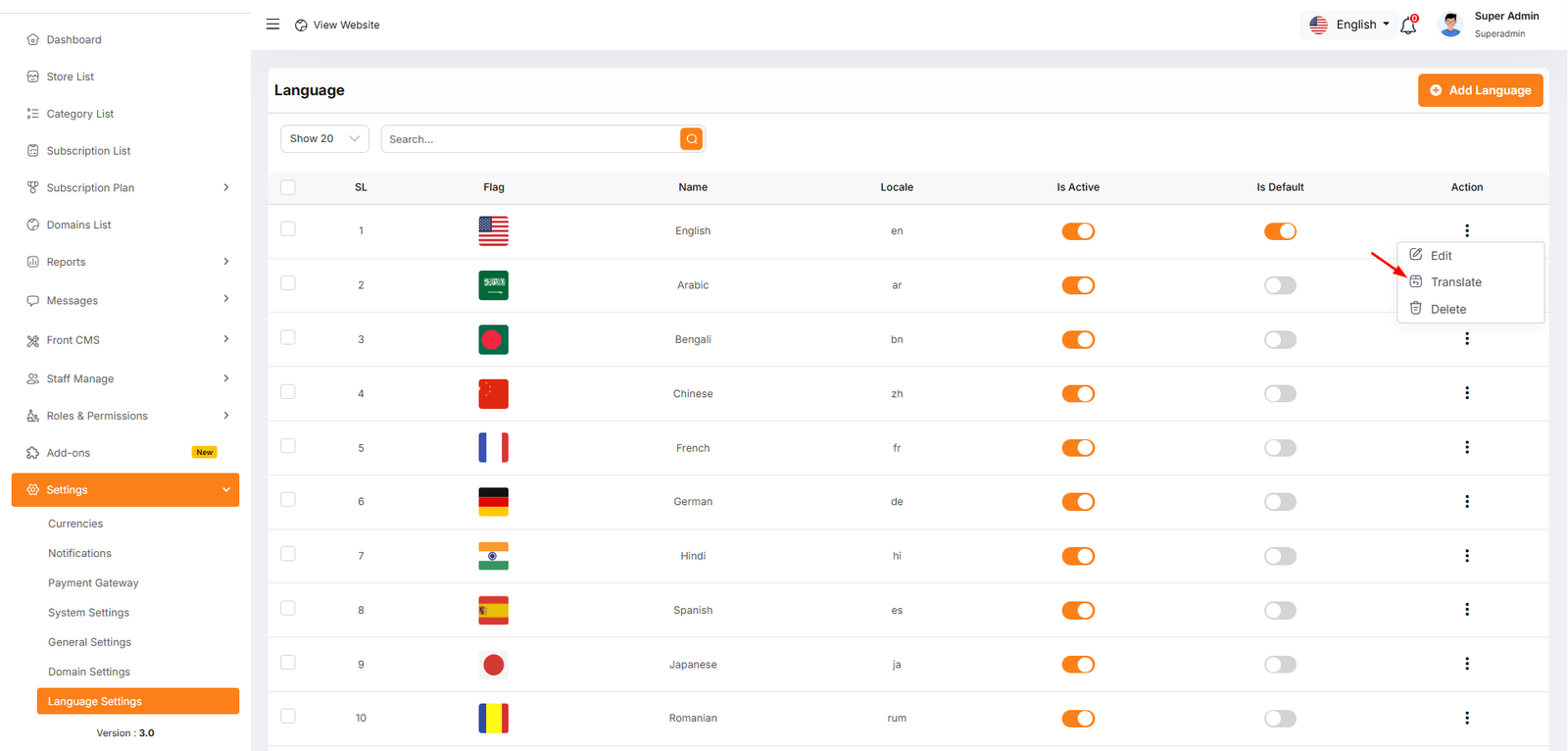
1. Adding a New Language
To register a new regional support option in the system, click the + Add Language button. You will be required to configure the following fields:
- Name: The display name of the language as it will appear to users (e.g., "Spanish" or "French").
- Locale: The standard ISO code used by the system for identification (e.g., "es" for Spanish, "fr" for French).
- Is Active Toggle: Determines if the language is currently selectable by users on the storefront.
- Is Default Toggle: Sets this specific language as the primary, pre-selected option for all first-time visitors.
2. Managing Translations
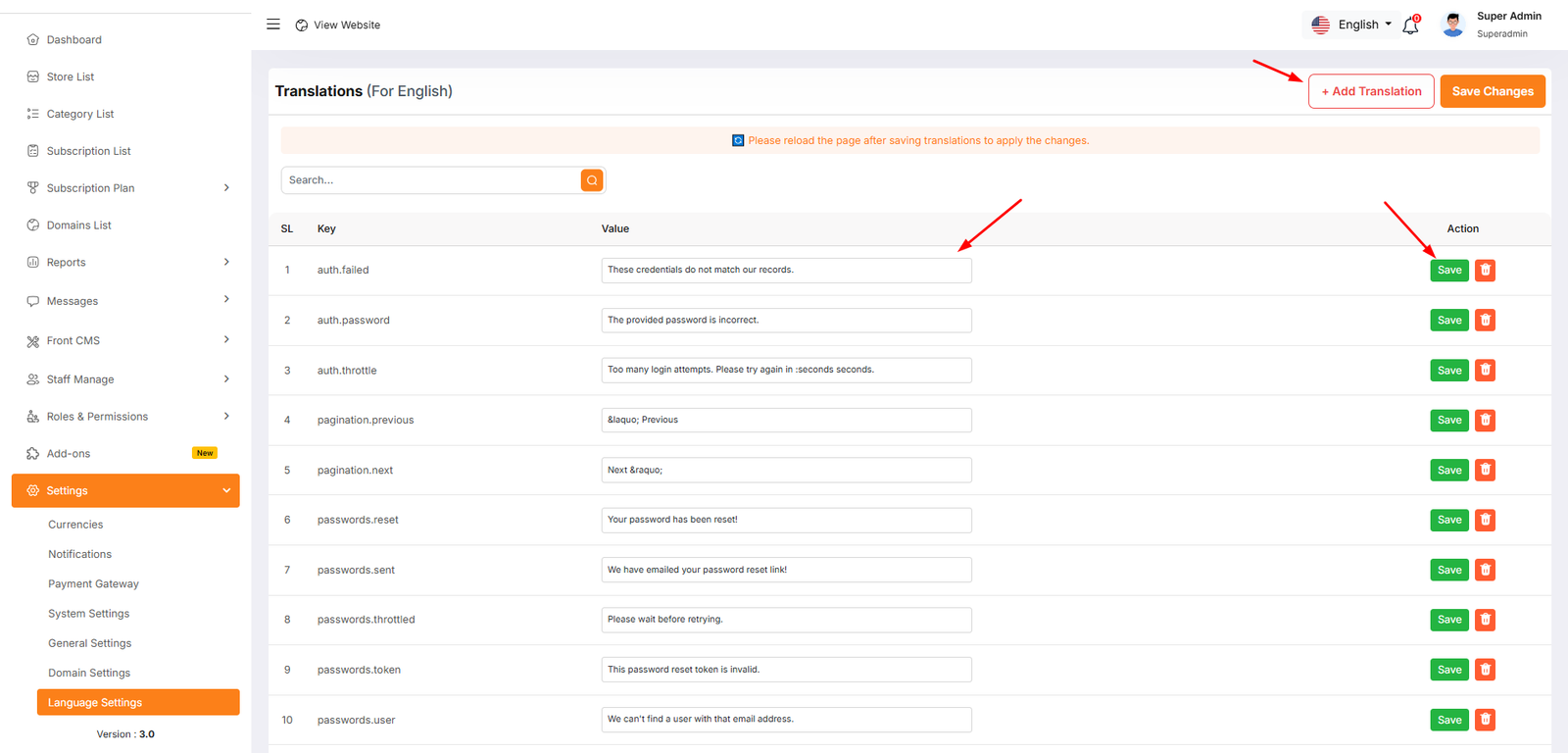
After a language is added, you must map system "Keys" to the correct "Values" for that region.
The Translation Table
| Component | Description |
|---|---|
| Key | The internal system identifier (e.g., auth.failed or password.reset). |
| Value | The editable text that users will actually see on the screen. |
| Search Bar | Used to filter and find specific phrases quickly without scrolling. |
Management Actions
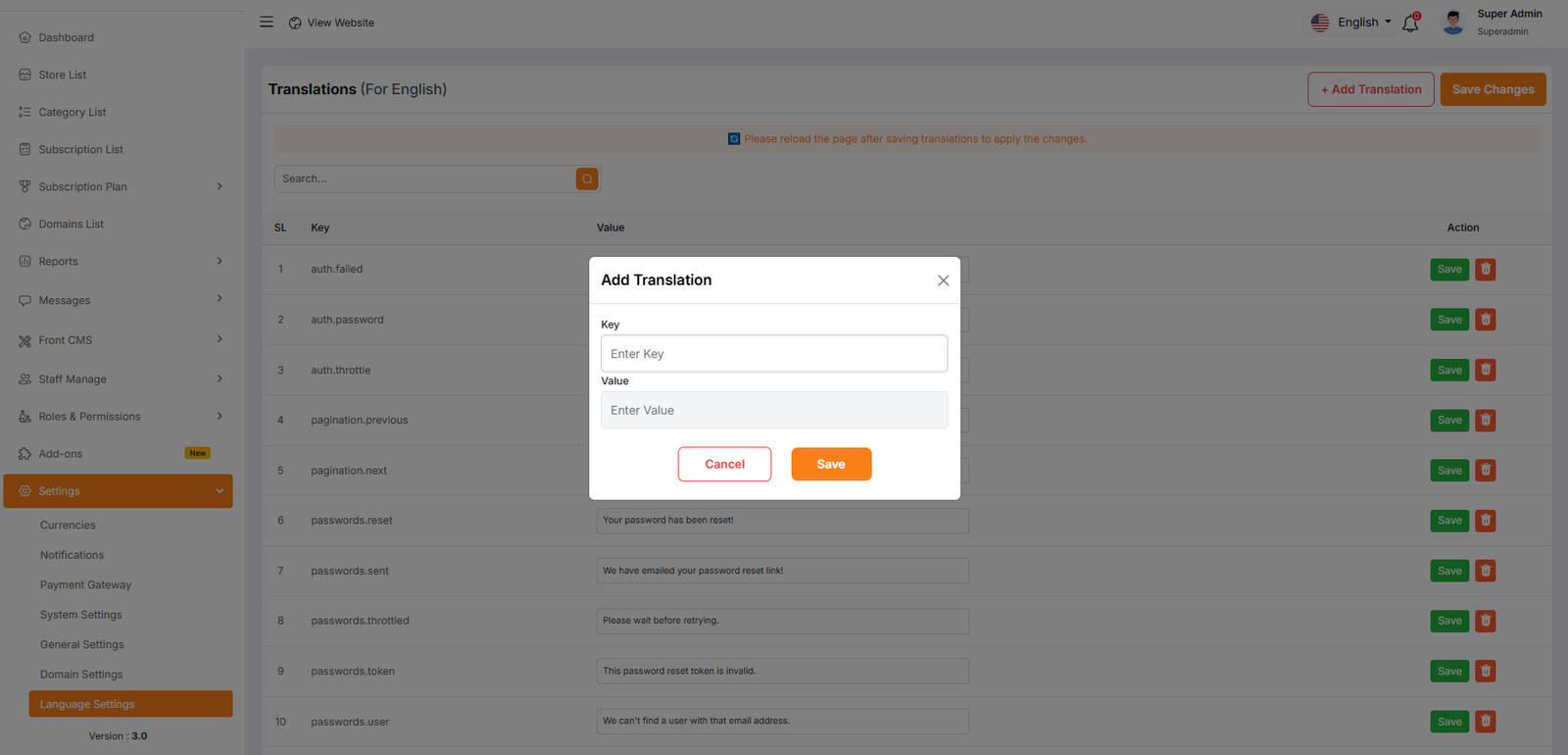
- + Add Translation: Adds a new key-value pair if a specific system string is missing from the list.
- Save Button: An individual button next to each entry to save changes for that specific row.
- Save Changes (Global): The orange button at the top right that saves all edits made across the entire page at once.
:::tip Pro-Tip Always double-check the Locale code before saving, as this links the translations to the correct regional settings. :::
← Roles & Permissions | Index | SMTP Setup →