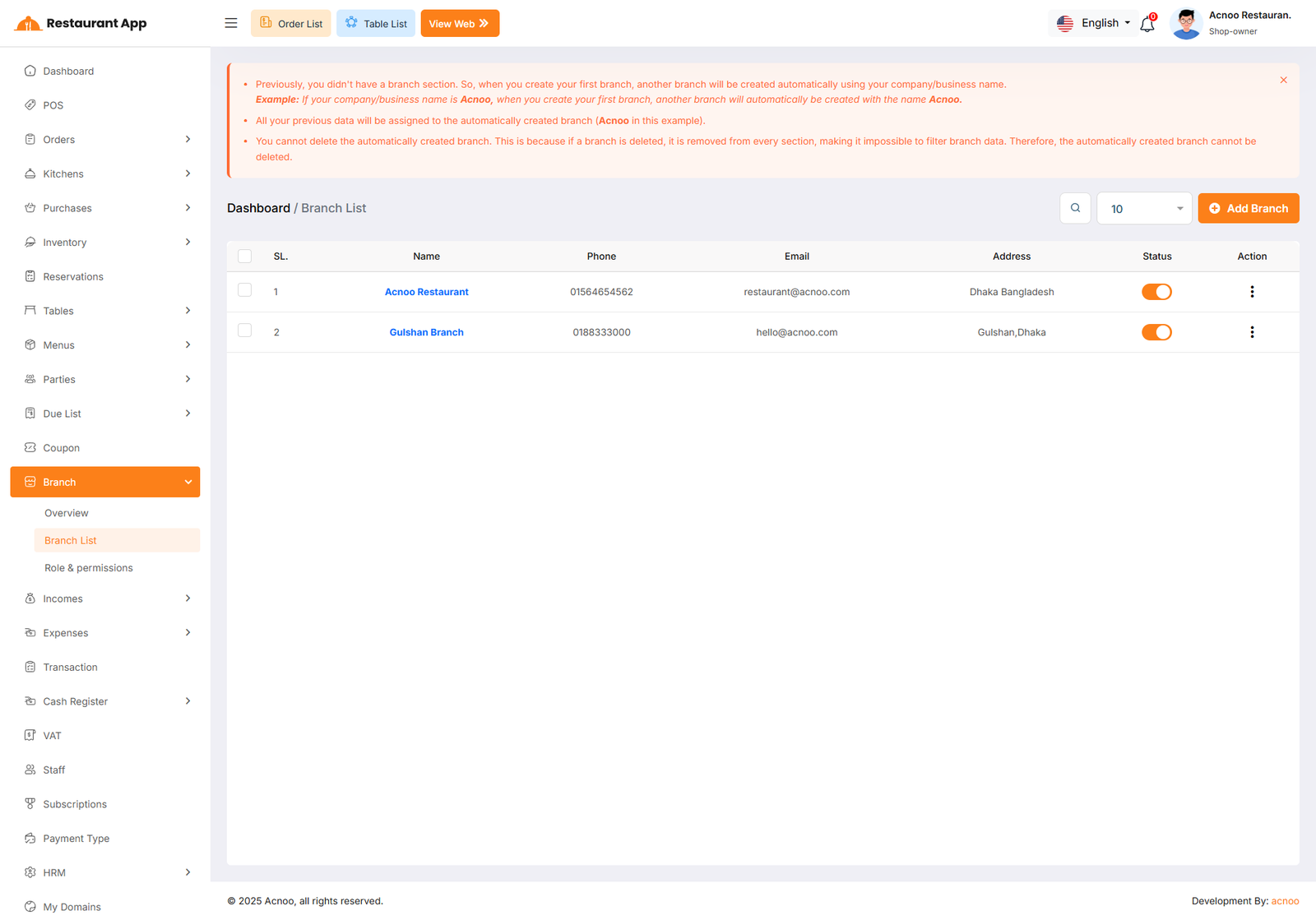
Branch List
Here, you can view a list of all branches, including the first branch. At the top of the table, instructions are provided on how to create a branch. When creating a new branch, the system will automatically generate it (if it does not already exist), and relevant data will be moved to the new branch. For example, when a branch is created, the new branch will be generated automatically using the business name. Note that the first branch cannot be deleted.
In the listing, you can filter branches using the search input field or adjust the number of entries displayed per page. From here, you can also add a new branch, edit or delete branches, or perform a multi-delete. Additionally, by click on business name, also have the "Login" button allows you to log in directly to the selected branch.
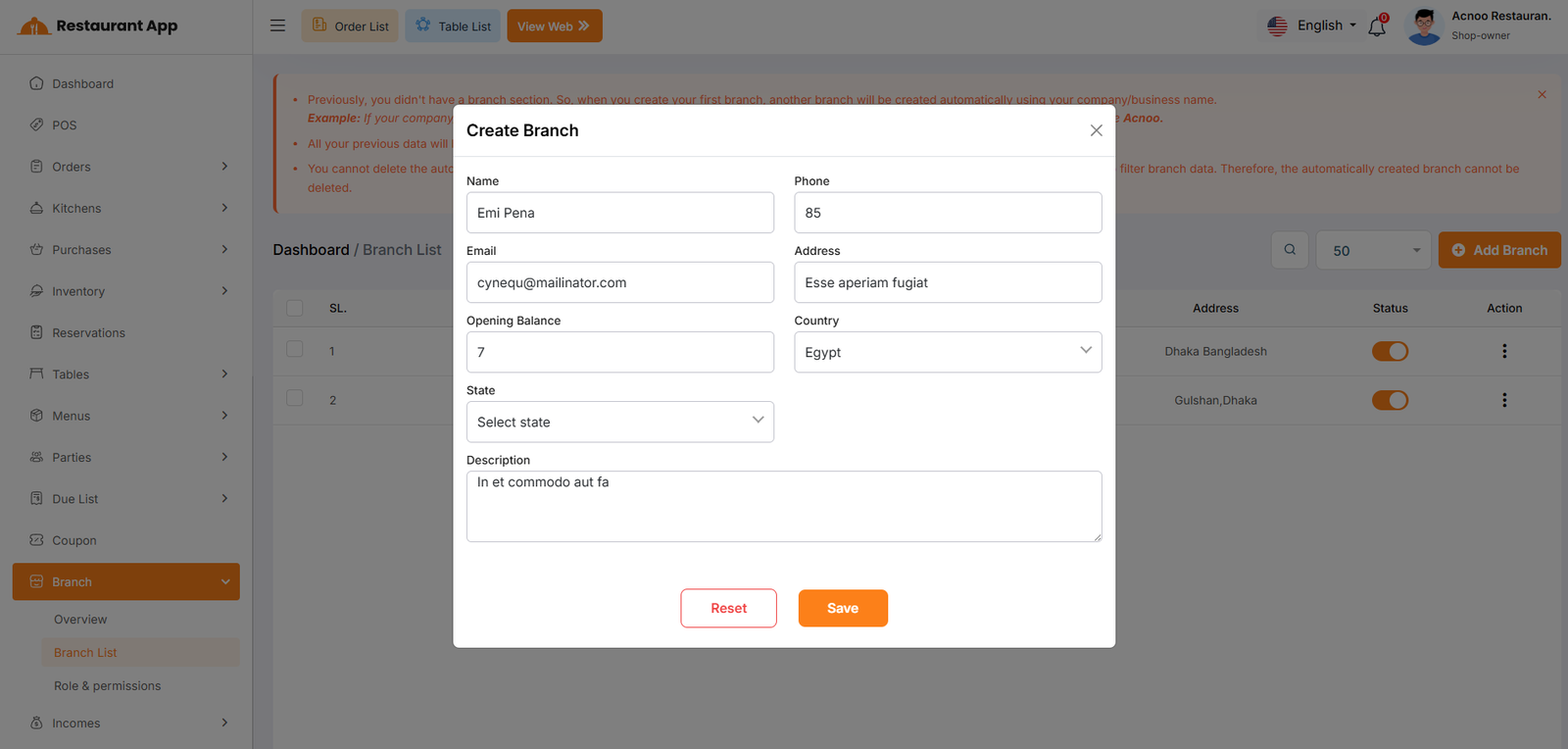
Create New
After clicking on "Add New Branch" a modal will open where you need to fill in the required information. Once completed, click the "Save" button. The new branch will be created successfully, and you will be redirected to the branch list. If you are logged in to a branch, the name of that branch will be displayed in the header.