Getting Started
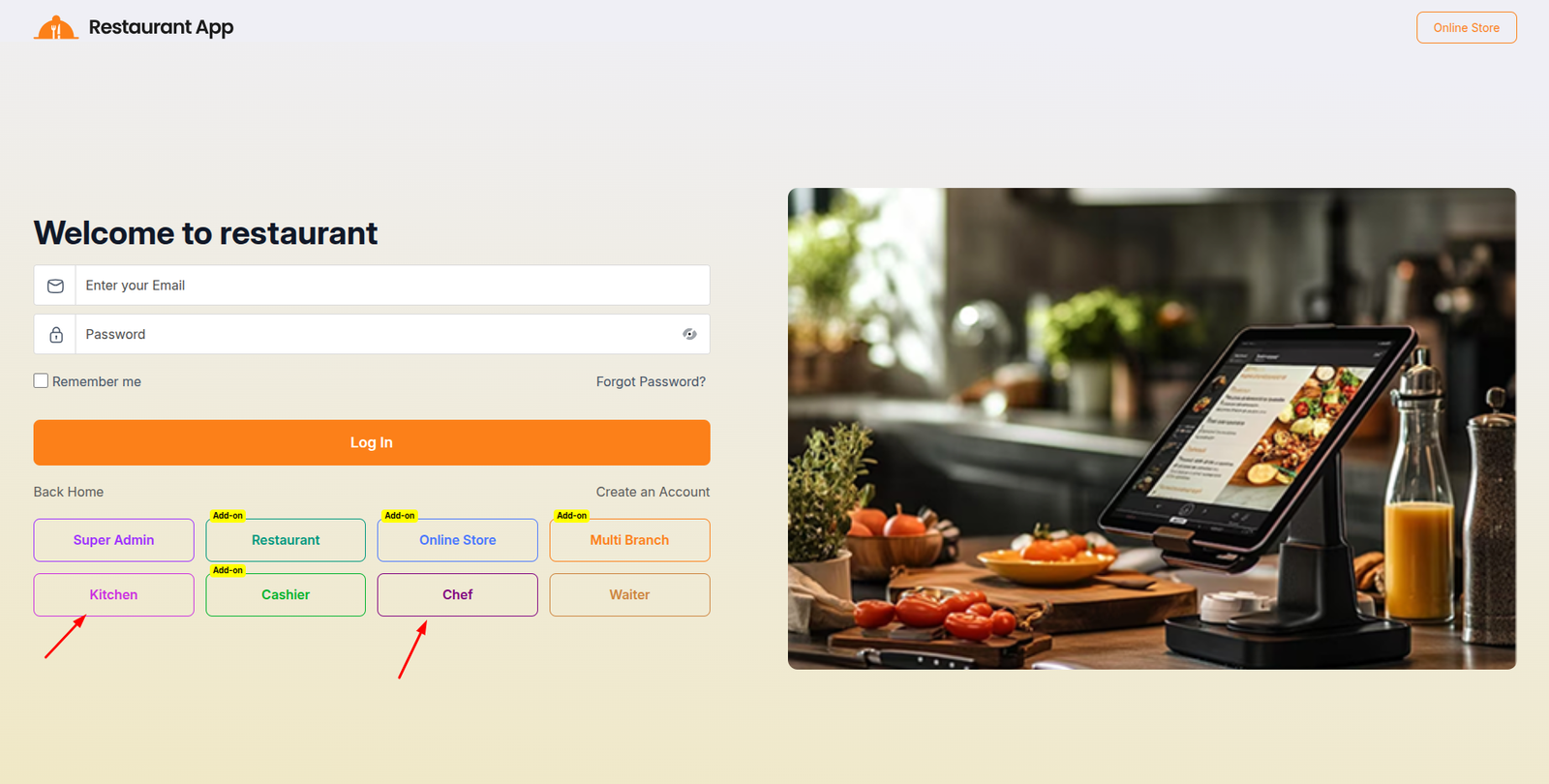
The Kitchen Panel Login page is the secure entry point for culinary staff to access the restaurant's real-time order management system. This specialized portal ensures that the kitchen team can view, process, and update the status of incoming food orders efficiently.
Step 1: Add Staff Member and Assign Designation
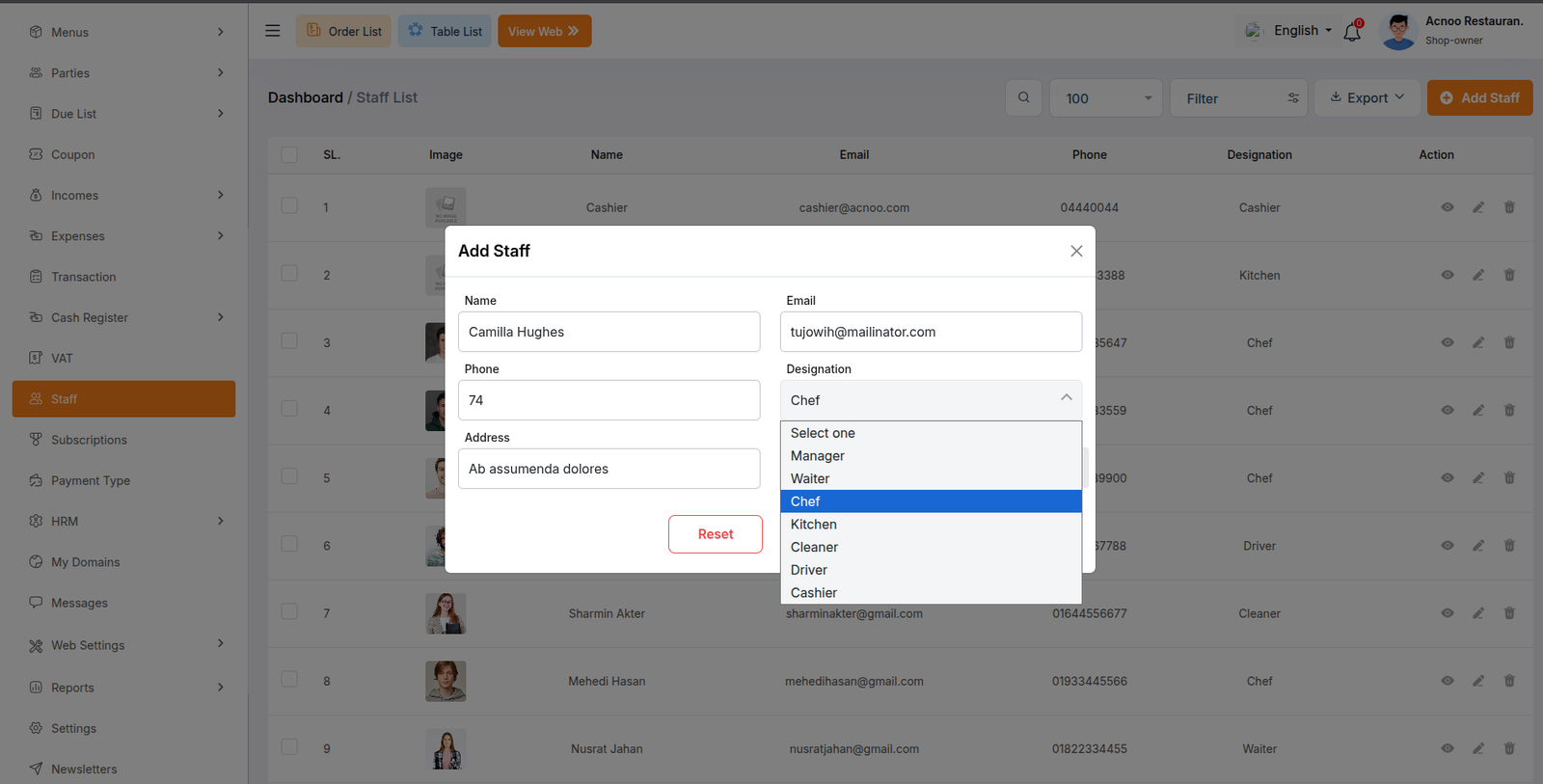
Before creating a user role, the individual must first be added to the staff list with the correct designation (Chef or Kitchen).
- Navigate to the Staff section from the left-hand sidebar menu.
- Click on the Add Staff button located at the top right corner of the dashboard.
- Fill out the required staff details in the modal form:
- Name: Enter the staff member's full name (e.g., Camilla Hughes).
- Email: Provide a valid email address.
- Phone: Enter the contact number.
- Address: Input the physical address.
- Designation: Click the dropdown menu and select either Chef or Kitchen based on their role.
- Save the entry to register the staff member.
Step 2: Navigate to Role & Permission Settings
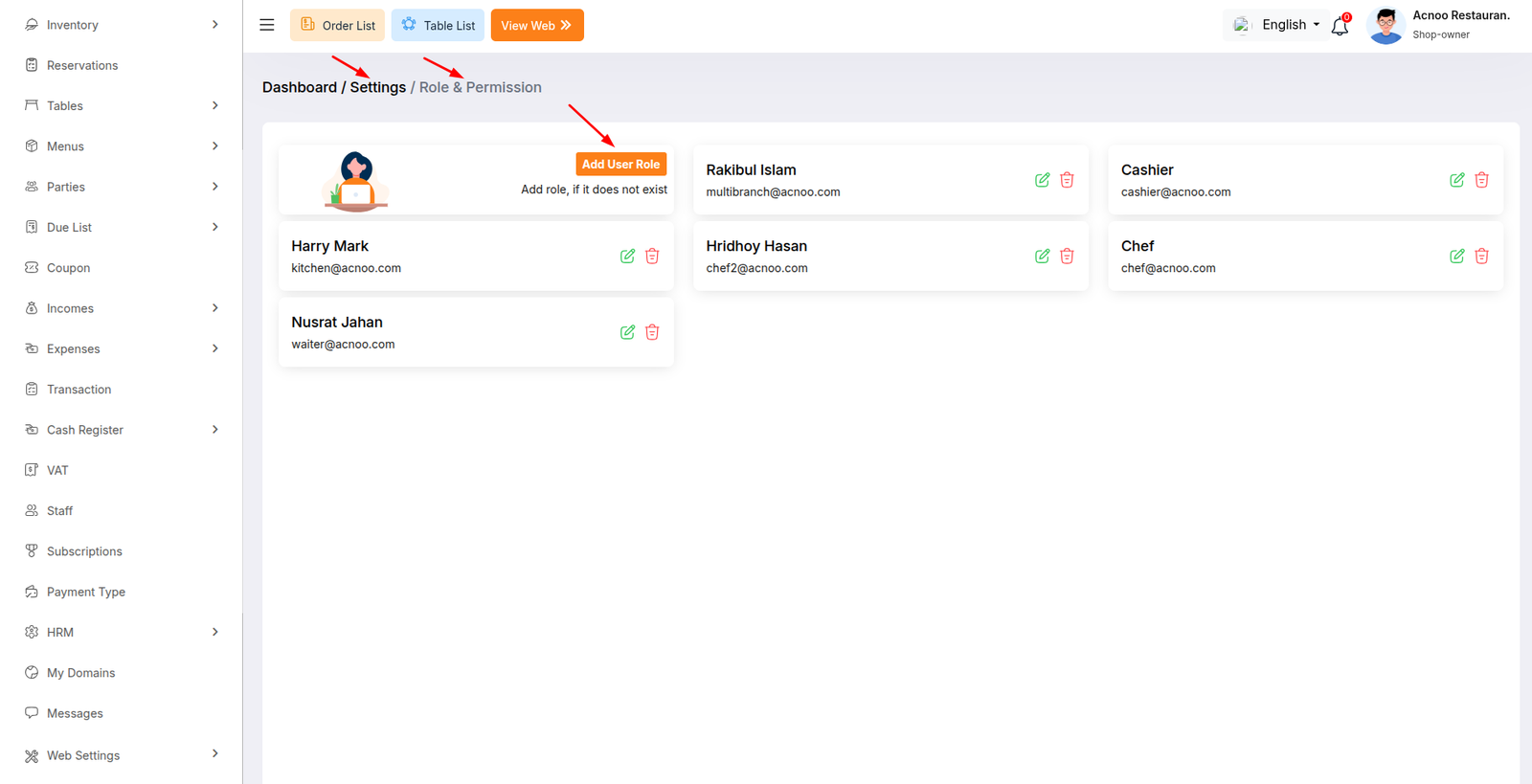
Once the staff member is created, proceed to the Role & Permission settings page.
- Locate and click on Settings in the main sidebar, then select Role & Permission.
- You will be directed to the
Dashboard / Settings / Role & Permissionmanagement screen. - Click on the Add User Role button to open the role creation interface.
Step 3: Configure Login Credentials and Permissions
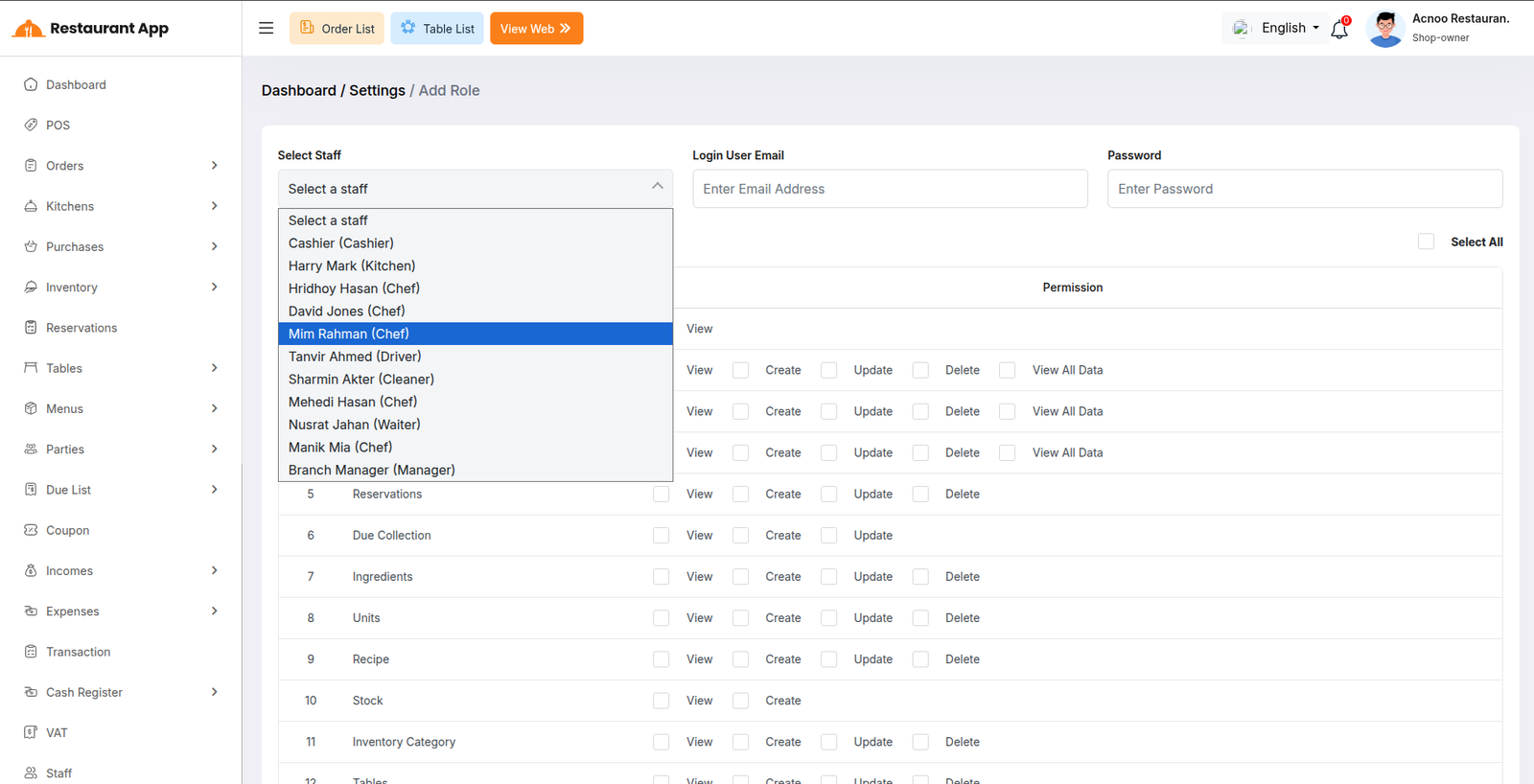
After clicking "Add User Role", you will land on the Dashboard / Settings / Add Role page where you can map the newly created staff member to login parameters.
- Select Staff: Click the Select Staff dropdown menu to view the list of registered personnel. Choose the specific staff member you added in Step 1 (e.g., a staff member designated as Chef or Kitchen, such as Mim Rahman (Chef) or Harry Mark (Kitchen)).
- Login User Email: Input the designated login email address in the Enter Email Address field.
- Password: Enter a secure password in the Enter Password field for system access.
- Permissions: Configure module-specific permissions (such as
View,Create,Update,Delete, orView All Data) by checking the appropriate boxes corresponding to the user's operational needs. You can also toggle Select All if full permissions are required. - Save the configuration to finalize creating the user role for the chef or kitchen staff member.
Note
Kitchen and chef navigate the same panel and their work functionality are same.